
Soul Dial — Getting Started
Walk through initial setup, configuring your first game, and everything in between. This guide follows a traditional 4-player Magic: The Gathering commander game.
First-Time Setup
Name your device Motion
A randomized device name is given to you on first boot. You can regenerate a new name, or type your own by clicking Edit.
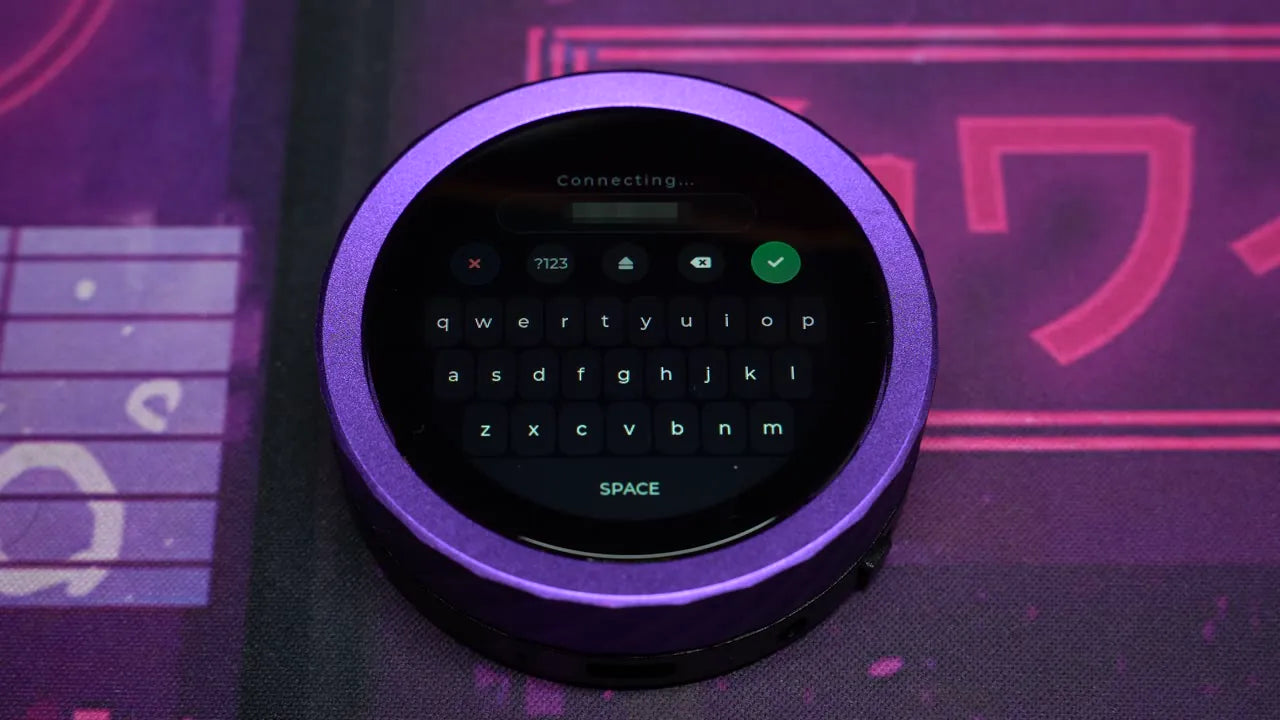
Connect to Wi-Fi & register
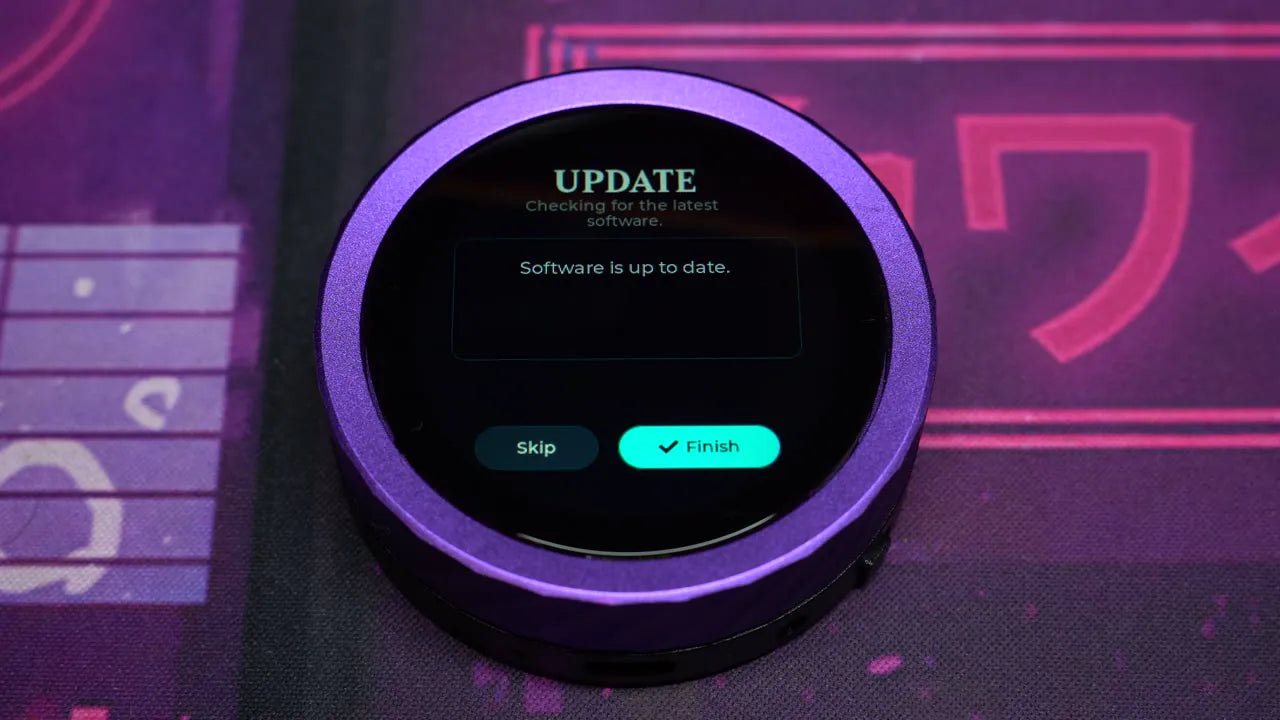
While it isn't required to operate, we strongly advise logging into Wi-Fi to check for updates — the team regularly pushes hardware optimizations and new functionality. Don't forget to register your device, too.
Starting a New Game
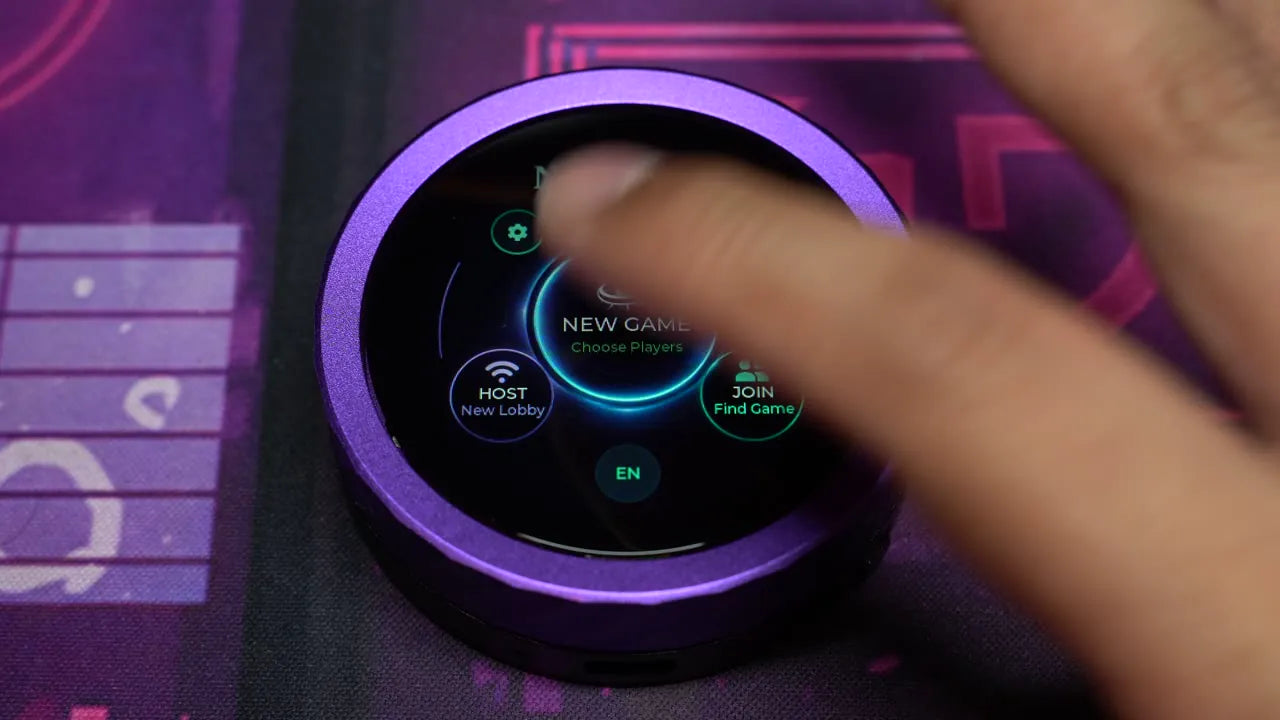
Click New Game
From the home screen, select New Game to begin.
Set your player count
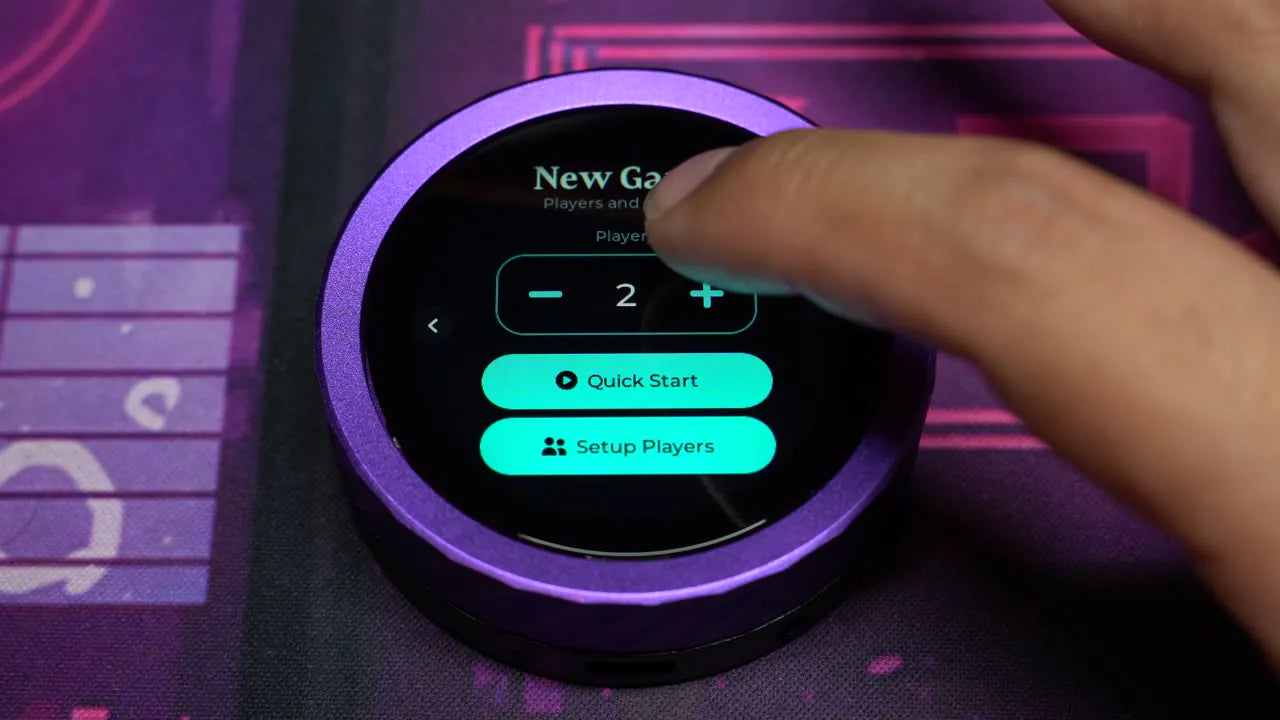
The player count starts at 1. Change it to a traditional 4-player commander game. You can jump in with Quick Start, but we'll click Set Up Players to configure everyone.
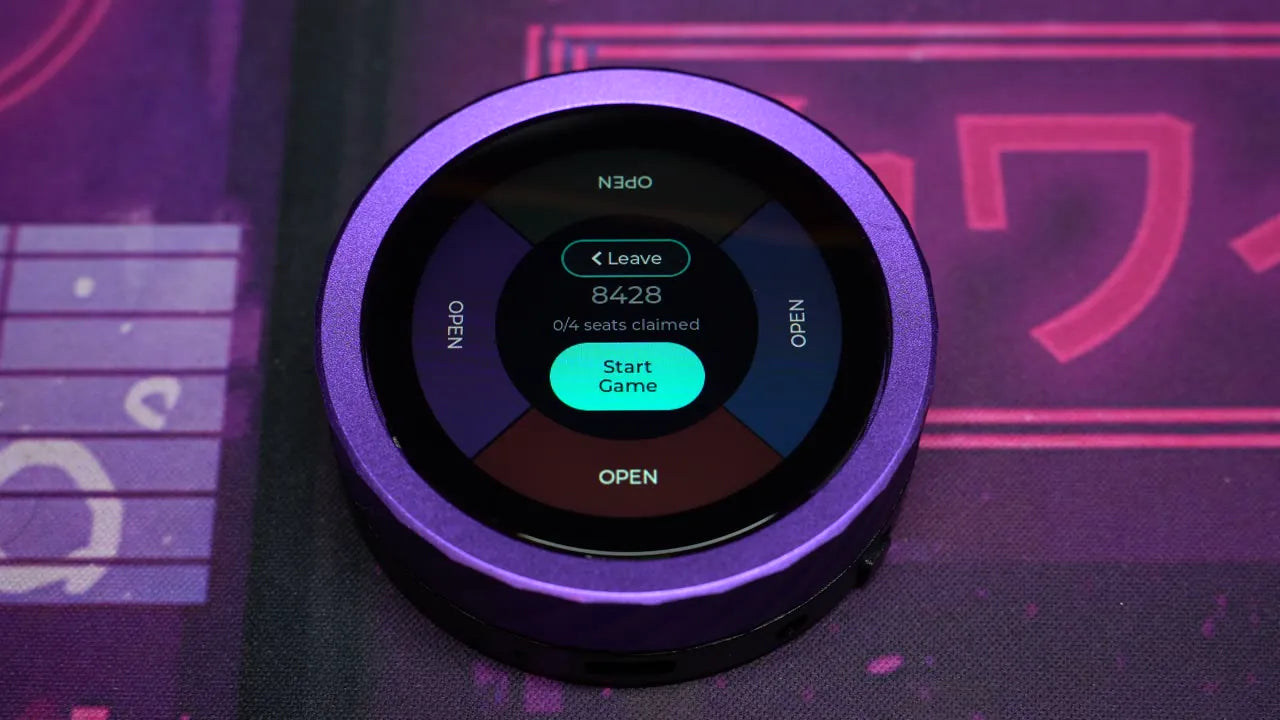
Configuring Players
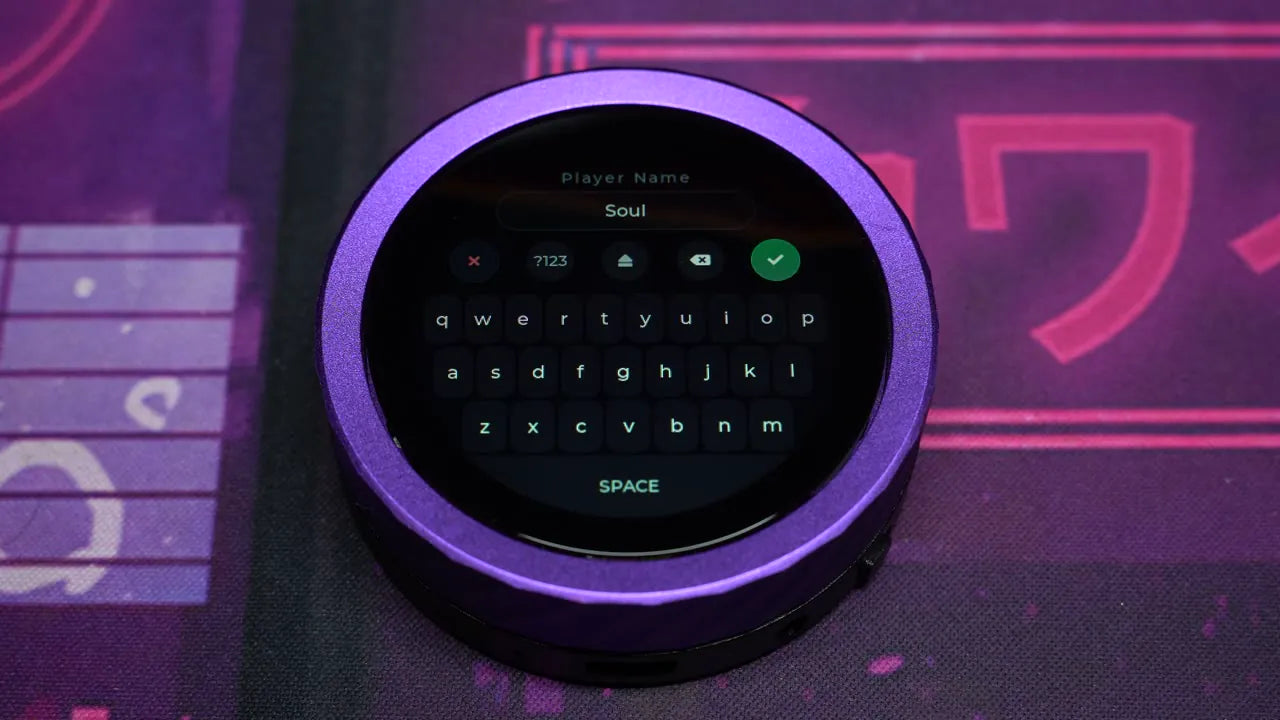
Step 1 — Choose a name
Default to Player 1, or type a custom name using the onscreen keyboard.
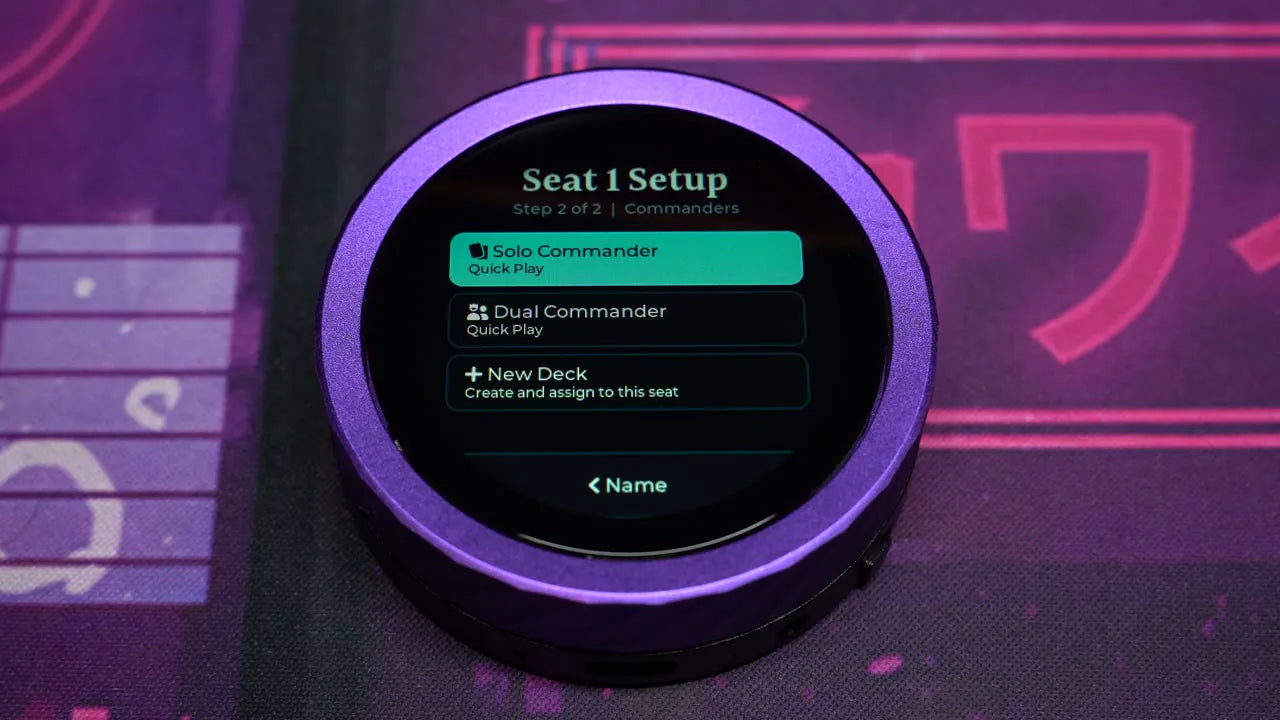
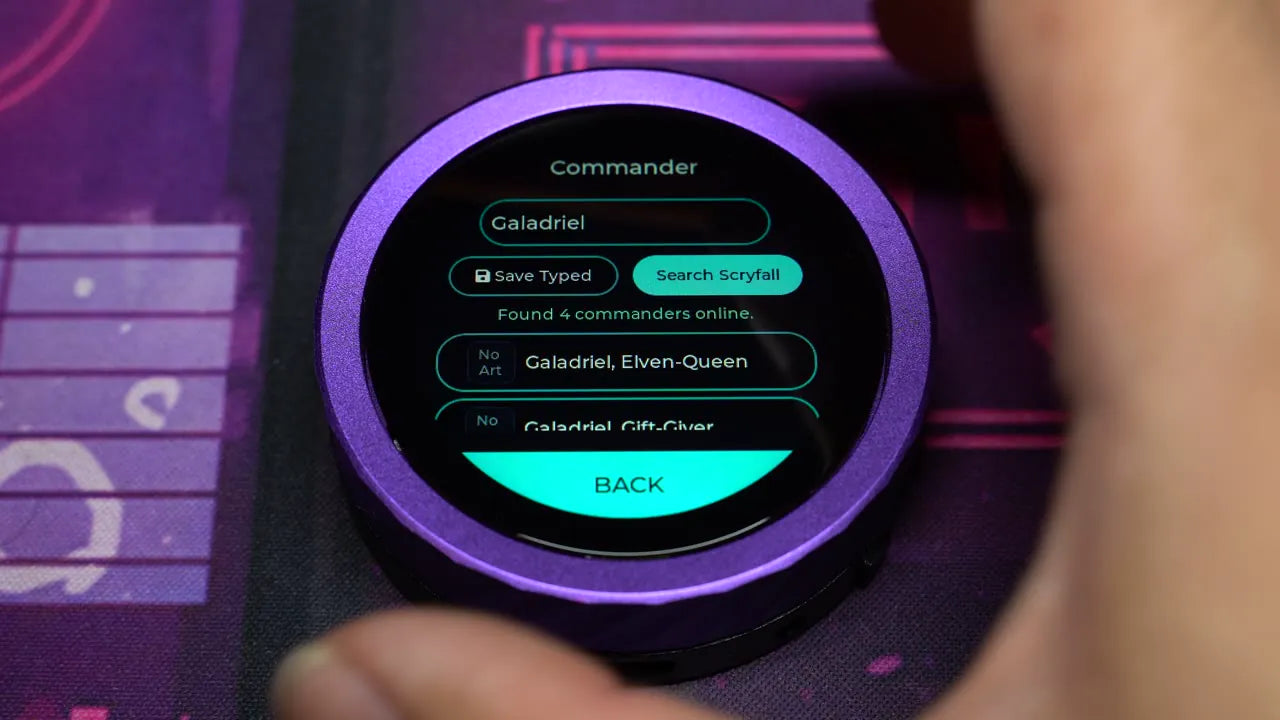
Step 2 — Assign a commander
Pick a Quick Play Solo or Dual Commander — or configure a new deck. Tap Edit Name, then Search Skyfall to find your commander. If multiple results appear, scroll to find the exact card, then click Save Deck.
Customize seat color Motion
Click a player wedge for more options — delete settings, or tap the droplet icon to change the seat color. Touch the slider at the top or rotate the dial, then fine-tune with the gradient box or pick a default on either side.
Starting the Game
Choose who goes first Motion
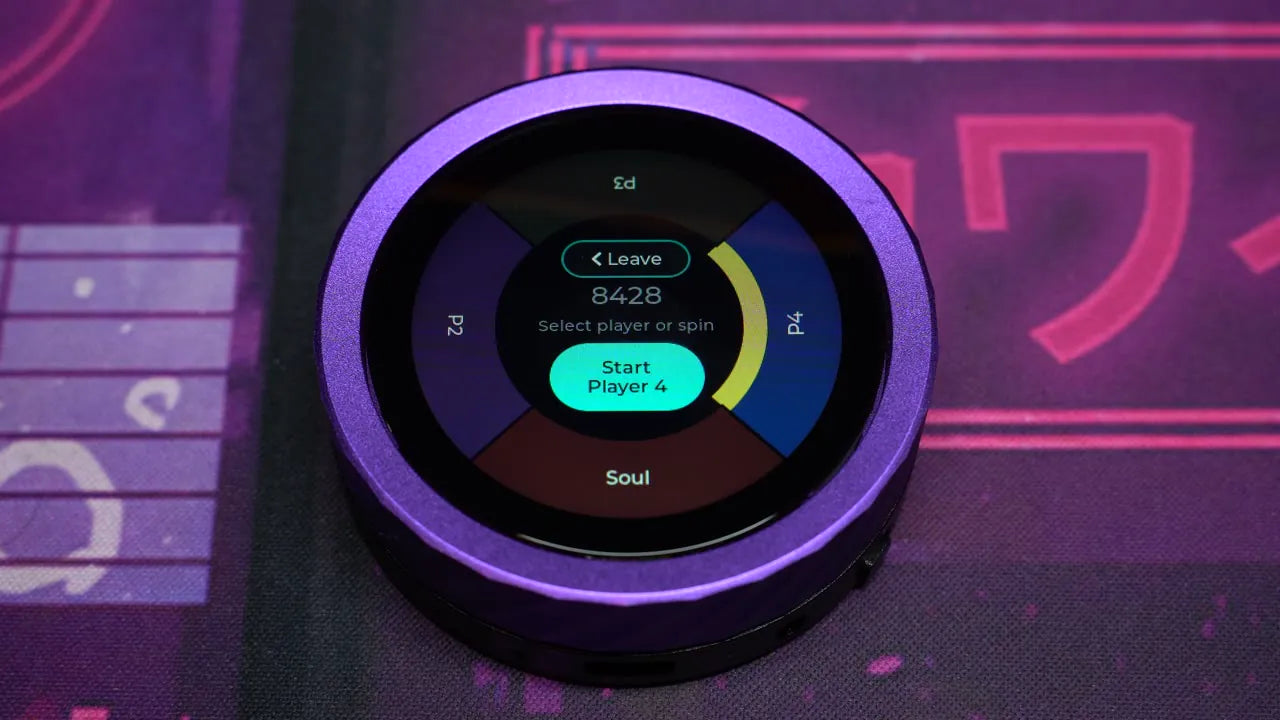
Once satisfied, click Start Game. Select a player to go first, or spin the Randomize button. If you're not happy with the result, you can still pick someone else.
Begin play
When you're ready, select the Start button in the center.
Arena Mode
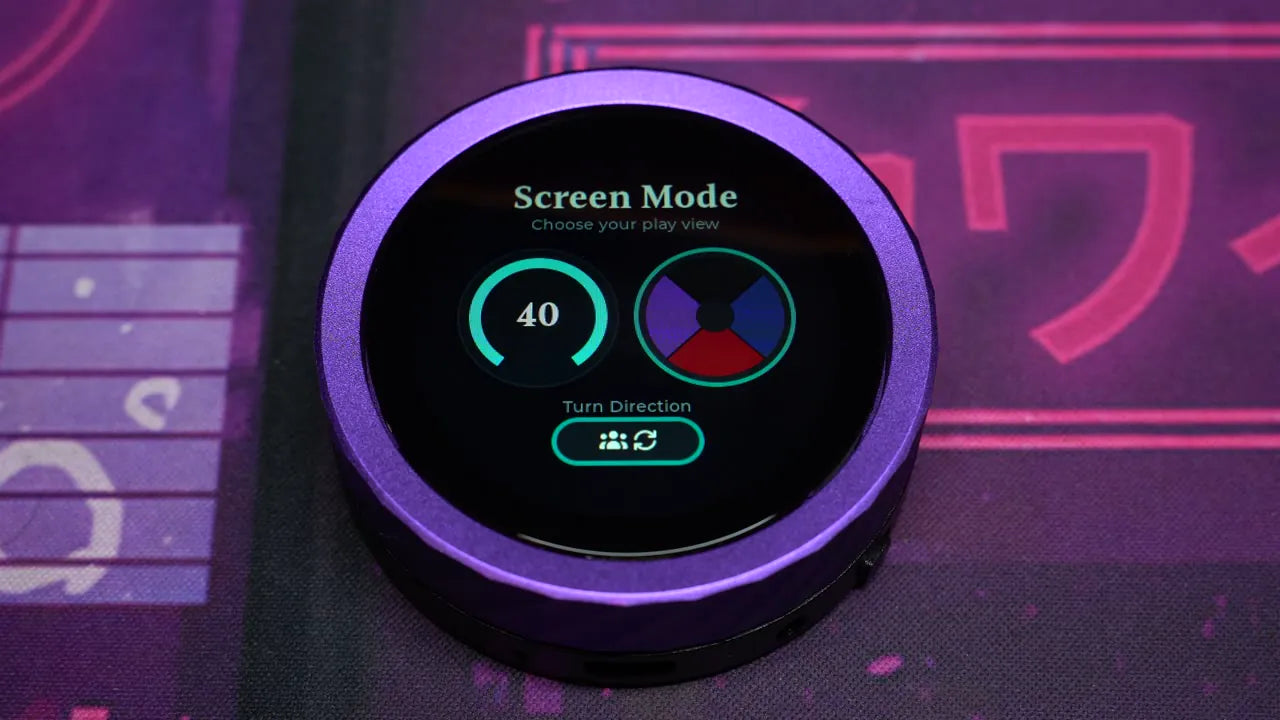
Solo vs. Arena
Main mode offers two options: Solo on the left and Arena on the right. We'll start with Arena.
Adjust life totals
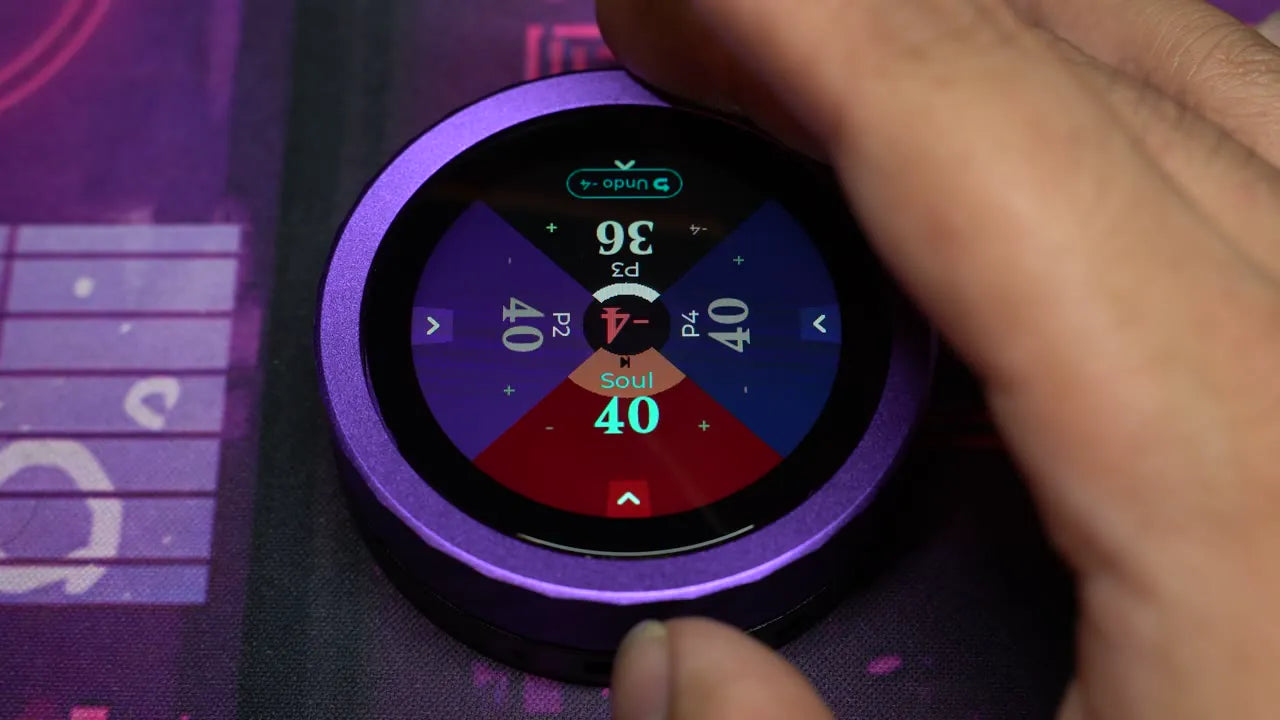
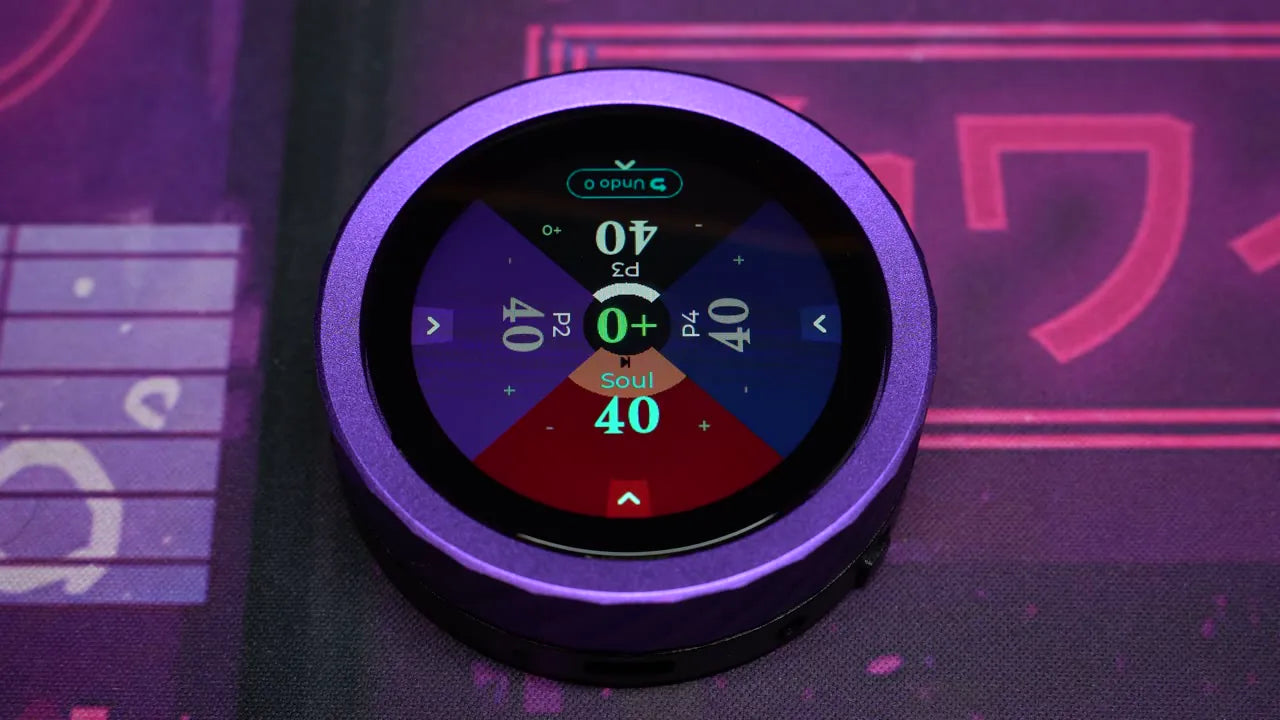
Tap another player's wedge to raise or lower their life total using the on-screen minus/plus buttons or the dial. When it's your turn and you've selected another player's wedge, their name and life text turn teal instead of white.
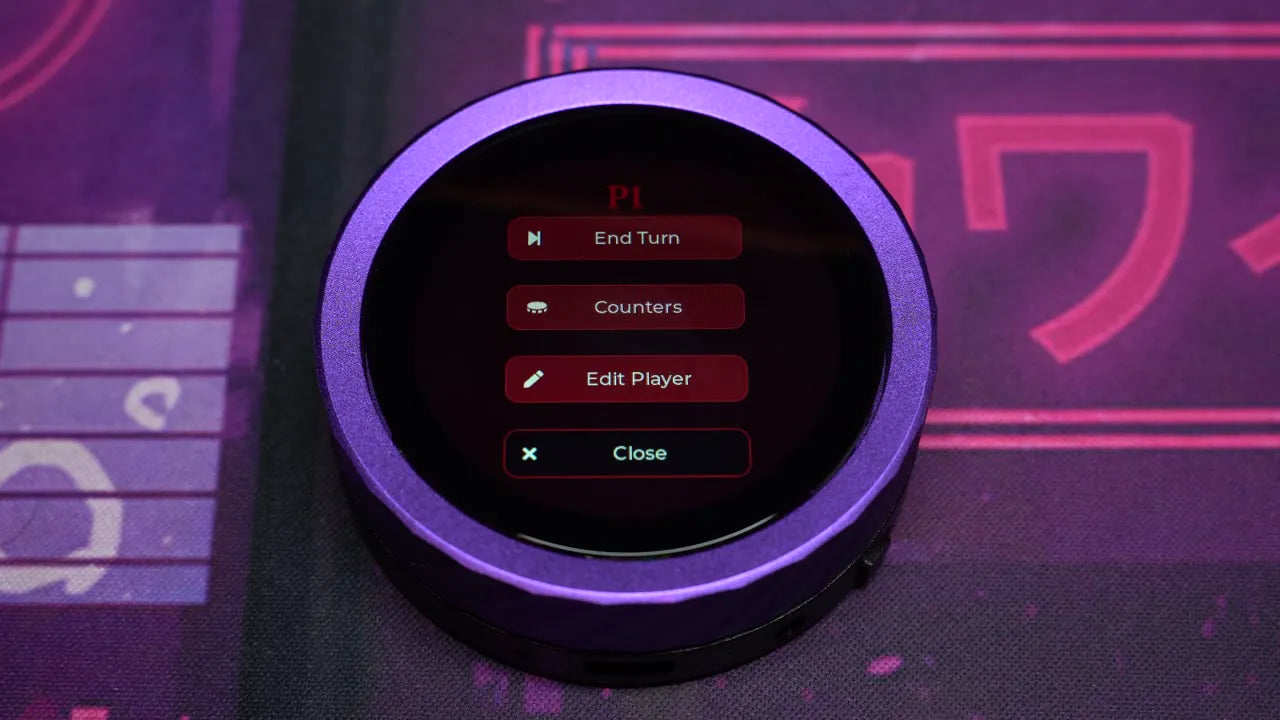
Player options menu
Hold down on any player wedge for a few seconds to bring up its options menu.
Counters & Attacks
Open the counters menu
Click the white arrow at the bottom of any player wedge to open the counters menu. Scroll with your finger or rotate the dial to view different options. Certain counters, like the monitor, can be dragged from player to player.


Attack another player Motion
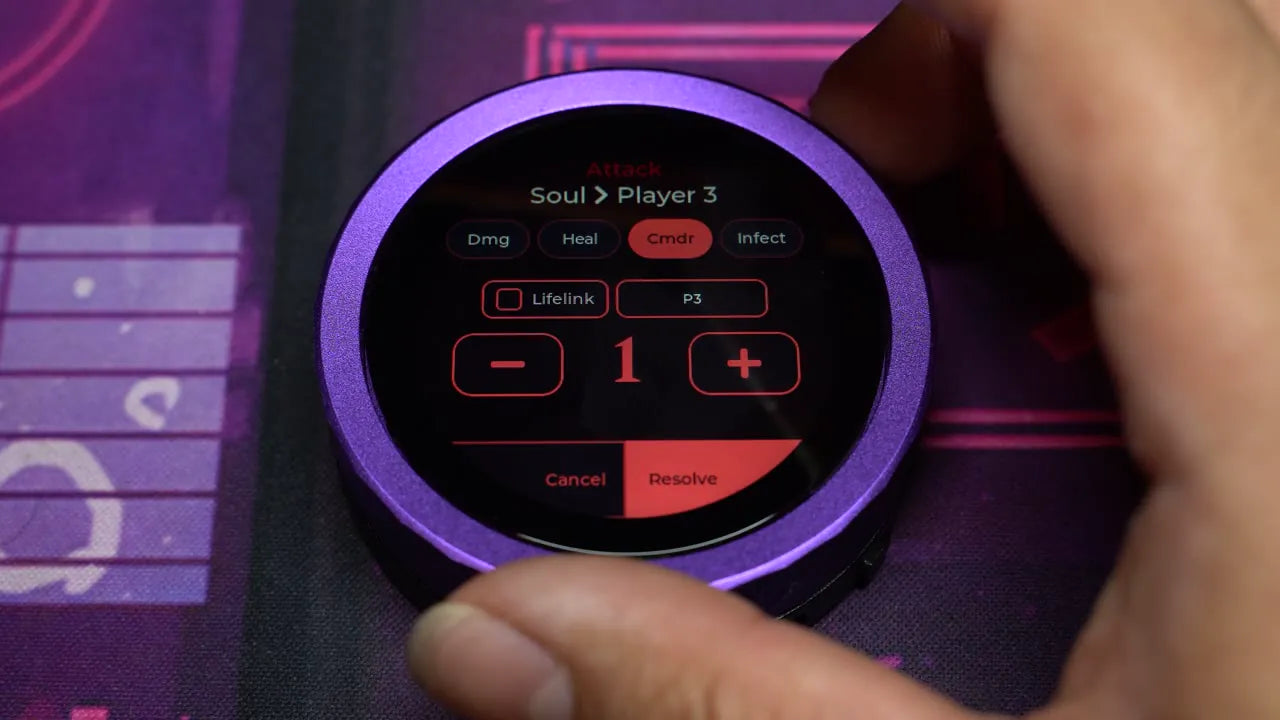
Drag from one wedge to another to bring up the attack screen. Here we deal 5 commander damage to Player 3. To hit multiple players at once, open the target menu and toggle all damaged opponents. You can also toggle lifelink from here.

Advance the turn
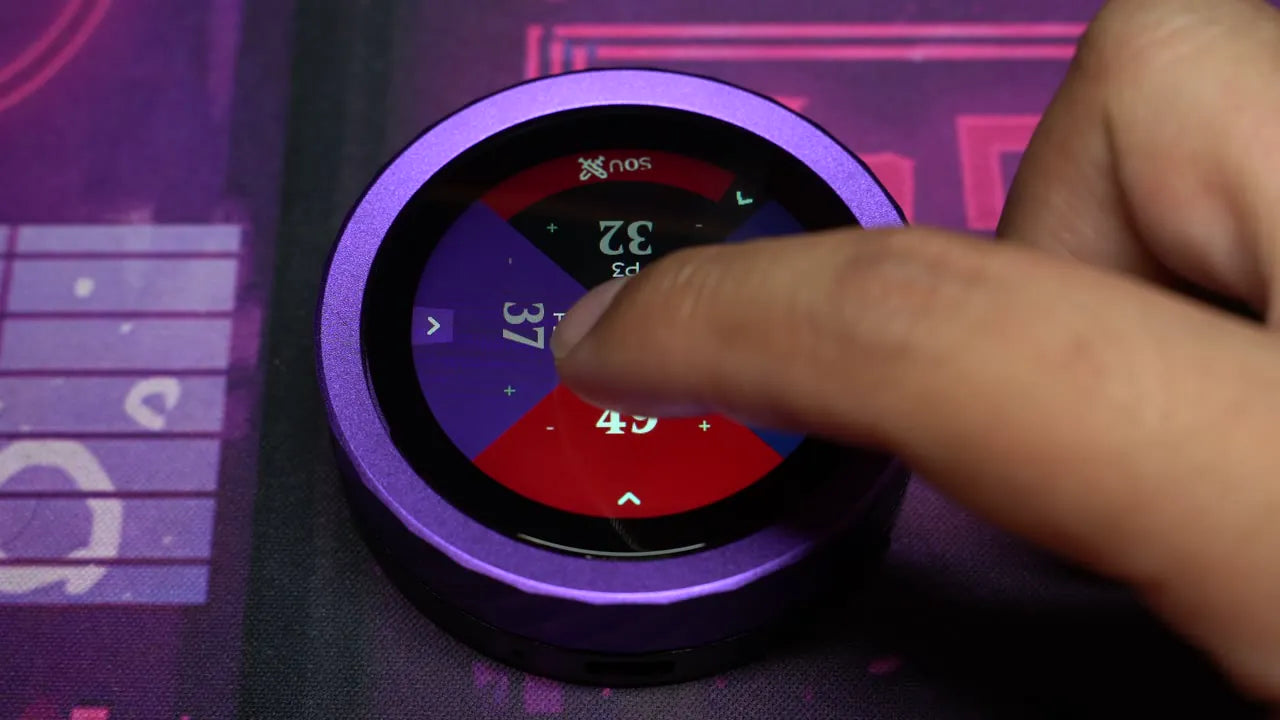
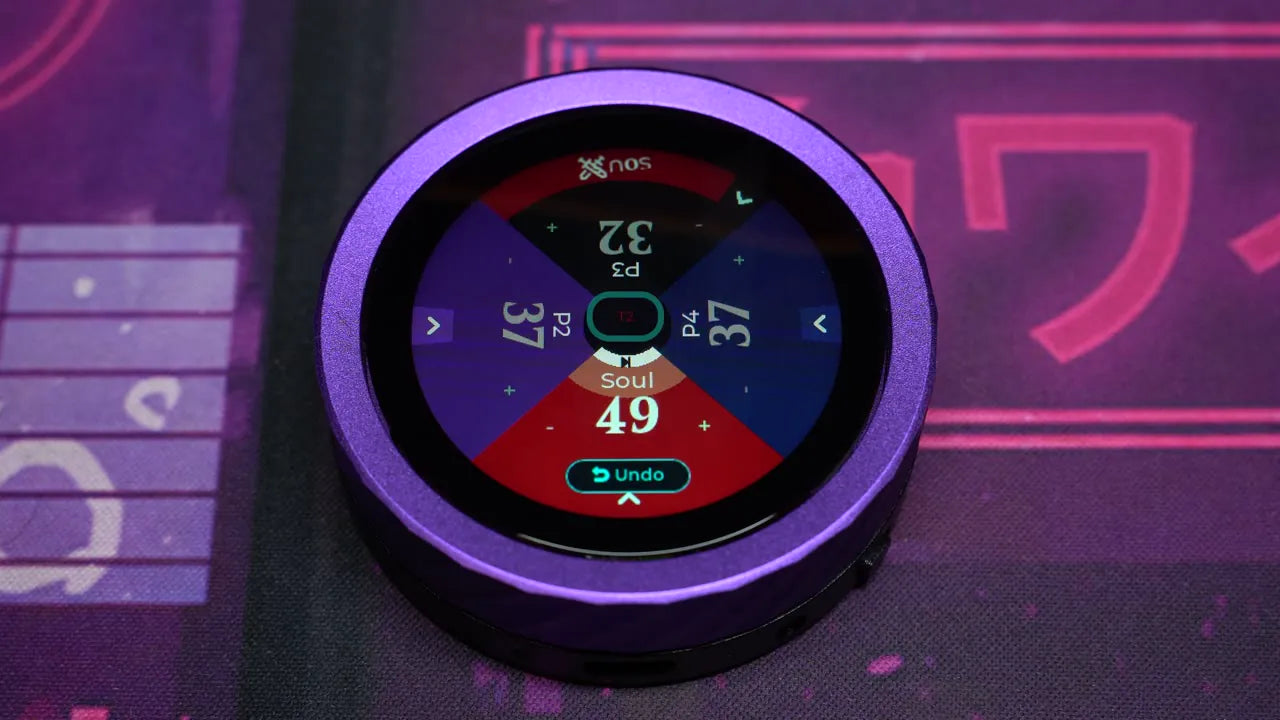
Select the white collar at the top of a player wedge to advance the turn. Once every player has taken their turn, the turn counter in the center goes up.
In-Game Options
Open the options menu
Tap the center of the arena screen to bring up the options menu. Here you can see your battery life and whether wireless sync is enabled.
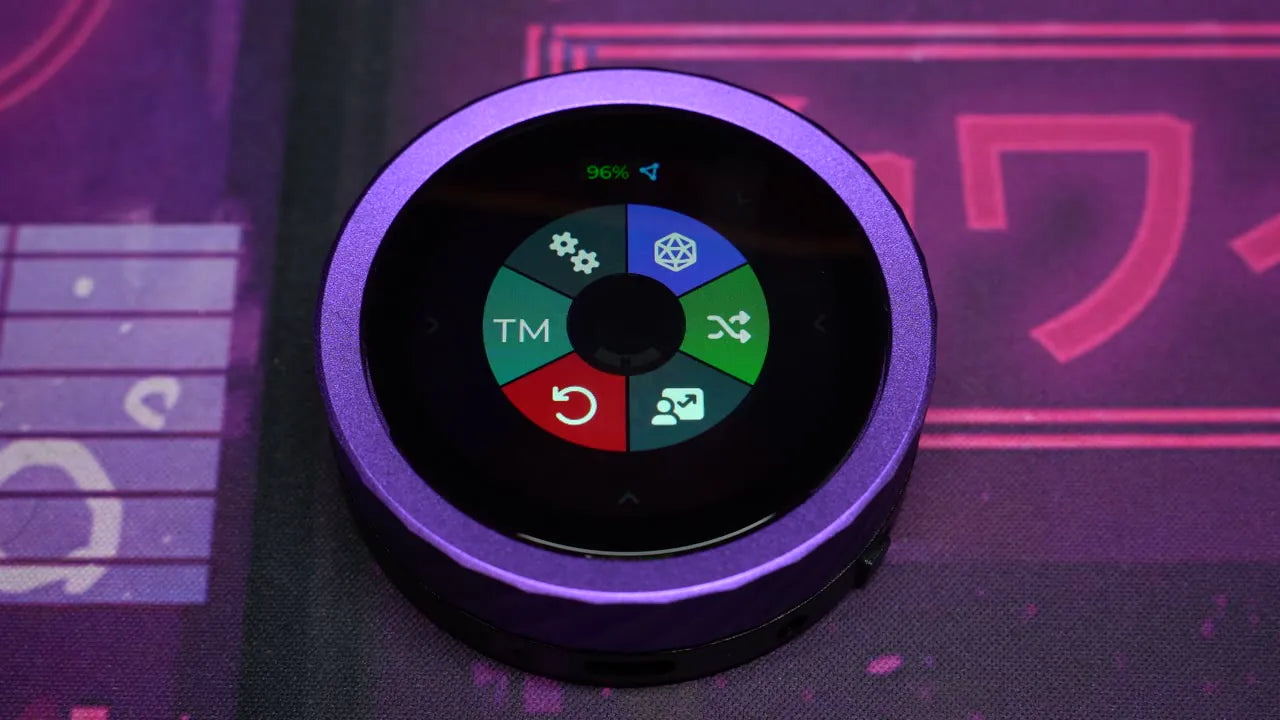
Dice & analytics Motion
Select the D20 icon for a dice-rolling menu. The analytics icon brings up past game history, current game duration, and an action log with charting.
System settings & battery
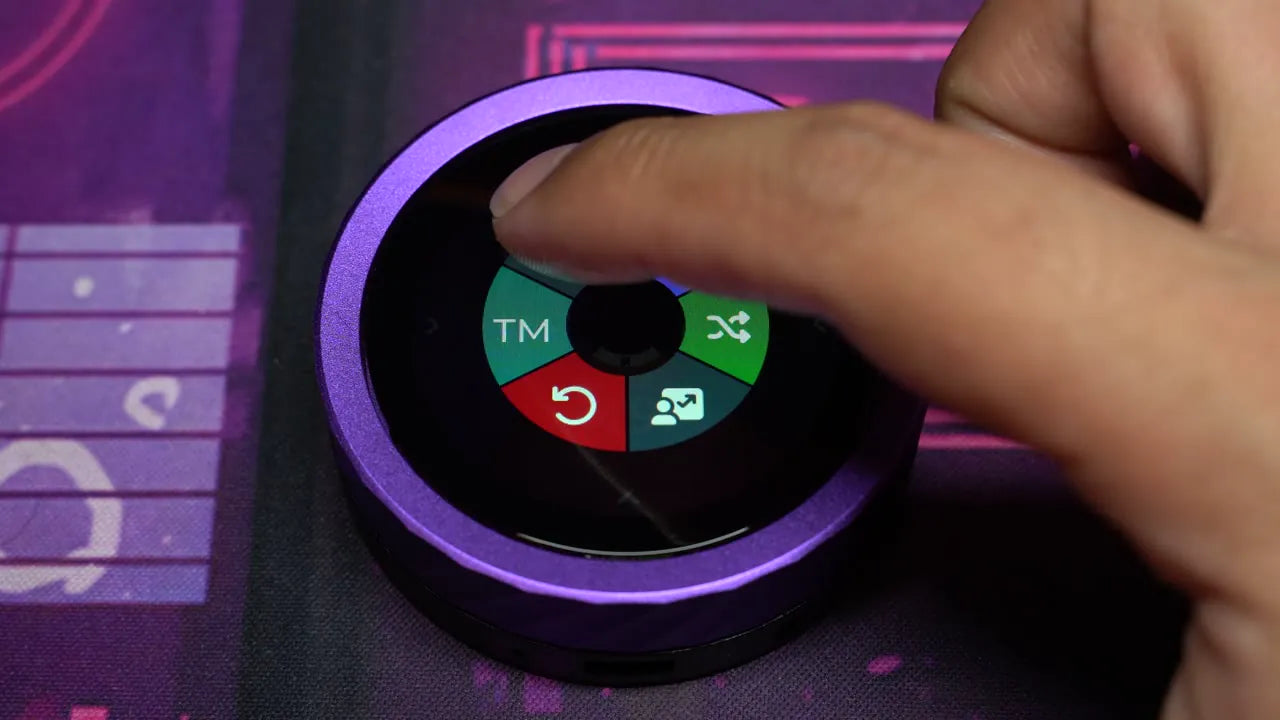
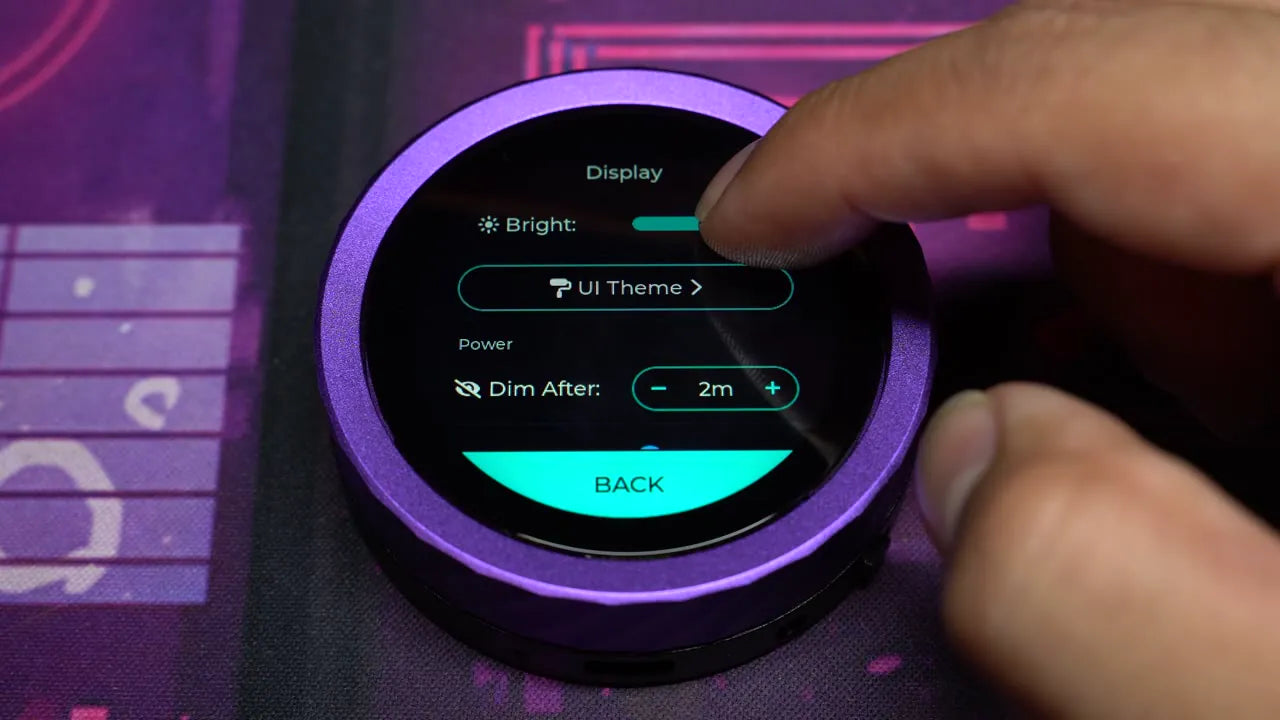
Click the gear icon for system settings — no need to close your active game. Scroll or rotate the dial to browse. Turn off wireless sync when you're not connected to other devices, and lower brightness or adjust the screen's dim-after setting to save battery.
Solo Layout
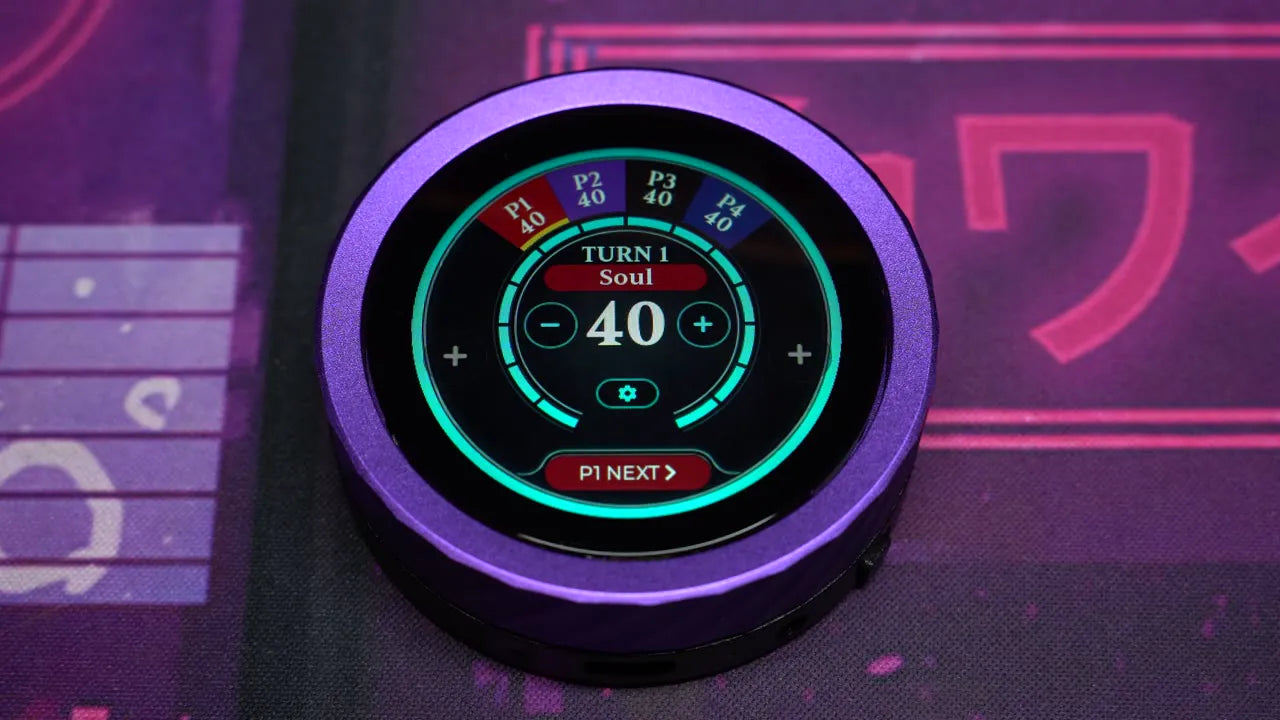
The solo view Motion
Open the counters menu by tapping the plus sign on either the left or right side of the screen. Just like in Arena, you can drag from a player wedge to an enemy wedge to open the attack menu. The highlight of solo view is the much larger next player button.
Welcome to Soul Dial
Welcome to Soul Dial
A practical owner guide for Soul Dial. Start with the FAQ, or jump to what Soul Dial is and how to use it during a game.
Support FAQ
Common questions grouped by topic. Tap a question to open the answer.
Charging & battery
Is there a charging LED?
No. Soul Dial does not have a separate charging LED. On newer software, an on-screen popup appears when it is plugged in, and battery info is available in Settings and the in-game radial menu.
How do I know if the battery is low?
Battery information is shown in Settings and the in-game radial menu. Please keep your device updated, as recent firmware improves battery life and charging indicators.
My battery died quickly. What should I do?
Update your Soul Dial first. Max brightness, especially outdoors, will also drain the battery faster.
Updates, Wi-Fi & sync
My device will not update or says “Something blocked the update.”
Disable inter-device Wireless Sync, reboot, then try again. If it still fails, use the manual updater on a PC or Mac: updater.souldial.net.
My device says “Coprocessor update failed.”
Please try the update again. If it continues to fail, use the manual updater: updater.souldial.net.
Does Soul Dial need 2.4 GHz Wi-Fi?
If you are having trouble connecting, try a 2.4 GHz network or a mobile hotspot, then run the update.
One Soul Dial is not staying in sync with the others.
Update all devices. If one still lags or fails to sync, switch that device to the Beta release channel in Wi-Fi settings, install the Beta version, and test again.
Gameplay & features
Does Soul Dial support 5–6 players?
Yes. One Soul Dial can support up to 6 players. With 5–6 players the display can get more compact, but it is supported.
Can Soul Dial do multi-opponent pinging?
Yes. Drag from one player to the centre to target multiple players. You can also start a player-to-player drag and edit the selected players from the attack resolve screen.
Which way should the dial turn?
Clockwise should increase numbers, and anti-clockwise should decrease numbers. If your device behaves differently, update the firmware.
Does commander artwork or Scryfall image support work yet?
Not yet. We plan to add artwork support in a future update.
Is a larger Soul Dial model coming?
We are exploring it with factories, but it is still a fair way off.
Hardware, display & lockouts
Is light bleed around the screen normal?
A small amount can occur. The screen uses a backlight with a black film layer. Recent software rotates the display 90 degrees to make it less noticeable.
The glass or screen is lifting. What should I do?
Please send clear photos showing whether the screen itself is lifting or whether it is coming up with the base plate. We’ll help with the next step.
What is the touchscreen made of?
The touchscreen and screen protector are both made of glass.
I’m locked out and it asks for a PIN or master PIN.
Email us the code shown on the device. We can help generate the unlock PIN. After unlocking, disable the PIN and update the software.
Is there a user manual?
We’re still working on the full manual and basic instructional videos.
Buying, discounts & stores
Where can I buy Soul Dial?
You can order directly from our store: Shop Soul Dial.
Can I choose the colours in a 4-pack?
Yes. Choose the colours on the product page. If the selection does not look right, contact us and we can help adjust it manually.
Is there a discount for buying 4 or more?
Yes. Orders of 4 or more Soul Dials receive a 10% discount.
Do you offer wholesale for LGS or WPN stores?
Yes. Local game stores can apply here: https://souldial.net/pages/lgs-signup.
Can I change the payment method on an existing order?
Shopify does not allow us to change the payment method on an existing order. We can cancel the order so you can reorder using your preferred card.
What is Soul Dial?
Soul Dial is a dedicated tabletop tracker for games like Commander. It replaces loose dice, phone apps, and scattered counters with a purpose-built device for life totals, commander damage, counters, turn flow, and game state changes.
Cleaner table
Keep important game information in one readable place.
Built for multiplayer
Track life, damage, counters, and turn flow without relying on everyone’s phone.
How to Use Soul Dial
A quick guide for the Arena game screen.
Arena game screen
- Add counters by swiping in from a player wedge edge, or clicking the arrow.
- Tap and hold on a player to open that player’s menu.
- Some counters are tap-to-edit; some increment by default.
- You can always tap and hold a counter chip icon to edit its count.
- Monarch and Initiative can be dragged between players.
Resolve attacks
Dragging from one player to another brings up the attack resolve screen.
- Assign different damage types, including commander damage.
- If a player has dual commanders, Soul Dial will ask which commander dealt the damage.
- Drag to the centre to allocate damage to multiple players.
- You can also start any player-to-player drag, then edit the selected players.
Turn timers
- Swipe in from the centre on the next player to activate their turn.
- Swipe in again to open the turn player’s menu.
- Tap the timer collar near the player name to go to the next player.