

Welcome to Soul Dial
Contents

Your whole game,
on one dial.
Everything you need to set up, play and get the most out of your Soul Dial: life totals, counters, wireless games, D&D mode and more.
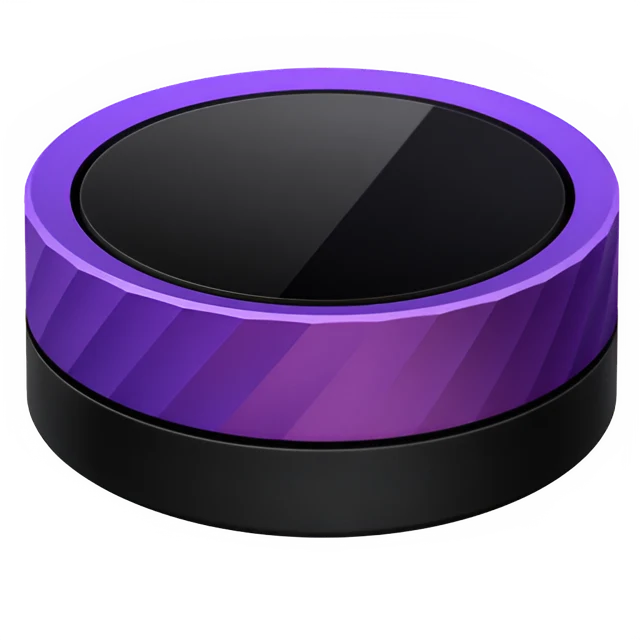
On / off
Slide the switch on the side to turn your Soul Dial on or off.
Tap to select
Tap the round touchscreen to choose New Game, Host or Join.
Turn to adjust
Turn the dial clockwise or counterclockwise to change a life total or score.
Tap the center
In a Solo game, tap the life total to open the game menu. In Arena, hold the center.
Controls at a glance
First-time setup
The first time you turn on your Soul Dial, a short setup wizard walks you through the basics. You can change every choice later in Settings.
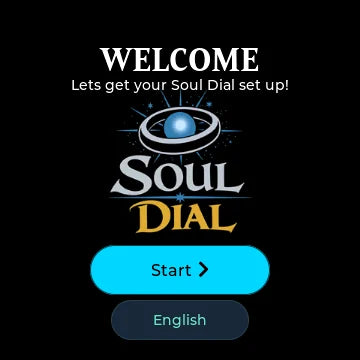
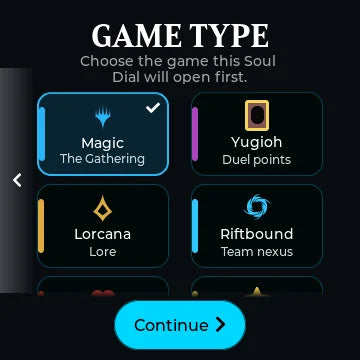
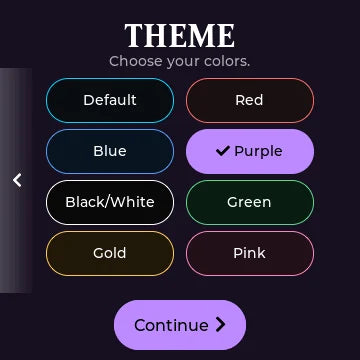
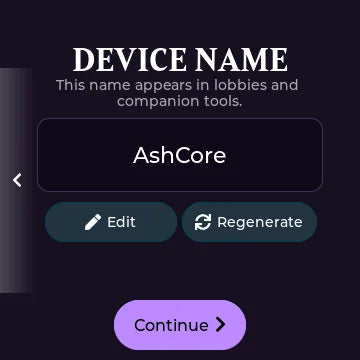
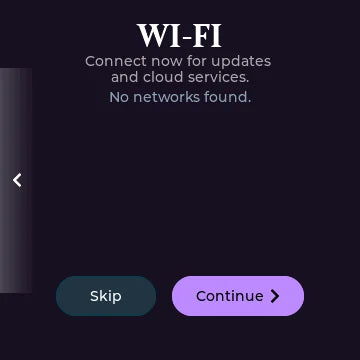
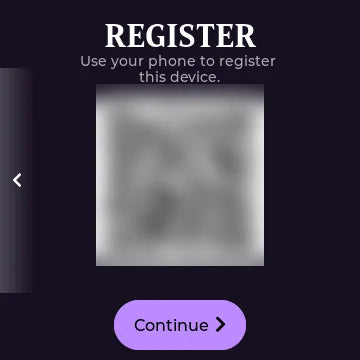
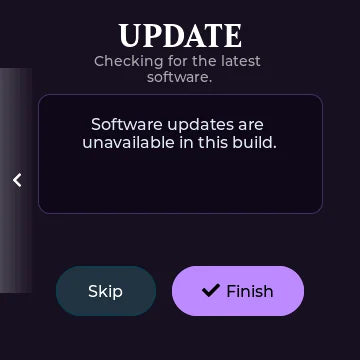
Wi-Fi and registration are optional: tap Skip to play straight away. Everything you need for a game works without Wi-Fi, including wireless games with other Dials.
To run the wizard again, go to Settings → Device → Setup Wizard.
The home screen
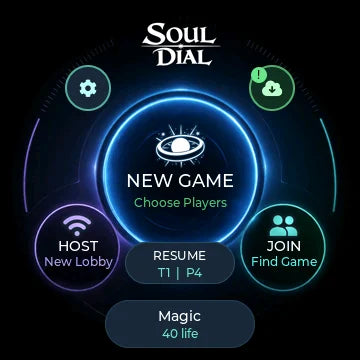
Home is where every game starts. It shows your current game type and lets you start, host, join or resume a game.
-
1Settings. Every option on the Dial. See the Settings reference.
-
2Software update. Appears when an update is ready. Tap it to install.
-
3New Game. Start a game on this Dial.
-
4Host. Open a lobby for a wireless game with other Dials.
-
5Join. Find a nearby lobby or enter a room code.
-
6Resume. Pick up an unfinished game after the Dial was turned off. Shows the turn and player count.
-
7Game type. Tap to change the game and its rules, for example Magic at 40 life.
Starting a game
From home, a new game takes about three taps. Here's the full path.
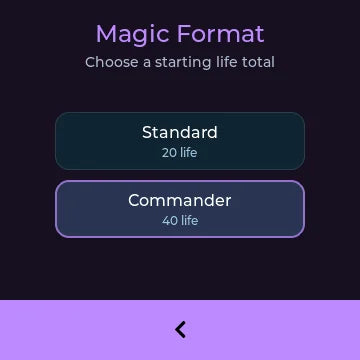
- Choose the game. Tap the game pill at the bottom of home and pick a game type. Some games then ask for a format, such as Standard (20 life) or Commander (40 life) for Magic.
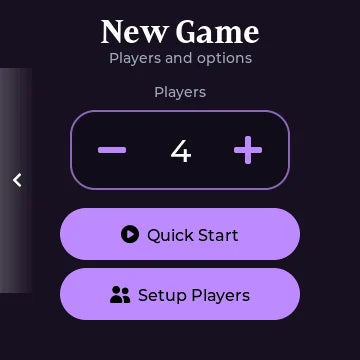
- Tap New Game. Set the number of players (1 to 6) with − and +.
- Quick Start or Setup Players. Quick Start uses default names. Setup Players lets each seat pick a name and a deck first (see Players & decks).
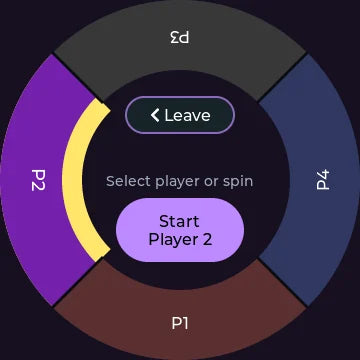
- Pick who goes first. Tap a player, or tap Randomize to spin. Then tap Start Player N.
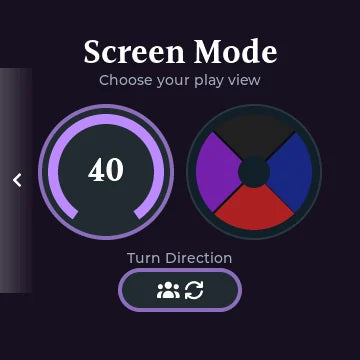
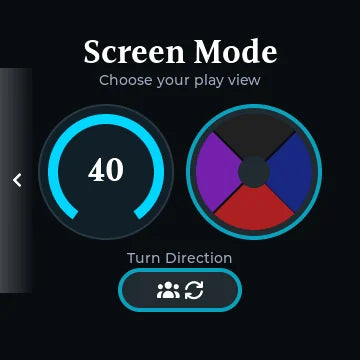
- Choose your view. On the Screen Mode page, pick Solo (one big life total), Arena (everyone around the circle) or Minimal (the biggest life total, nothing else until you need it). Turn Direction sets clockwise or reverse turn order.
Solo view
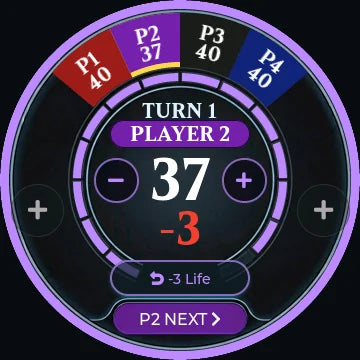
Solo shows one player at a time in big numbers, with everyone's life along the top. It's ideal when each player has their own Dial, or when you pass one Dial around.
After each change, the amount appears in a small undo pill at the bottom of the life ring (for example ↶ −3, red for damage and green for gain). Tap it to take the change back, or swipe it away.
Minimal view
Minimal is the plainest way to track life: a much bigger life total inside a thick ring around the edge. Pick it on the Screen Mode page, or later in Settings > Game > Game Screen.
Arena view
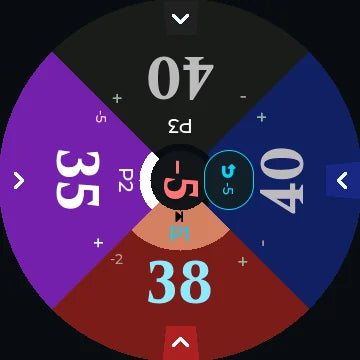
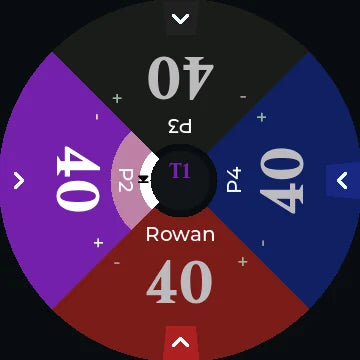
Arena puts every player around the circle, facing their own seat. One Dial in the middle of the table runs the whole game.
Attacks
Drag from one player's section to another's to open the Attack screen. Choose the kind of hit, set the amount with −/+ or the dial, then tap ✓.
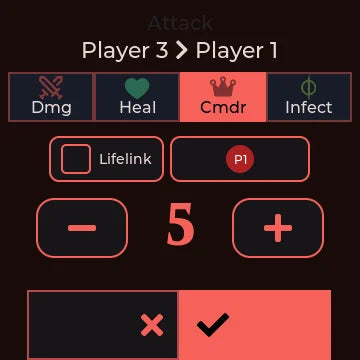
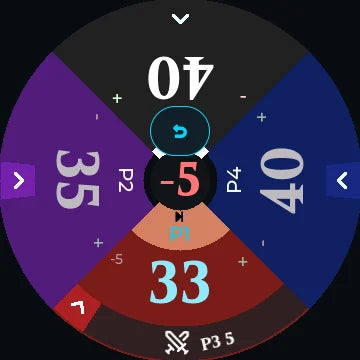
- Hit several players at once: drag from the attacker to the center, then pick the targets.
- You can change the selected players on the Attack screen after you drag.
- If the attacker has two commanders, the Dial asks which one dealt the damage.
Counters & commander damage
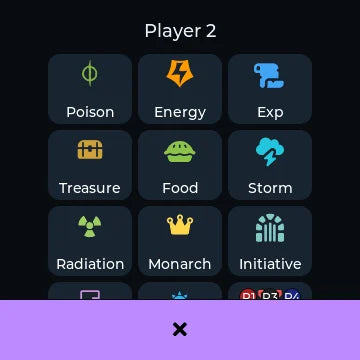
Track everything beyond life: poison, energy, experience, treasure, food, storm, radiation, the Monarch, the Initiative, Ascend, Day/Night and commander damage.
Add a counter
- Open the counter picker: in Solo, tap a side +. In Arena, tap the arrow at the edge of a player's section.
- Tap a counter to add 1. It's pinned to that player and shows its value. Tap the ⊖ on it to take one away.
- Close the picker with the ✕ bar. The counter now appears as a chip next to the player's life.
Change a counter
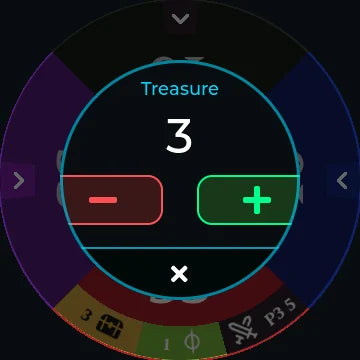
Hold a counter chip to open its adjuster. Use −/+ or turn the dial.
Monarch and Initiative belong to one player at a time. Giving one to a player takes it from everyone else. In Arena, drag it from one player to another.
Some counters go up by one when tapped; others open for editing. Holding a chip always opens its adjuster.
Commander damage
Commander damage is counted per opponent, so you always know who has dealt how much. There are two ways to record it:
- Arena: drag from the attacking player to the defender (see Attacks).
- Commander Dmg screen: open the counter picker and tap Cmdr Dmg. Use the arrows to choose the target player, tap the player who dealt the damage, then turn the dial to set the amount.
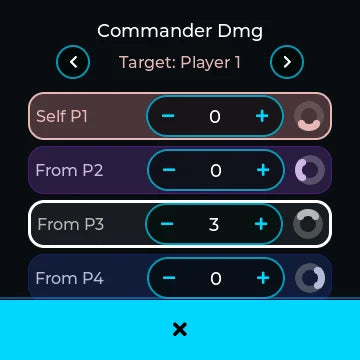
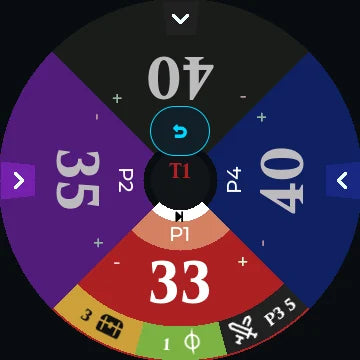
By default, a player is knocked out at 21 commander damage from one opponent or 10 poison. Change these under Settings → Game → House Rules. Commander Life sets whether commander damage also lowers life, and Cmdr Shown sets whether the chip appears on the target or on the source. For partner commanders, turn on Has Partner in Settings → Players → Edit Active Players.
Make your own counter
In the counter picker, tap Custom to make your own counter with a name and icon. Choose how it behaves:
| Type | What it does |
|---|---|
| Count Up/Down | Use +/− buttons and show a number. |
| On / Off | Tap to toggle between active and inactive. |
| Only One Player | Claiming it removes it from other players, like the Monarch. |
| Shared by All | One shared value appears for every player. |
The game menu
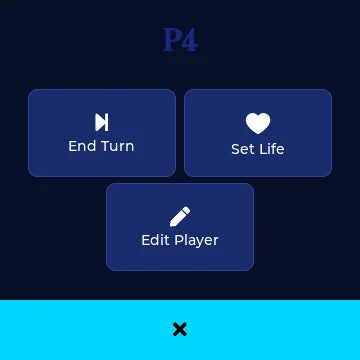
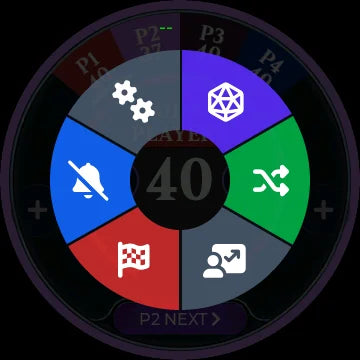
Open the game menu by tapping the life total in Solo, or holding the center in Arena. It has six actions.
| Icon | Action |
|---|---|
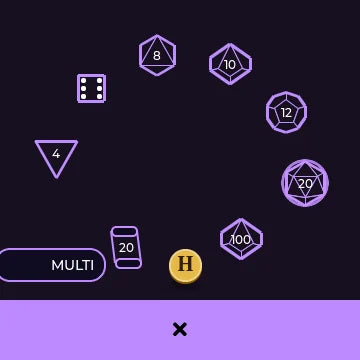
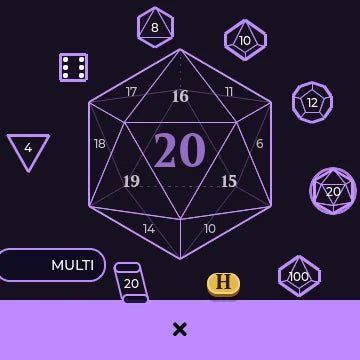
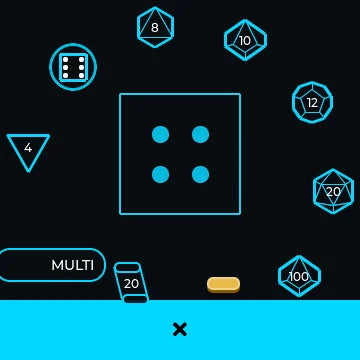
| Purple d20 | Dice. Tap a d4, d6, d8, d10, d12, d20 or d100, the coin, or the custom die to roll it (hold the custom die to set its sides). Dice tapped within a second and a half join one roll: tap the d6 twice for 2d6. Turn the knob to spin the dice round the tray, or flick them. |
| Green arrows | First player. Spin to pick who goes first. |
| Grey chart | Past Games. Player stats, deck stats, the current game's log and life chart. |
| Red flag | Reset Game. Choose a winner, call a draw, start a new game or exit to home. |
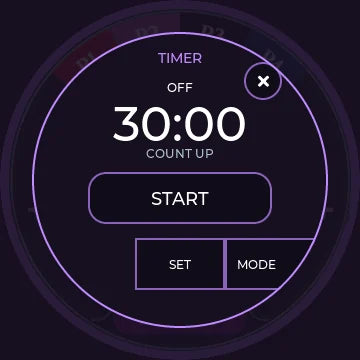
| Blue bell / stopwatch | Timer. Start, set and change the turn timer. A crossed-out bell means it's off. |
| Grey gears | Settings. |
Turns & timer
Soul Dial counts turns and can time them. Turn the timer on in Settings → Turns / Timer, or open it from the game menu.
| Mode | How it works |
|---|---|
| Count Up | Counts up from zero each turn. No limit. |
| Count Down | Counts down from the duration each turn, then stops at zero. |
| Total Time | Counts the total time each player has used across the whole game. |
| Chess | Each player has their own clock. It only runs on their turn and carries over. |
- Tap SET and turn the dial to set the duration, from 10 seconds to 12 hours.
- Pass the turn with the NEXT button (Solo) or by tapping the center (Arena).
- Hold NEXT TURN to pause or resume the timer.
- Manual First Turn starts timed games paused on turn 1 until you start them.
- Collar Quick Pause: in Arena, tapping the ring around the center pauses and resumes the timer instead of ending the turn.
Undo, ending a game & history
Undo
Every life or counter change shows an undo pill for a few seconds. Tap it to reverse the change. Quick changes in a row are grouped, so one tap undoes a whole burst of damage.
End a game
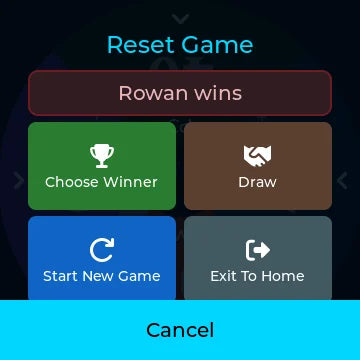
Open the game menu and tap the red flag. From Reset Game you can:
- Choose Winner: record who won. The game is saved to your history.
- Draw: record the game as a draw.
- Start New Game: a rematch with the same players. The first player is picked again.
- Exit To Home: back to the home screen.
Resume after turning off
If the Dial turns off or restarts mid-game, tap RESUME on the home screen to carry on where you left off. Once you end or exit a game, it's no longer offered.
Past games
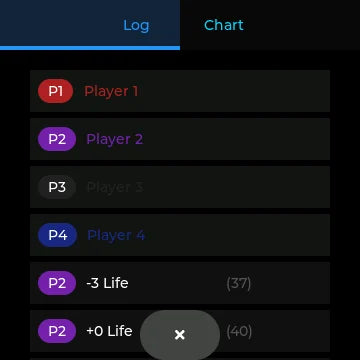
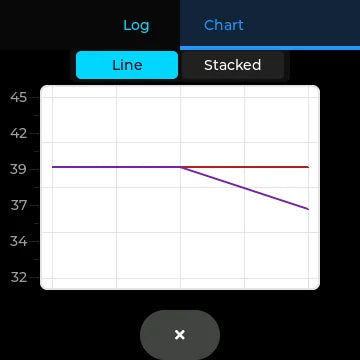
Open Past Games from the game menu or Settings → Game History. You'll find player stats (games, wins, top player), deck stats, the current game and every finished game. Open a game to see its Log of every change and a Chart of life over time, as lines or stacked. To delete a game, tap the trash icon twice.
Players & decks
Save your playgroup's names and decks once and pick them in seconds. Stats in Past Games follow each player and deck.
Seat Setup
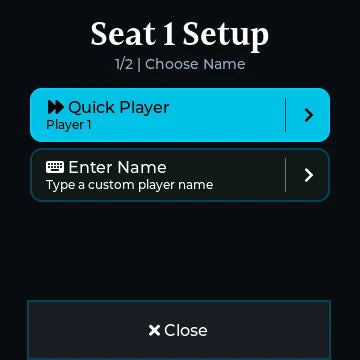
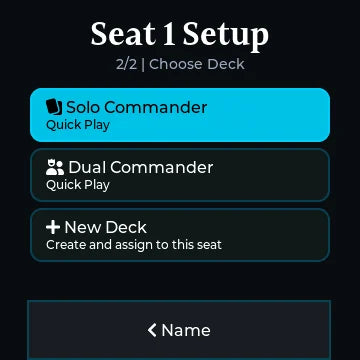
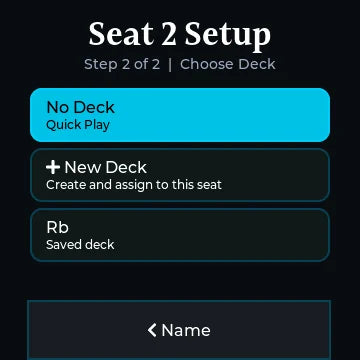
When you tap Setup Players (or claim a seat in a wireless lobby), each seat goes through two steps:
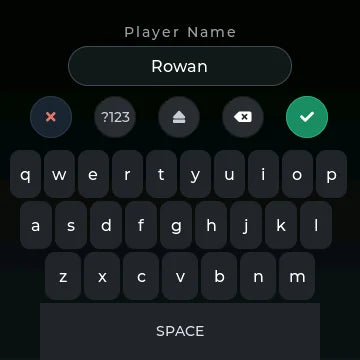
- Choose Name. Quick Player uses a default name, Enter Name opens the keyboard, and saved players appear below.
- Choose Deck. Pick a saved deck, New Deck or No Deck. Magic also offers Solo Commander and Dual Commander for quick play.
Magic decks and commanders
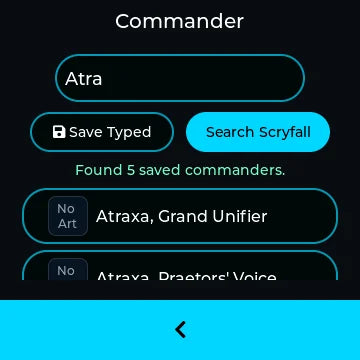
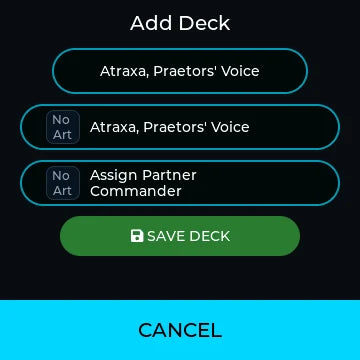
In New Deck, tap Commander and type part of a name. The commander search works offline. With Wi-Fi, Search Scryfall finds any card. Save Typed keeps exactly what you typed. Add a second commander with Assign Partner Commander, then tap SAVE DECK.
Manage players and decks
Go to Settings → Players:
- Players: how many players are in the current game (1 to 6).
- Edit Active Players: change a player's name or color, or turn on Has Partner.
- Player Library: add, rename and delete saved players.
- Setup Decks: the Deck Library, where you add and edit decks.
Wireless multiplayer
Link up to six Dials so everyone sees every life total live. Dials talk to each other directly. No Wi-Fi network or internet is needed.
Host a game
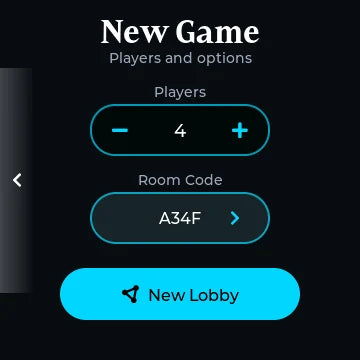
- On home, tap HOST. Set the number of players. You can keep the room code or tap it to change it.
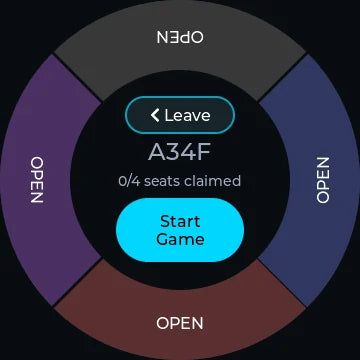
- Tap New Lobby. The lobby shows the room code and how many seats are claimed.
- Tap an OPEN seat to claim it for yourself, then pick your name and deck.
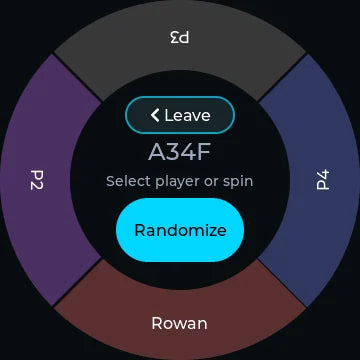
- When everyone has joined, tap Start Game. Tap a seat or Randomize to pick the first player, then Start Player N.
Join a game
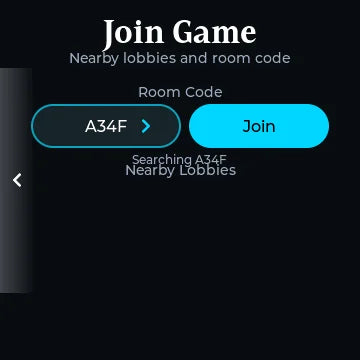
- On home, tap JOIN. Nearby lobbies appear in the list.
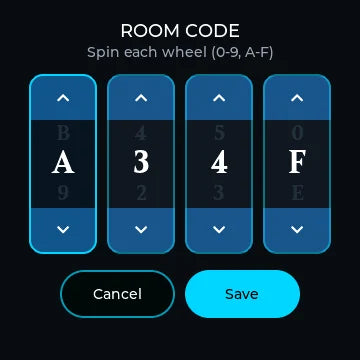
- Tap a lobby, or tap the room code, spin each wheel to match the host's code, tap Save, then Join.
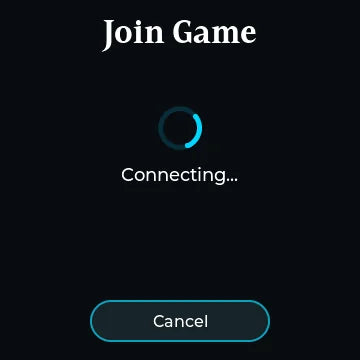
- The Dial shows its progress while it connects. If the host is playing a Library game you don't have, it downloads automatically.
- Claim your seat, choose your name and deck, and wait for the host to start.
- Each Dial picks its own Screen Mode, so you can play Solo while the host uses Arena.
Good to know
- Everyone needs current software. A Dial on older software sees Update Required to join game. See Software updates.
- The host runs the game. Only the host can change the game setup or player count, and only the host can end the game.
- Rematches keep everyone connected. Start New Game picks the first player again.
- View Only (Settings → Connectivity → Wireless Sync) joins as a spectator who can't change anything.
- Protect Owned stops other Dials from editing the seats your Dial has claimed.
- If a player's Dial drops out mid-game, the host can release or take over that seat from Wireless Sync without losing its life or counters.
- Leave the multiplayer game before installing an update.
Game types
Each game has its own screen, rules and settings. Switching games keeps each one's settings separate. The game picker lists your most recently played games first.

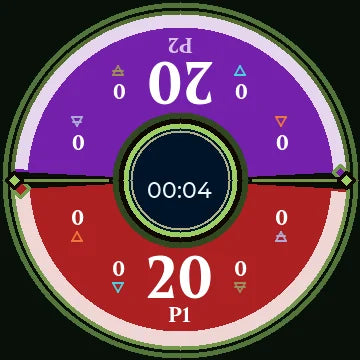
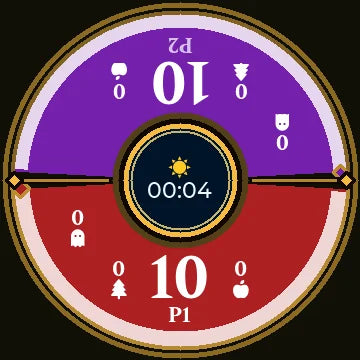
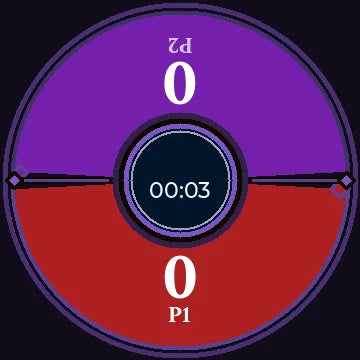
| Game | What the Dial tracks |
|---|---|
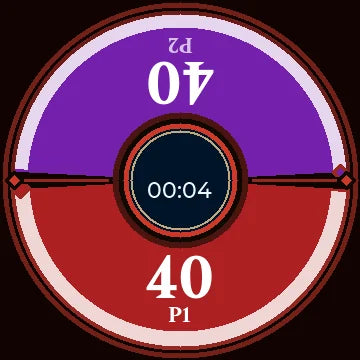
| Magic: The Gathering | Life (Standard 20 or Commander 40), commander damage, poison, all the counters above, Day/Night. Solo or Arena. |
| Yu-Gi-Oh! | Life points. Each dial click is 50 LP, or use the − / + buttons. With two players, tap a player to select them. |
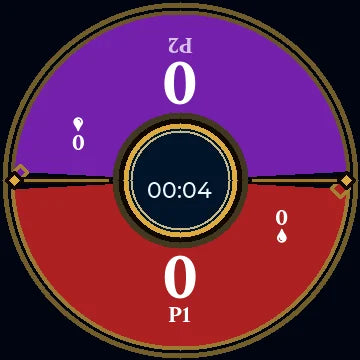
| Disney Lorcana | Lore for each player. |
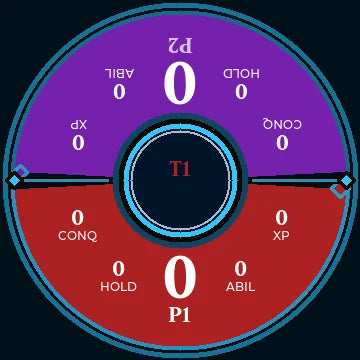
| Riftbound | Victory points and each player's XP. After you score, tap Conquer, Hold or Ability to tag how the point was won. |
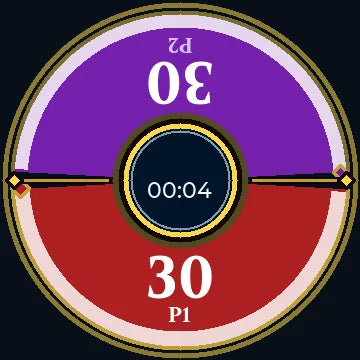
| Flesh and Blood | Hero life. |
| Star Wars: Unlimited | Base HP. |
| Sorcery | Avatar life, with Mana and the Fire, Water, Earth and Air thresholds in a band at each player's edge. Tap an element to add 1; tap Mana, or hold any of them, to adjust it with the dial. At 0 life a player is at Death's Door: tap their life total to record a Death Blow once their avatar takes damage on a later turn, or to undo one. |
| Palworld TCG | 10 HP, Souls (0–10), Material and Ingredient. Tap a chip to add one; hold it to adjust. Day/Night is on the center. |
| One Piece TCG | Life cards: 4, 5 or 6 to start, never above 6. A player at 0 is still in the game until the next hit. |
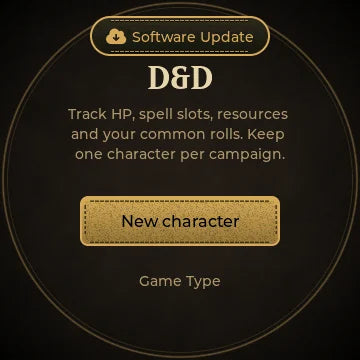
| D&D | A D&D companion for HP, spell slots, resources, rests and dice. Also plays Pathfinder 1e, Call of Cthulhu and Daggerheart. See D&D mode. |
| Warhammer 40K | A scoring companion for Warhammer 40,000 games: battle rounds and steps, CP, VP, dice pools and key units. See 40K mode. |
| Custom | A simple score game. Set the start value and win score in Settings → Game. |
| Library | 90+ community game modes. See Game Type Library. |
In score games like Lorcana, tap a player's half to select them and turn the dial to change their score. Tap the center to open the game menu.
Game Type Library
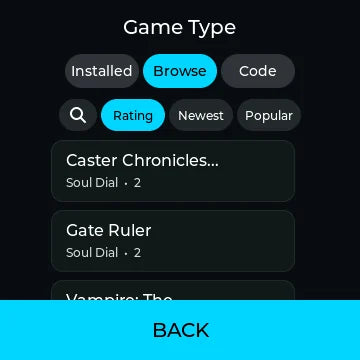
Browse and install more than 90 trading card game modes made by the Soul Dial community. No account needed.
- Connect to Wi-Fi (Settings → Connectivity → Wi-Fi).
- Tap the game pill on home, scroll to the end and tap Library.
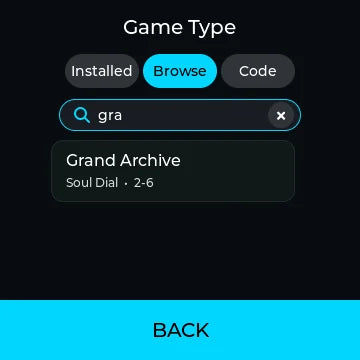
- Open Browse. Sort by Rating, Newest or Popular, or tap the magnifier to search. If someone shared a code with you, use Code.
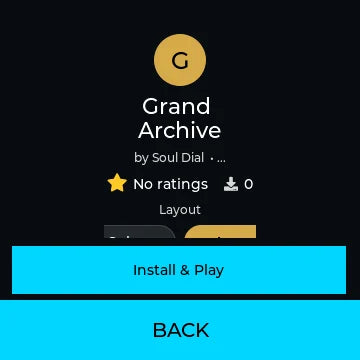
- Open a game and tap Install & Play.
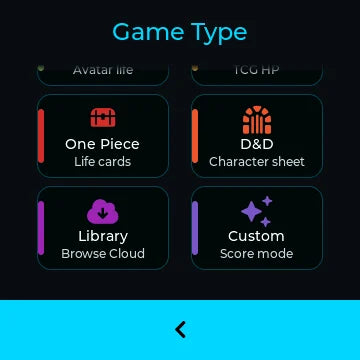
- Installed games appear in the game picker and work offline.
- They update automatically when their author publishes a new version.
- In a wireless game, Dials that don't have the host's game get it automatically.
- A Dial holds up to 16 Library games at once. Remove one from the Installed tab to make room.
- Some games ask each player for their starting values before play begins.
D&D mode: overview
Your D&D companion at the table. It keeps the numbers that change during a session on the dial: hit points, spell slots, class resources, hit dice, death saves and your favorite rolls, plus AC, spell save DC and passive perception at a glance. Keep your character sheet for everything else, like abilities, skills, spells and inventory. Everything is set up on the dial, with no app or account needed.
- Up to 12 characters, one per campaign. Switch between them in seconds.
- Classes fill in the details for you: hit die, spell slots by level, and resources such as Rage, Channel Divinity or Ki.
- Choose 2024, 2014 or 3.5 rules, or play Pathfinder 1e, Call of Cthulhu or Daggerheart. See Other games and editions. Level up to 20 and multiclass across up to three classes.
- Two main pages, one tap apart: Character and Dice.
- Mistakes are easy to undo, and the Log keeps a record of the session.
- Give each character its own look with a choice of leather and trim.
To start, tap the game pill on the home screen and choose D&D. From then on, your Dial opens straight to your characters.
Create a character
The first time you open D&D mode, tap New character. Have your character sheet handy: the Dial asks one question per screen.
- Name. Type your character's name on the round keyboard and tap ✓.
- Rules. Which game you play: 2024, 2014 or 3.5 D&D, PF1 (Pathfinder 1e), DH (Daggerheart), CoC (Call of Cthulhu) or Other. The steps below are for D&D 5e. The other games ask for their own numbers; see Other games and editions.
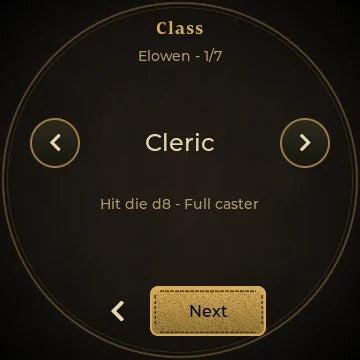
- Class. Use ‹ › or turn the dial. The line underneath shows the hit die and the kind of spellcaster. Choose Custom to set your own hit die and spellcasting.
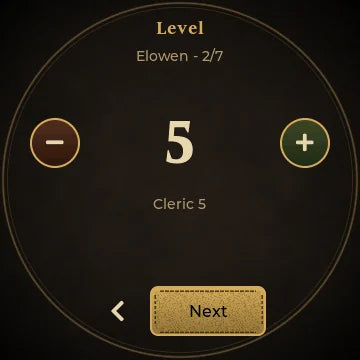
- Level. Your character's level, from 1 to 20.
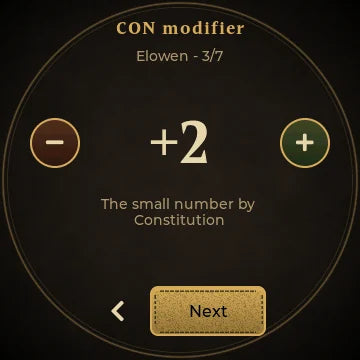
- CON modifier. The small number by Constitution on your sheet.
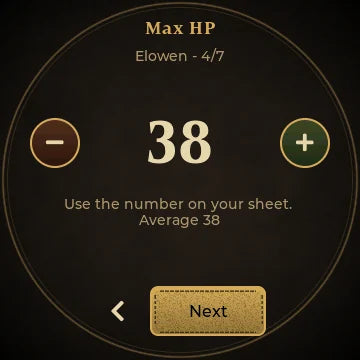
- Max HP. Starts at the average for your class, level and CON. Change it to match your sheet.
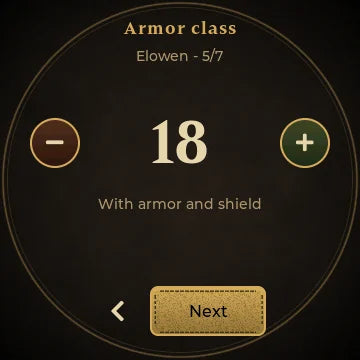
- Armor class, with armor and shield.
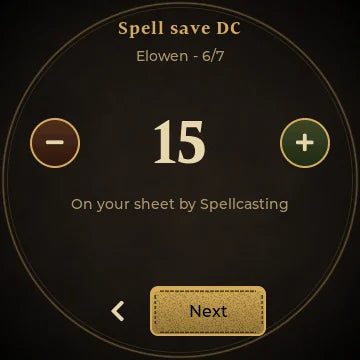
- Spell save DC, for spellcasters. It's on your sheet by Spellcasting.
- Passive Perception: 10 + your Perception bonus.
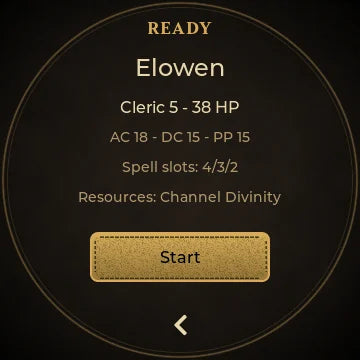
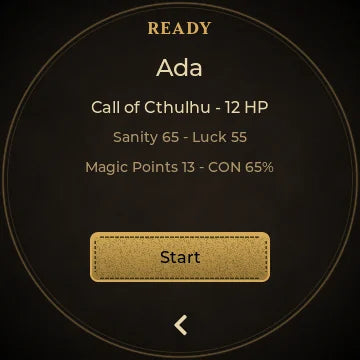
- Ready. Check the summary of HP, AC, DC, PP, spell slots and resources, then tap Start.
On every question, use − / + or turn the dial, tap Next, and tap ‹ to go back a step.
Classes
Your class sets your hit die, spell slots and the resources that appear as tiles. Resources grow as you level up.
| Class | Hit die | Spellcasting | Resources the Dial tracks |
|---|---|---|---|
| Barbarian | d12 | None | Rage (2 at level 1, up to 6), long rest |
| Bard | d8 | Full caster | Bardic Inspiration (long rest, short rest from level 5) |
| Cleric | d8 | Full caster | Channel Divinity from level 2, short rest |
| Druid | d8 | Full caster | Wild Shape from level 2, short rest |
| Fighter | d10 | None | Second Wind, Action Surge (level 2), Indomitable (level 9) |
| Eldritch Knight | d10 | Third caster | Fighter resources plus spell slots from level 3 |
| Monk | d8 | None | Ki or Focus points from level 2 (one per level), short rest |
| Paladin | d10 | Half caster | Lay on Hands (5 × level), Channel Divinity from level 3 |
| Ranger | d10 | Half caster | Spell slots |
| Rogue | d8 | None | None, add your own |
| Arcane Trickster | d8 | Third caster | Spell slots from level 3 |
| Sorcerer | d6 | Full caster | Sorcery points from level 2 (one per level) |
| Warlock | d8 | Pact magic | Pact slots, back on a short rest |
| Wizard | d6 | Full caster | Arcane Recovery |
| Custom | Your choice | Your choice | Add your own |
Counts follow the rules you choose. For example, a 2024 Fighter gets two uses of Second Wind at level 1, and a 2014 Fighter gets one. Spell slots come back on a long rest, and Warlock pact slots on a short rest.
The Character page
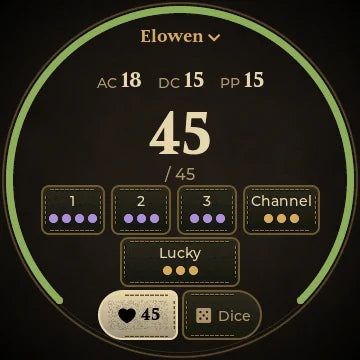
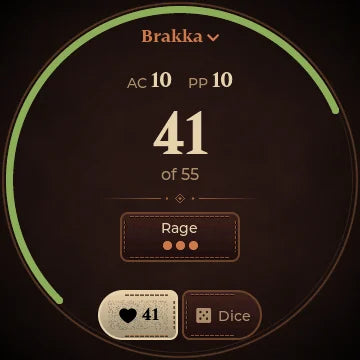
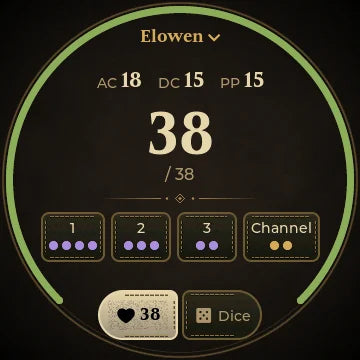
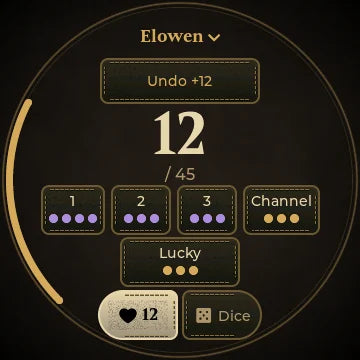
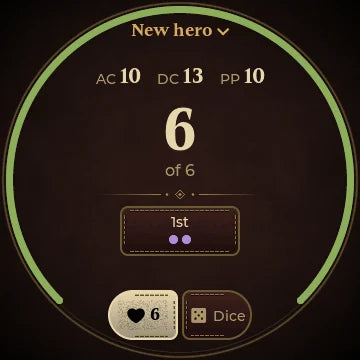
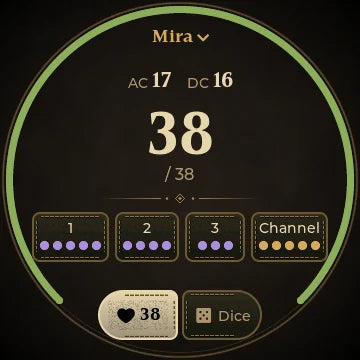
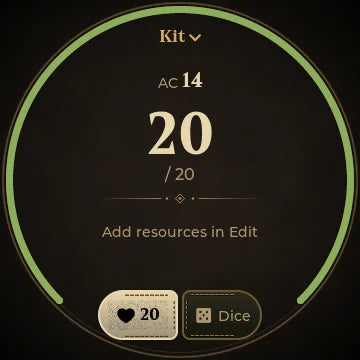
This is where you spend the session. The big number is your HP, and the green ring around the edge shows how healthy you are at a glance.
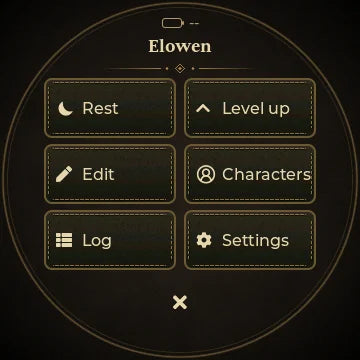
- Top: your name. Tap it for the menu. Hold it to jump to your characters.
- Stats: AC, spell save DC and passive perception. DC is hidden for characters that don't cast.
- HP: current HP over max, plus any temp HP.
- Tiles: every spell slot level and resource. Dots show what's left.
- Bottom: ♥ HP and Dice switch between the two main pages.
Damage and healing
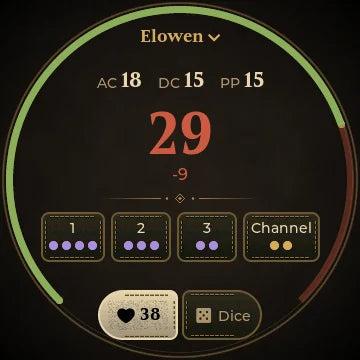
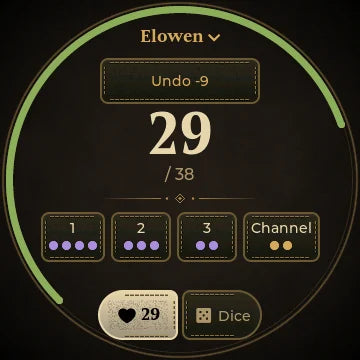
Turn the dial to the left for damage and to the right for healing. The change shows under the big number first, so you can keep turning until it's right. It's applied 1.5 seconds after you stop. An Undo pill then replaces the stats row for a few seconds.
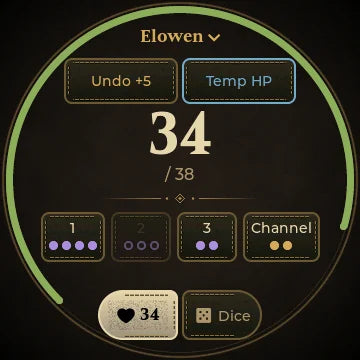
- Temp HP soaks up damage first. After a heal, tap Temp HP on the pill to turn that healing into temporary hit points instead (for spells like False Life). Temp HP doesn't stack: the higher amount is kept.
- You can't heal above your max HP. To raise max HP (for example with Aid), change it in Edit. Your current HP goes up by the same amount.
- If a hit is big enough to kill you outright under the massive damage rule, the Dial shows a warning. It never decides your character is dead. That's your DM's call.
Spell slots and resources
Tap does the quick thing, hold does the other. When you hold, a gold bar fills to show it's working.
| Tile | Tap | Hold |
|---|---|---|
| Slots (dots) | Use one | Get one back |
| Count (a number) | Select it, then turn the dial or use − / + | Open its settings |
| AC / DC / PP row | Edit that stat |
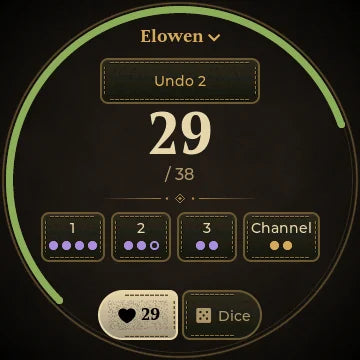
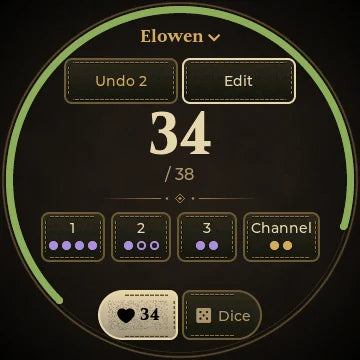
With more than seven tiles, the last one becomes More +N and opens the full list.
Gestures
The Dice page
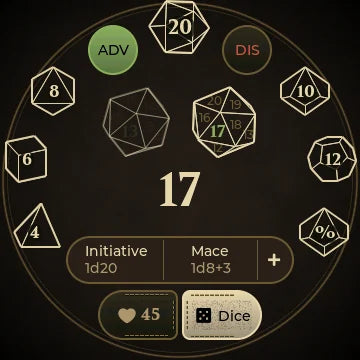
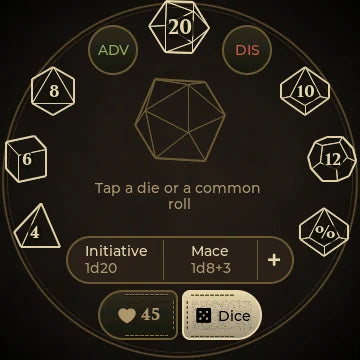
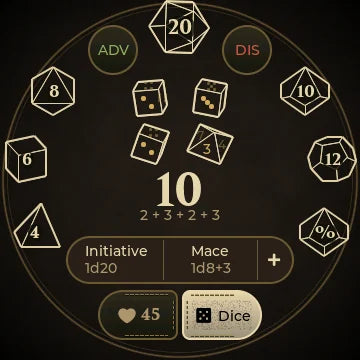
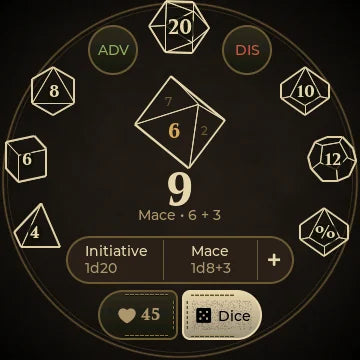
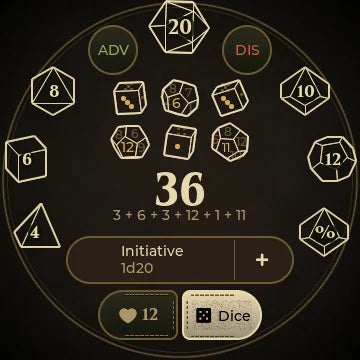
The dice sit around the rim: d20 at the top, d4, d6 and d8 down the left, and d10, d12 and d% down the right. Roll them into the tray in the middle and watch them tumble.
- Roll: tap a die. Taps within 1.5 seconds join one roll, so tap d6 three times and d8 once for 3d6 + 1d8. A badge counts the dice while you add them.
- Advantage and disadvantage: tap ADV or DIS beside the d20. Both dice are rolled and the dropped one fades. Tap the lit button again to go back to normal.
- Roll again: tap the tray. If you haven't rolled yet, it rolls a d20.
- Results: the total is in the middle, with each die and any bonus underneath. A natural 20 or 1 is called out.
- Big rolls: more than six dice show as a table instead of tumbling, sorted by die size. Drag to scroll it.
Saved rolls
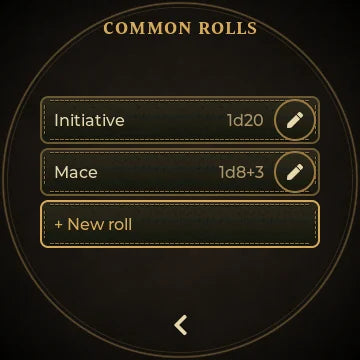
Save the rolls you make every turn, like Initiative, an attack or a spell's damage. They sit in a bar above the page switch.
- Tap a saved roll to roll it. Hold it to edit it. Tap + to add one.
- With more than two saved rolls, turn the dial to cycle through them, and +N opens the full list. With two or fewer, turning the dial rolls again.
- A saved roll can mix up to three kinds of dice plus a bonus, like 1d8 + 2d6 + 3. You can keep up to 8 saved rolls per character.
- Open Menu → Edit → Common rolls and tap + New roll, or tap + on the Dice page.
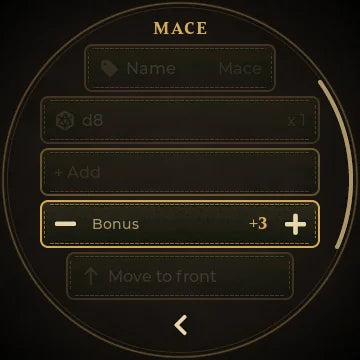
- Type a name, such as Mace.
- Tap the die row to select it. Tap the die button on its left to step through d4, d6, d8 … d%, and use − / + or the dial for how many.
- Tap + Add for another kind of die, and set the Bonus.
- Tap ‹ to save. Move to front puts it first in the bar.
Rests and leveling up
Short rest
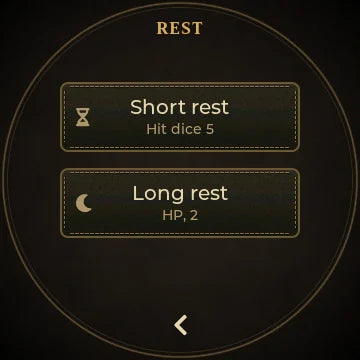
- Open the menu and tap Rest, then Short rest.
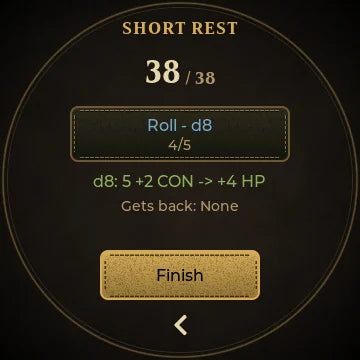
- Tap Roll to spend a hit die. The Dial rolls it, adds your CON modifier and heals you. The line underneath shows the math, like "d8: 5 +2 CON → +4 HP".
- Roll more hit dice if you need them. With more than one class, each die size has its own button.
- Tap Finish. Every resource that resets on a short rest comes back, such as Channel Divinity, Ki or pact slots.
Long rest
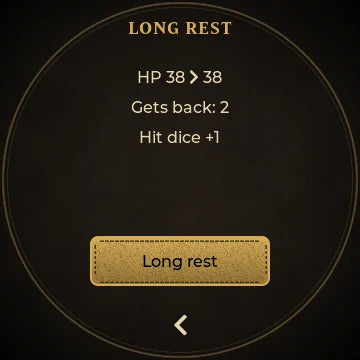
From Rest, tap Long rest. The page shows what you'll get back before you confirm. A long rest restores full HP, clears temp HP and death saves, refills everything that resets on a short or long rest, and gives back spent hit dice: all of them under 2024 rules, or half your total (at least one) under 2014.

Level up
- Open the menu and tap Level up.
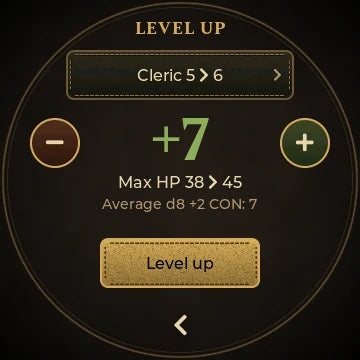
- The top row shows the class you're leveling, like Cleric 5 › 6. Tap it to pick a different class. Use ‹ › to step through your classes and every class you could multiclass into.
- The HP gain starts at your class average plus CON. Change it with − / + if you rolled.
- Tap Level up. New spell slots and resource uses are ready straight away.
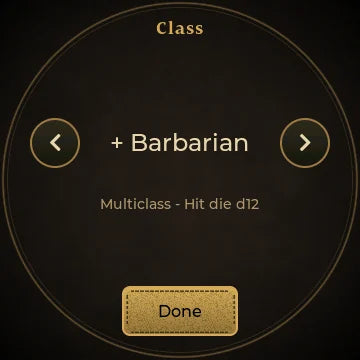
Multiclass characters can have up to three classes and 20 levels in total. Spell slots are worked out from your combined caster levels, and Warlock pact slots stay separate, as in the rules.
Death saves
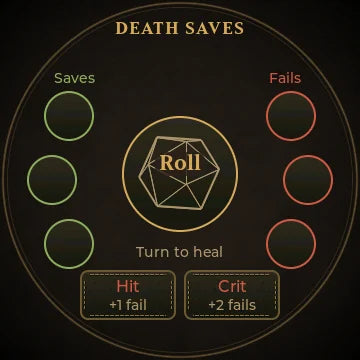
When you drop to 0 HP, the Character page turns into the Death Saves page.
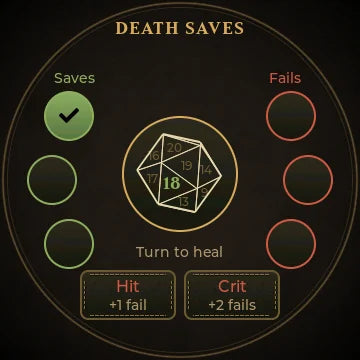
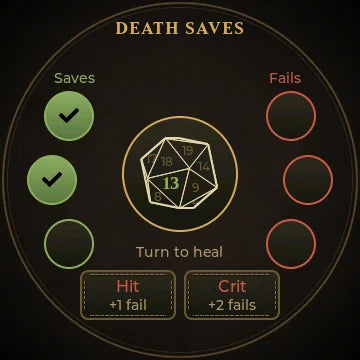
- Roll a save: tap the d20 in the middle. 10 or higher is a success, a natural 1 counts as two failures, and a natural 20 brings you back with 1 HP.
- Taking damage at 0 HP: tap Hit for one failure, or Crit for two.
- Healed: turn the dial. Any healing brings you back and clears the saves.
- Fix a mistake: tap a success or failure circle to set the count.
- Three successes mark you Stable, and three failures mark you Dead. You can undo either.
Edit, resources and looks
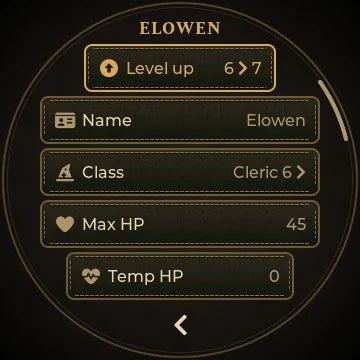
Open the menu and tap Edit to change anything about your character.
| Row | What it does |
|---|---|
| Level up | Shortcut to Level up. |
| Name, Class | Rename, or change classes and levels. Fix a mistake without leveling up. |
| Max HP, Temp HP | Set them directly. |
| Armor class, Spell save DC, Passive Perception, CON modifier | Your sheet's numbers. |
| Resources | Spell slots, class resources and your own. See below. |
| Common rolls | Your saved rolls. |
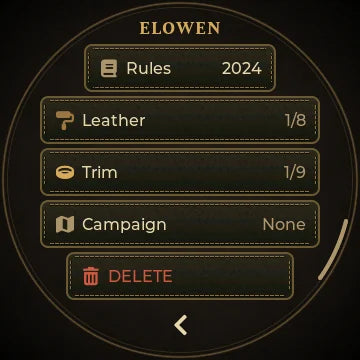
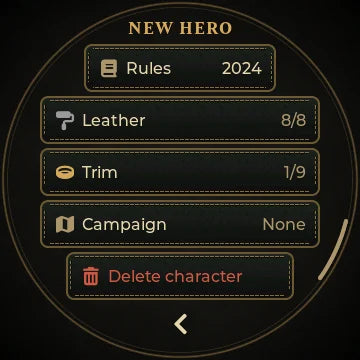
| Rules | The game this character plays: 2024, 2014, 3.5, Pathfinder 1e, Daggerheart, Call of Cthulhu or Other. |
| Leather, Trim | The character's look: 8 leathers and 9 trims. |
| Campaign | Which campaign the character belongs to. Shown on the character card. |
| DELETE | Deletes the character. Tap again to confirm. You must keep at least one. |
In lists, tap a number to select it, then turn the dial or use − / +. Tap it again, or wait a few seconds, to let go. Rows with a choice, like Rules or Leather, change each time you tap.
Add your own resource
Track anything else you count: a feat like Lucky, a magic item's charges, or a subclass feature the class list doesn't include.
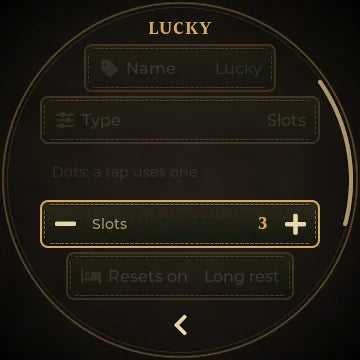
- Go to Edit → Resources and tap + Add.
- Type a name.
- Choose the Type. Slots shows dots, and a tap uses one. Count shows a number: tap it, then turn the dial.
- Set the Amount, and when it Resets on: Short rest, Long rest or Never.
- Tap ‹. It appears as a tile on the Character page. Move to front puts it first.
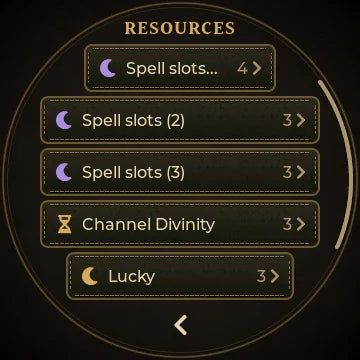
Class resources can be edited too, for example to match a subclass feature. Reset To Default puts one back to what the class gives. You can have up to 24 resources per character, including the class ones.
Characters, Log and Settings
Switch characters
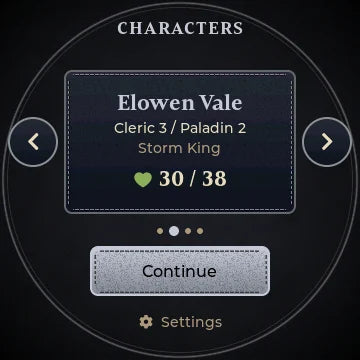
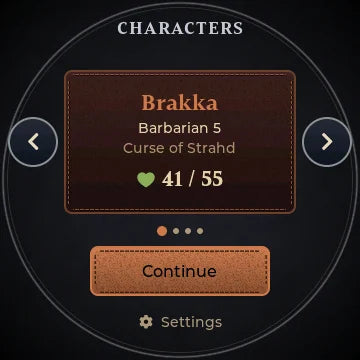
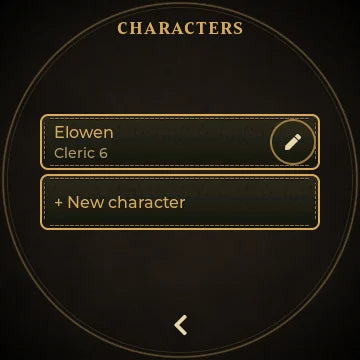
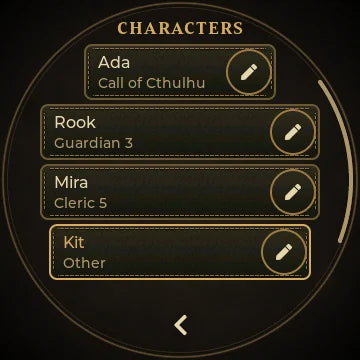
When you turn on the Dial (or come back from another game), D&D opens on Home. It shows one character at a time, in their own leather and trim, with class, campaign and HP. Use ‹ ›, swipe or turn the dial to choose, then tap the card or Continue. Hold a card to edit that character. The last card is + New character.
Mid-session, open Menu → Characters, or hold your name at the top of the Character page. Tap a character to play, or hold it to edit.
The Log
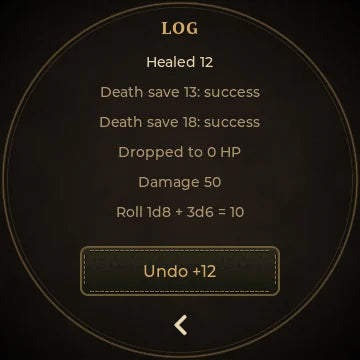
Swipe down from the top of the Character page, or open Menu → Log. It lists damage, healing, rolls, rests, resource use and death saves, newest first. Tap Undo to take back the latest action, even after the pill has gone.
D&D Settings
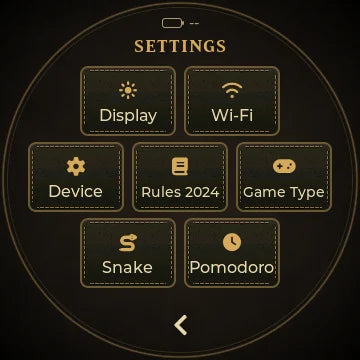
From Menu → Settings: Display, Wi-Fi, Device, Rules (the game new characters start with), Game Type to switch back to your card games, plus Snake and Pomodoro.
Other games and editions
D&D mode also plays D&D 3.5, Pathfinder 1e, Call of Cthulhu (7th edition) and Daggerheart, plus Other for any game with hit points. Each character follows its own game, so characters from different games can share one Dial.
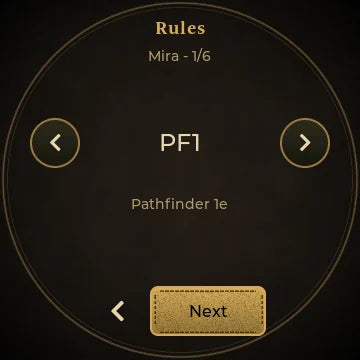
Choose the game on the Rules step, the first question after the name. To make new characters start on your usual game, set Menu → Settings → Rules. Undo, the Log, saved rolls, your own resources and the leather and trim work the same in every game.
D&D 3.5 and Pathfinder 1e
Making a character asks for your class and level as in 5e, then the numbers 3.5 and Pathfinder use: your CON (the modifier in 3.5, the score in Pathfinder), your casting ability modifier for bonus spells, and CHA or WIS where a class feature needs it. There's no Passive Perception step.
- Spells per day come from the class tables, from 0th to 9th level, plus bonus spells and the Cleric's domain slot. Each class keeps its own slots when you multiclass. In Pathfinder, cantrips and orisons are at will and don't get a tile.
- Class features per day are tiles that refill on a rest: for example Rage, Turn Undead or Channel Energy, Wild Shape, Smite Evil and Lay on Hands.
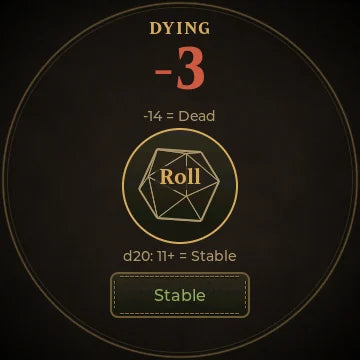
- Below 0 HP the Character page becomes Dying. Tap the die once a round. In 3.5 it's a d%: 1–10 and you stabilise, anything else costs 1 HP, and you're dead at −10. In Pathfinder it's a d20 Constitution check (DC 10, with your negative HP as a penalty; the page shows the number you need), and you're dead at minus your CON score. Tap Stable when an ally makes the Heal check. At exactly 0 you're disabled, not dying.
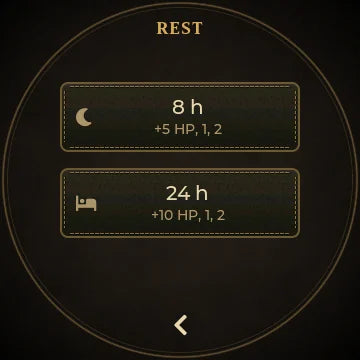
- Rest has two choices: 8 h for a night's sleep (1 HP per level) or 24 h of bed rest (twice that). Each shows what you'll get back.
- In 3.5, a single hit of 50 or more shows a massive damage warning. The Fortitude save is yours to roll.
- No hit dice, short rest, advantage buttons or Passive Perception: 3.x doesn't use them.
Call of Cthulhu
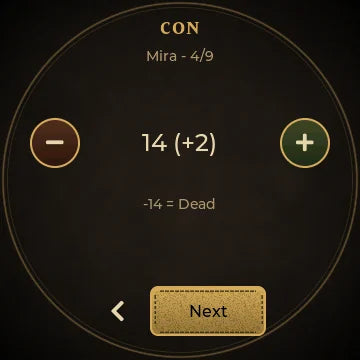
Making an investigator asks for Max HP, Sanity, Luck, Magic Points and your CON % (used for the dying roll). There are no classes, levels or spell slots.
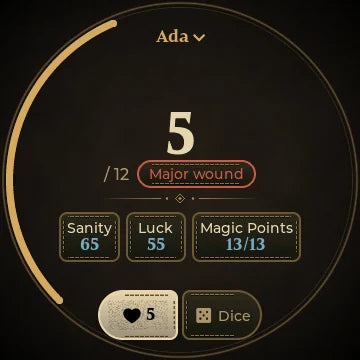
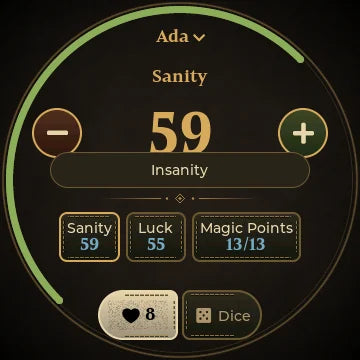
- Sanity, Luck and Magic Points are tiles on the Character page. Tap one, then turn the dial or use − / +. When you lose 5 Sanity or more at once, a fifth of the day's Sanity, or the last of it, the Dial shows Insanity. The Keeper decides what that means.
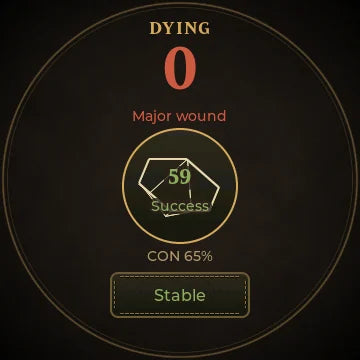
- Major wound. A single hit of half your max HP or more adds a red Major wound chip under your HP. Healing back to half your max HP clears it, or tap the chip to clear it yourself. A hit of your max HP or more shows a massive damage warning.
- 0 HP without a major wound: you're unconscious, and the page says so. With a major wound, the page turns to Dying. Tap the d% once a round to roll under your CON: a success keeps you alive for now, and a failure means death. Tap Stable when someone gives First Aid, and turn the dial to heal.
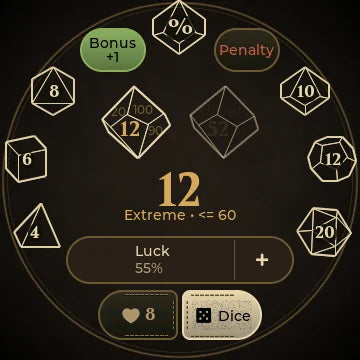
- Dice. The d% sits at the top of the Dice page. Bonus and Penalty replace advantage: tap one for a bonus or penalty die, tap again for a second, and hold to clear. After a d% roll, turn the dial to set your skill and the Dial shows the result: Critical, Extreme, Hard, Success, Fail or Fumble.
- Skill rolls. Give a saved roll a Target (your skill value) and it rolls a d100 against it in one tap. Every investigator starts with a Luck roll.
- Rest has one button: +1 HP (unless you have a major wound) and your Magic Points back.
Daggerheart
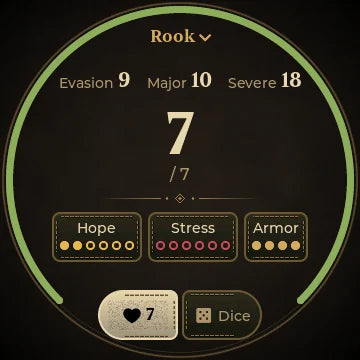
Making a character asks for your Class (all nine, or Custom), Level (1 to 10), Evasion, Max HP (up to 12), your Major and Severe damage thresholds and your Armor score. The class fills in its starting Evasion and HP.
- The Character page shows Evasion, Major and Severe across the top, your HP in the middle and tiles for Hope, Stress and Armor. You start with 2 Hope.
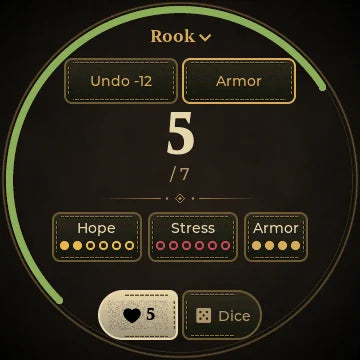
- Damage. Turn the dial by the damage you take. The line under your HP shows how many HP that marks: 1 below Major, 2 from Major, 3 from Severe. After the hit, tap Armor on the Undo pill to mark an Armor Slot and lower the damage one step.
- Stress. Tap the Stress tile to mark one, and hold it to clear one. When Stress is full, the next one marks an HP instead.
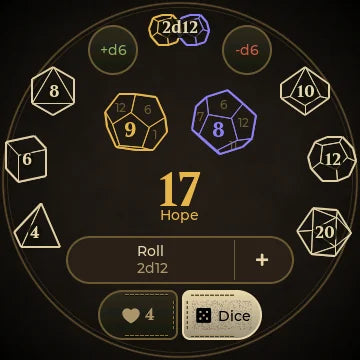
- Duality Dice. The 2d12 at the top of the Dice page rolls the Hope die (gold) and the Fear die (violet) and calls it Hope, Fear or Critical. With Hope or a critical you gain a Hope automatically, and a critical also clears a Stress. +d6 and −d6 add an advantage or disadvantage die to any roll.
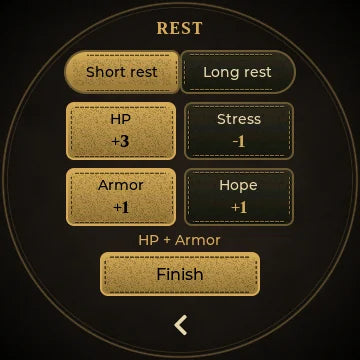
- Rest. Choose Short rest or Long rest, then pick two downtime moves from HP, Stress, Armor and Hope (the same one twice is fine) and tap Finish. On a short rest, HP, Stress and Armor recover 1d4 + your tier; on a long rest they recover fully. Hope gives +1.
- Level up raises your thresholds by one and gives the two advancements you pick: an HP slot, a Stress slot or +1 Evasion.
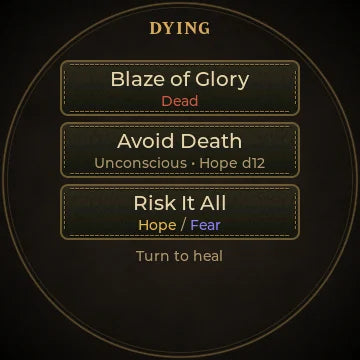
- At 0 HP choose a death move. Blaze of Glory marks you dead. Avoid Death knocks you unconscious and rolls your Hope die: at or under your level, you gain a scar, which lowers your max Hope. Risk It All rolls the Duality Dice: with Hope you're back up, with Fear you die. A death can be undone.
Other
For any other game with hit points. Making a character asks only for Max HP and Armor class (or None). You get HP on the dial, the Dice page with advantage and disadvantage, saved rolls, and rests that refill your own resources. Add whatever your game counts in Edit → Resources, and set a DC in Edit if you need one. HP stops at 0, with no death page.
D&D questions
Does D&D mode replace my character sheet?
No. It tracks the numbers that change at the table: HP, temp HP, spell slots, class resources, hit dice, death saves and saved rolls, with AC, DC and passive perception for reference. It doesn't track ability scores, skills, spells, features, equipment or inventory. Keep your sheet on paper or in your app of choice. For anything else you count, like item charges, add a custom resource.
Can the DM use it?
D&D mode is built for players: one character per campaign. A DM can still make a character for a boss or a companion and switch between them, up to 12.
Can two players share one Dial?
Each Dial plays one character at a time, but switching takes two taps. Most groups give each player their own Dial.
Which rules should I pick?
Use whatever your table plays. Between 2014 and 2024, the choice changes resource counts (like Second Wind and Channel Divinity), half-caster spell slots and how many hit dice a long rest returns. You can change it per character in Edit. For a different game, like Call of Cthulhu, make a new character for it: the game's own numbers are set up as you create it.
Does it work with other RPGs?
Yes: D&D 3.5, Pathfinder 1e, Call of Cthulhu 7th edition and Daggerheart each follow their own rules. For anything else, choose Other to track HP, AC and your own resources. See Other games and editions.
I made a mistake with damage or a slot. How do I fix it?
Tap Undo on the pill, or open the Log and tap Undo. To set HP directly, use Edit. To fix a slot count, hold the tile to get one back.
Will I lose my characters when I update or turn the Dial off?
No. Characters are saved on the Dial and kept through updates and restarts. A factory reset does erase them.
40K mode: overview
A scoring companion for Warhammer 40,000 games. It walks you through every battle round and step and keeps your CP, your VP, your key units and your dice in one place. Your army list and rules stay where they are.
- Five battle rounds, six steps a turn: Command, Movement, Shooting, Charge, Fight and End of turn.
- CP goes up by itself in both players' Command phases, and the Dial warns you past the extra CP limit.
- VP by round, primary and secondary, with a score sheet you can fix at any time.
- A dice roller for pools of up to 60 dice, from Hit to Wound to Save, and quick rolls for Advance, Charge and Battle-shock.
- Saved armies and players, with wins, losses and average VP for each army.
- Play on your own Dial, share one Dial between both players, or link two Dials.
- Six themes with four colours each, plus Plain.
To start, tap the game pill on the home screen and choose Warhammer 40K. From then on your Dial opens straight to 40K mode. To go back to card games, use Settings → Game Type.
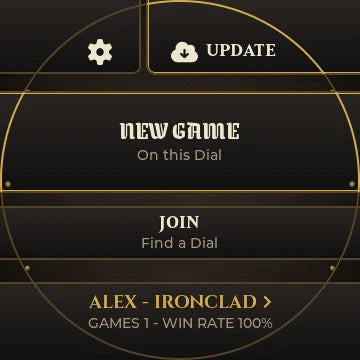
The Start screen
With no game in progress, 40K mode opens on Start. A game in progress opens straight on the battle screen, even after a restart or a flat battery.
| Button | What it does |
|---|---|
| NEW GAME | A game on this Dial: just you, or both players on one Dial. |
| JOIN | Link with your opponent's Dial. See Playing together. |
| Gear (top) | Settings: theme, display, Wi-Fi, device, game options and Game Type. |
| Player and army (bottom) | Who's playing and with which army, with that army's record. Tap to change them. |
40K mode is an independent feature of the Soul Dial. It isn't made, endorsed or sponsored by Games Workshop.
Players, armies and a new game
Players and armies
40K mode keeps its own list of up to 8 players and 8 saved armies, separate from your card-game players. An army has a name, a theme, its Painted +10 setting and its own Units page. Each army can belong to a player, so their armies come first when you pick them.
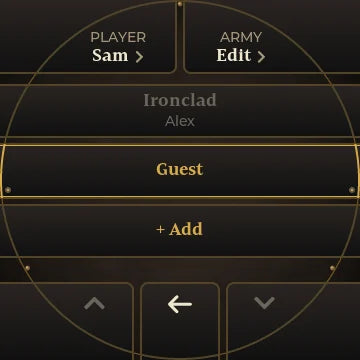
- On Start, tap the player and army at the bottom.
- Tap PLAYER at the top, then + Add Player and type a name. Tap a player to choose them.
- Tap an army to choose it, or + Add to make a new one and type its name.
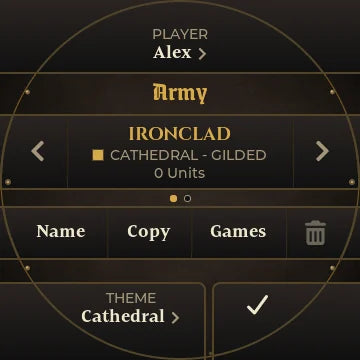
- Tap ARMY Edit for the Army screen: Name, Copy, Games (its record) and the bin to remove it (tap again to confirm). THEME sets the army's look, and PLAYER at the top sets who it belongs to.
To rename or remove a player, open the player list and tap PLAYER Edit. You can't switch armies during a game, but you can still rename or copy the others.
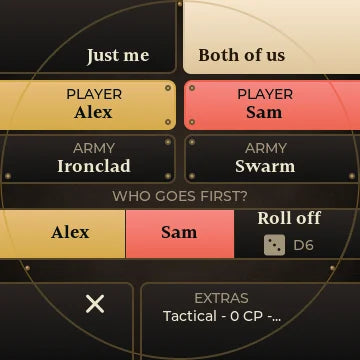
Start a game
- Tap NEW GAME.
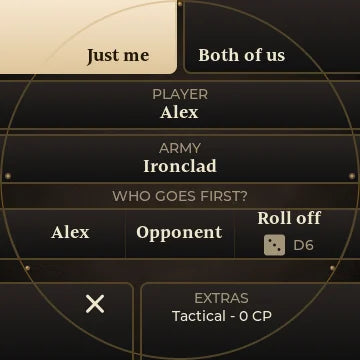
- At the top, choose Just me (this Dial follows your side) or Both of us (one Dial between two players). The Dial remembers your choice.
- Check the PLAYER and ARMY. Tap either to change it.
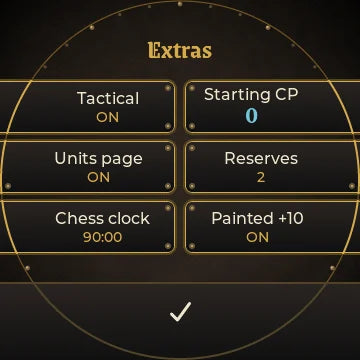
- Optional: tap EXTRAS to choose what this game uses (below).
- Under Who goes first?, tap the player who goes first, and the game starts. Or tap Roll off: each side rolls a D6 (ties roll again) and the winner goes first.
That's two taps from Start once your army is set: NEW GAME, then who goes first.
| Extra | What it does |
|---|---|
| Tactical | Adds Discard (+1 CP) to your End of turn step, for tactical secondaries. |
| Starting CP | CP before the first Command phase. Tap for +1, hold for 0, or turn the dial. |
| Units page | Track up to 6 key units. See Dice and units. |
| Reserves | How many units start in Strategic Reserves, counted in during Movement. |
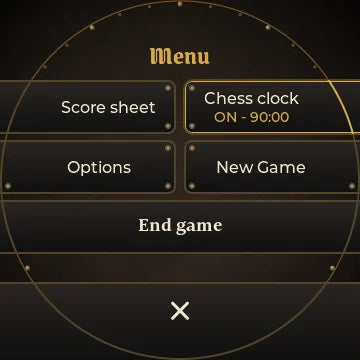
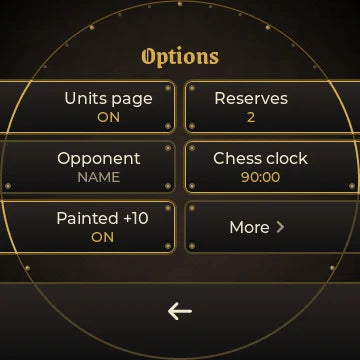
| Chess clock | Each side's own time, 90 minutes unless you change it in Settings → Options → More. |
| Painted +10 | Adds the battle-ready bonus to the army's VP. |
Your turn: steps, CP and VP
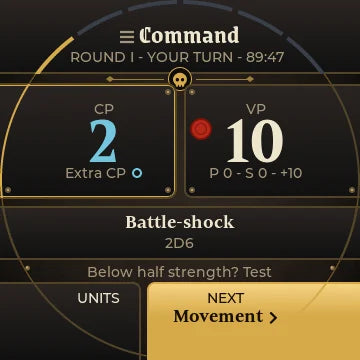
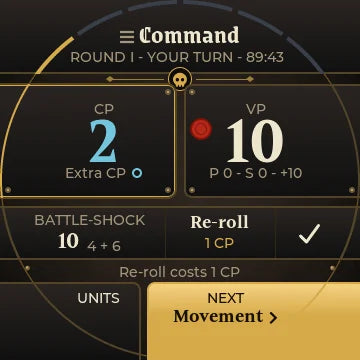
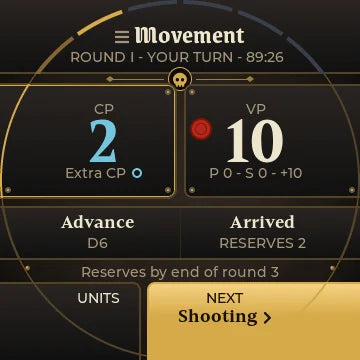
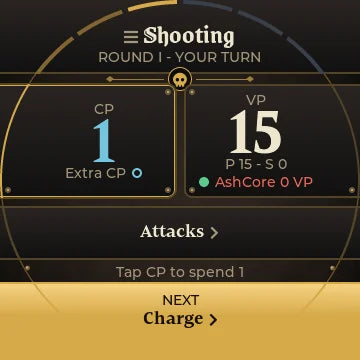
- Top: the step, then the round and whose turn it is, with the chess clock if it's on. Tap it for the Menu, hold it for the Score sheet.
- CP on the left, VP on the right.
- Middle row: what you need in this step, like Battle-shock in Command or Attacks in Shooting. The line under it is a short reminder.
- Bottom: NEXT shows the step that comes next. With the Units page on, UNITS sits beside it.
Steps and turns
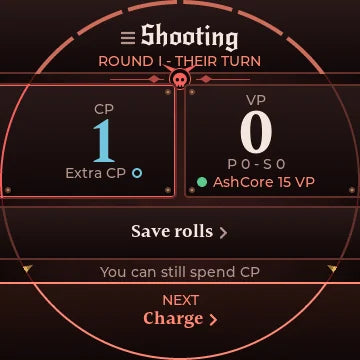
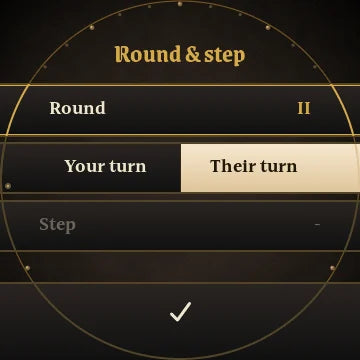
Tap NEXT to move to the next step. Hold it to go back a step. At End of turn it says End Turn and hands over. In your opponent's turn, Save rolls and Overwatch are one tap away, and Done ends their turn. After the second turn of round V, the game is over. If someone forgot to tap, fix it in Menu → Round & step.
| Step | Middle row |
|---|---|
| Command | Battle-shock (2D6). From round II, the VP plate glows until you've scored primary. |
| Movement | Advance (D6) and, with Reserves on, Arrived as each unit comes in. |
| Shooting, Fight | Attacks opens the dice roller. |
| Charge | Charge (2D6). |
| End of turn | Score secondary, and with Tactical on, Discard for +1 CP. |
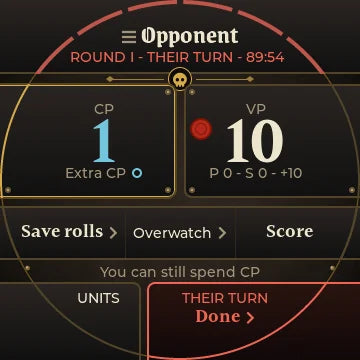
| Their turn | Save rolls, Overwatch and Score. |
Quick rolls show both dice right in the middle row. Re-roll · 1 CP is the Command Re-roll: once per phase, and each roll can only be re-rolled once. Tap ✓ to clear the roll.
CP
- Both players gain 1 CP in every Command phase, so your CP goes up at the start of your turn and again at the start of your opponent's. The Dial adds it for you.
- Tap the CP plate to spend 1, or turn the dial to change it. It never goes below 0.
- Any other CP you gain is extra CP, limited to 1 per battle round. The dot beside Extra CP fills once you've had it. Go over and the Dial warns you, but doesn't stop you.
- A tactical Discard gives +1 CP as that round's extra CP. Once you've had it, a discard gives none.
VP
- Tap the VP plate (or Score). It opens on Primary in your Command phase from round II, and on Secondary otherwise. Tap it again to switch.
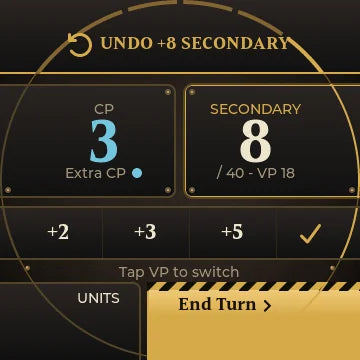
- Tap +5, +10 or +15 for primary, +2, +3 or +5 for secondary, or turn the dial for any amount.
- Tap ✓ when you're done.
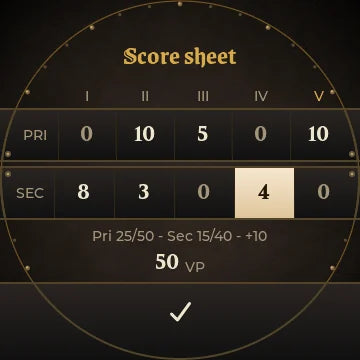
Primary is capped at 50 and secondary at 40. Painted +10 adds 10, for 100 at most. VP goes into the current round. To fix any round, hold the top bar (or Menu → Score sheet), tap a box and turn the dial, even after the game.
Undo
After every change, the top bar shows Undo for a few seconds. Tap it to take the change back. Turning the dial counts as one change, so −3 CP undoes in one tap. Menu → Log lists the game's last 40 events, newest first.
Dice and units
The dice roller
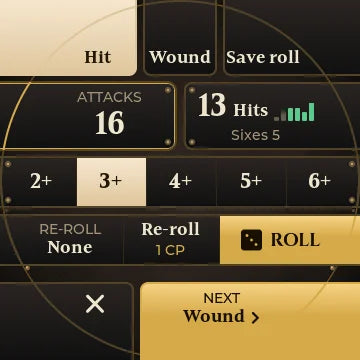
- Tap Attacks in Shooting or Fight. It opens at Hit.
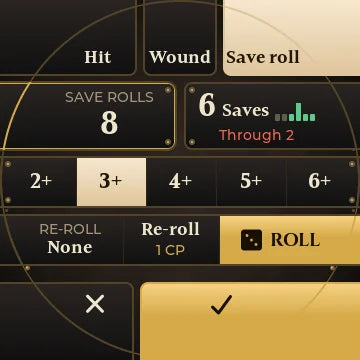
- Turn the dial for the number of dice, up to 60, and tap a target from 2+ to 6+.
- Tap ROLL. You see the successes, how many sixes, and a small chart of every face. A 1 always fails.
- Tap NEXT to carry the successes into Wound, then Save roll. On Save, the Dial shows how many got through.
- RE-ROLL cycles None, Ones and Fails, for abilities that let you re-roll. A die is never re-rolled twice.
- Re-roll · 1 CP is the Command Re-roll on one failed die, once per phase.
- In your opponent's turn, Save rolls opens at Save, and Overwatch opens at Hit on 6+.
- Tap ✕ to go back to the battle screen.
The Units page
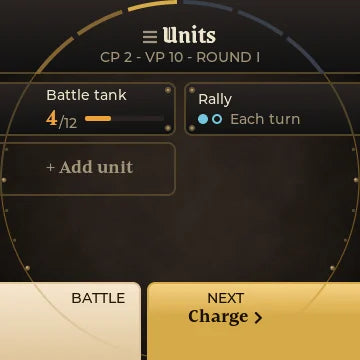
Turn on Units page in Extras, then tap UNITS on the battle screen (and BATTLE to go back). Track up to 6 units: the ones whose wounds or abilities you keep forgetting. Each army keeps its own Units page, and a new game starts them all at full strength.
| Tile | Tap | Hold |
|---|---|---|
| Wounds | Select it, then turn the dial | Edit the unit |
| Ability | Use one | Get one back (edit it when full) |
| + Add unit | Add a unit |
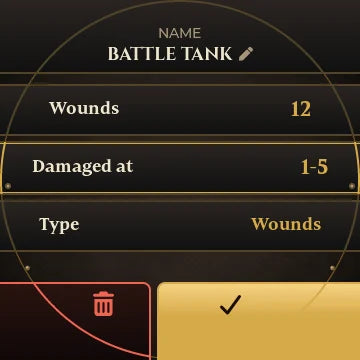
- Wounds units have 1 to 40 wounds. Set Damaged at to match the unit's damaged profile: the bar turns amber there, and the tile reads Destroyed at 0.
- Ability units have 1 to 3 uses that come back once a battle, each round or each turn.
- In Edit, tap the name to type your own, or hold it to cycle through general names like Battle tank, War strider and Squad. The bin removes the unit (tap again to confirm).
- With Reserves on, tap Arrived in your Movement step as each unit comes in. Any still in reserve at the end of round III count as destroyed, and the Dial tells you.
Playing together: one Dial or two
One Dial between two players
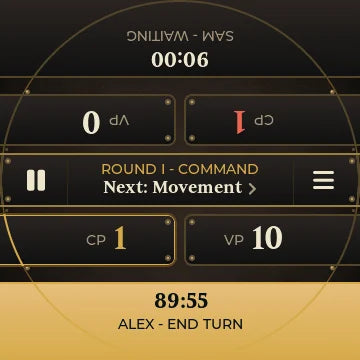
Only one Soul Dial at the table? Put it between you and choose Both of us on the New game screen. Each side picks a player and an army (or Guest).
- Your half. The first side has the near half and the other side the far half, upside down so it reads the right way from across the table. Each half has that player's CP (tap to spend 1, even in the other player's turn) and VP (tap, then turn the dial to score Primary; tap again for Secondary).
- Your clock. The band on the rim nearest each player shows their chess clock and lights up in their turn. Tap your band to end your turn. Both players gain 1 CP in every Command phase.
- The middle strip turns to face whoever is playing: pause the clocks, the round and step (tap for the next step, hold to go back), and the Menu, which turns into Undo just after a change.
- Both players' results are saved to their armies. The dice roller, Units page, Reserves, quick rolls and Tactical discards are only in Just me games.
Two Dials, linked
When both players have a Soul Dial, link them. Each Dial follows its own player.
- On Start, both players tap JOIN.
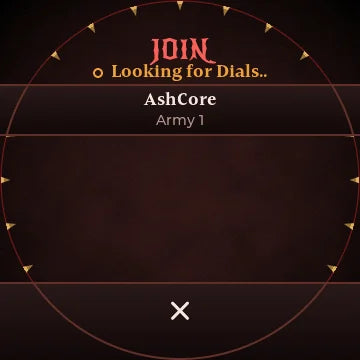
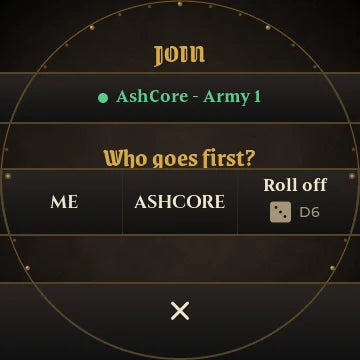
- Each Dial lists the Dials it finds, by name and army. On either Dial, tap the other one.
- When both say they're linked, tap who goes first, or Roll off, on either Dial. The game starts on both.
- Shared between the Dials: whose turn it is and the step, the round, who goes first, new game, end game and game over, plus your opponent's name, VP total and CP. End your turn and their Dial starts their Command phase, with its CP.
- Not shared: each Dial runs its own chess clock, and you see your opponent's VP total, not their score sheet.
- Undo only takes back your own changes.
- The link lasts while you play that opponent, including rematches. End game or Done on Game over unlinks both Dials. If a Dial restarts mid-game, they find each other again by themselves.
- While linked, the Menu's Opponent tile says Linked. Tap it to see the link or to leave it.
Menu, game over and settings
The Menu
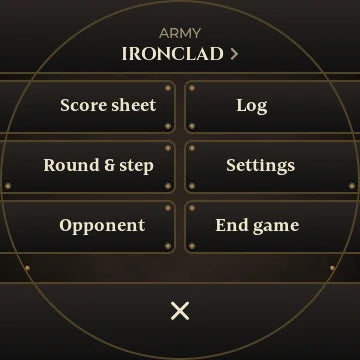
Tap the top bar of the battle screen. The top of the Menu shows your army and opens the Army screen.
| Tile | What it does |
|---|---|
| Score sheet | Every round's primary and secondary. Tap a box and turn the dial to fix it. |
| Log | The last 40 events, newest first. |
| Round & step | Put the round, whose turn it is and the step right. |
| Settings | See below. |
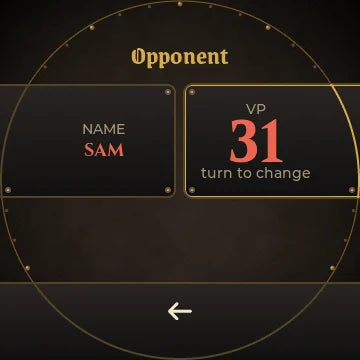
| Opponent | Their name, and their VP on the dial. With their Dial linked, both come from it. |
| End game | Stop early: tap, then tap again within 3 seconds. A game with play in it is recorded as abandoned. |
Game over and your record
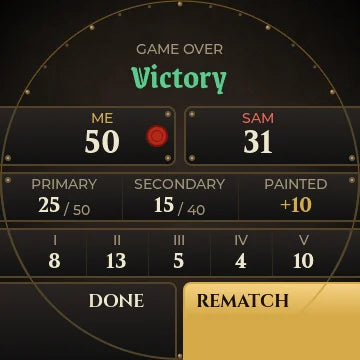
After round V the Dial calls it: Victory, Defeat or Draw, both scores, your primary, secondary and painted VP, and each round's total. Tap a round to fix the score sheet. REMATCH sets up the next game with the same players; DONE goes back to Start.
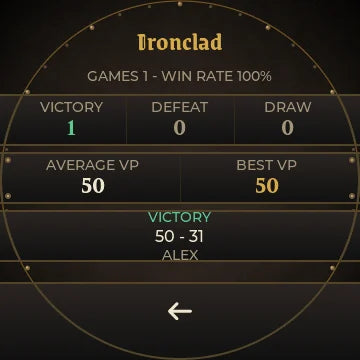
Every finished game goes into the army's record: open the Army screen and tap Games for victories, defeats and draws, win rate, average and best VP, and the last three games. Games ended early count as abandoned, not as losses.
Settings and themes
Open Settings from the gear on Start, or Menu → Settings.
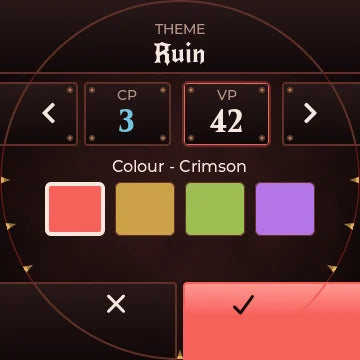
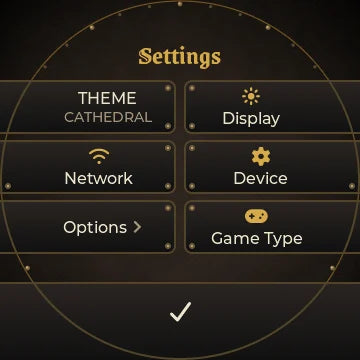
- THEME: six themes (Cathedral, Scrapyard, Tomb, Wraithbone, Ruin, Hive) with four colours each, plus Plain. Turn the dial or tap ‹ › to preview, tap a colour, then ✓ to keep it or ✕ to cancel. Each army keeps its own theme.
- Display, Network and Device: the Dial's own settings.
- Options: Units page, Reserves, Opponent, Chess clock and Painted +10. More sets the edge margin (moves everything in from the rim), the chess clock's minutes and how many units start in reserve.
- Game Type: switch back to a card game or D&D. That ends the game in progress; your players, armies and options stay for next time.
40K questions
Does it know my army's rules or points?
No. The Dial tracks the numbers that change during a battle: rounds, CP, VP, dice and up to 6 key units. Your army list, datasheets, stratagems and mission cards stay with you. You choose the dice and the target number.
Which edition does it follow?
The current 10th edition flow: five battle rounds, 1 CP for each player in every Command phase, a limit of 1 extra CP per round, and primary and secondary VP capped at 50 and 40.
We only have one Dial. Can we both use it?
Yes. Choose Both of us on the New game screen and put the Dial between you. See Playing together.
The other Dial doesn't show up in JOIN.
Both Dials need to be on the JOIN screen at the same time, close together. Make sure both are in 40K mode and up to date. If it still doesn't appear, tap ✕ on both and try again.
I forgot to tap Next. How do I fix it?
Hold NEXT to go back a step, or set the round, turn and step in Menu → Round & step.
Will I lose my game if the Dial turns off?
No. A game in progress, your players, armies and records are saved on the Dial and survive restarts and updates. A factory reset erases them.
Playgroups & cloud
Connect your Dial to Playgroup.gg or Mythic Tools to record Magic games with your playgroup, and to Soul Dial Cloud for your game history online.
Playgroup.gg and Mythic Tools
These integrations are for Magic: The Gathering.
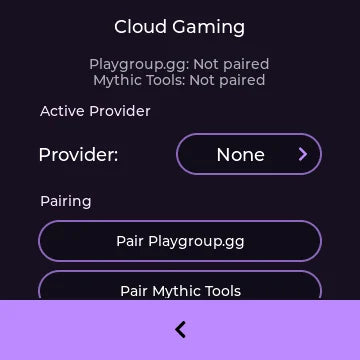
- Connect to Wi-Fi, then go to Settings → Connectivity → Cloud Gaming.
- Tap Pair Playgroup.gg or Pair Mythic Tools and scan the code with your phone.
- Set Provider to the service you use.
- Tap Download Playgroups & Players so your players and decks are available offline. Up to 128 players and decks are stored on the Dial.
- When you start a game, pick the playgroup first, then each seat's player and deck. Cloud players show a cloud icon.
- Friends' Decks also lists your friends' decks in Seat Setup.
- Games can upload live as you play, or once when the game ends.
Soul Dial Cloud
Link your Dial to your online dashboard to explore game history and stats, and to create your own game modes for the Library.
- Go to Settings → Connectivity → Soul Dial Cloud.
- Tap Register / Link Device and scan the code with your phone. Sign in with Google, or enter your email.
- Use View Online Dashboard to open your dashboard on your phone.
Game History Sync Level controls how much game history is uploaded. Sync Now uploads finished games straight away. The game you're playing stays on the Dial until it's finished.
Your table, live on stream
Show life totals, counters and turns on Twitch, YouTube or a recording. Connect your Soul Dials to your PC and manage them together in one app.
Download Stream Mirror for Windows
For Windows 10/11, 64-bit. Download and open the app. No account or installation needed.
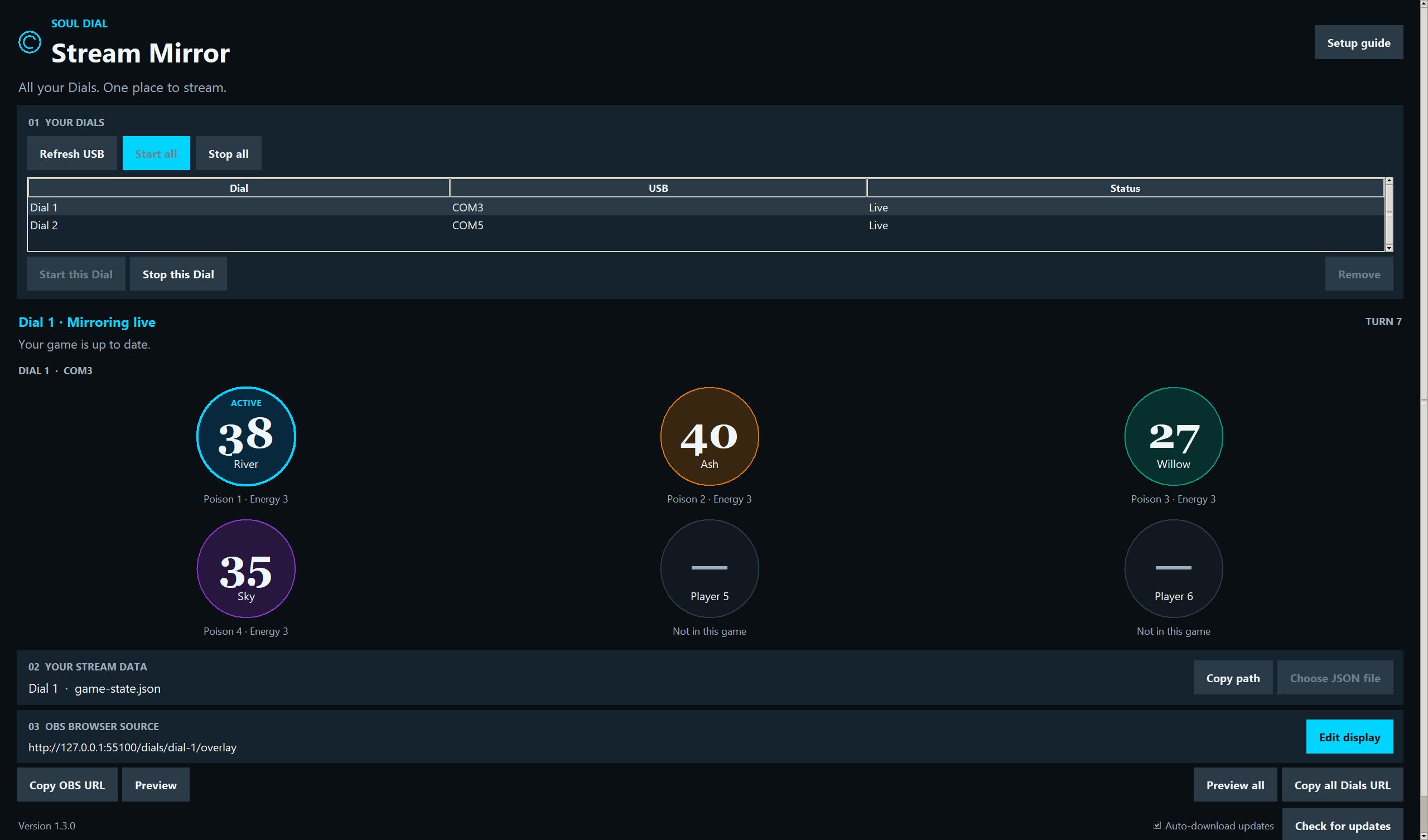
- Connect your Dials. Plug each into your PC with a USB data cable. Close other apps using them. Open Stream Mirror, click Refresh USB, then Start all. To start just one, choose it in the list and click Start this Dial.
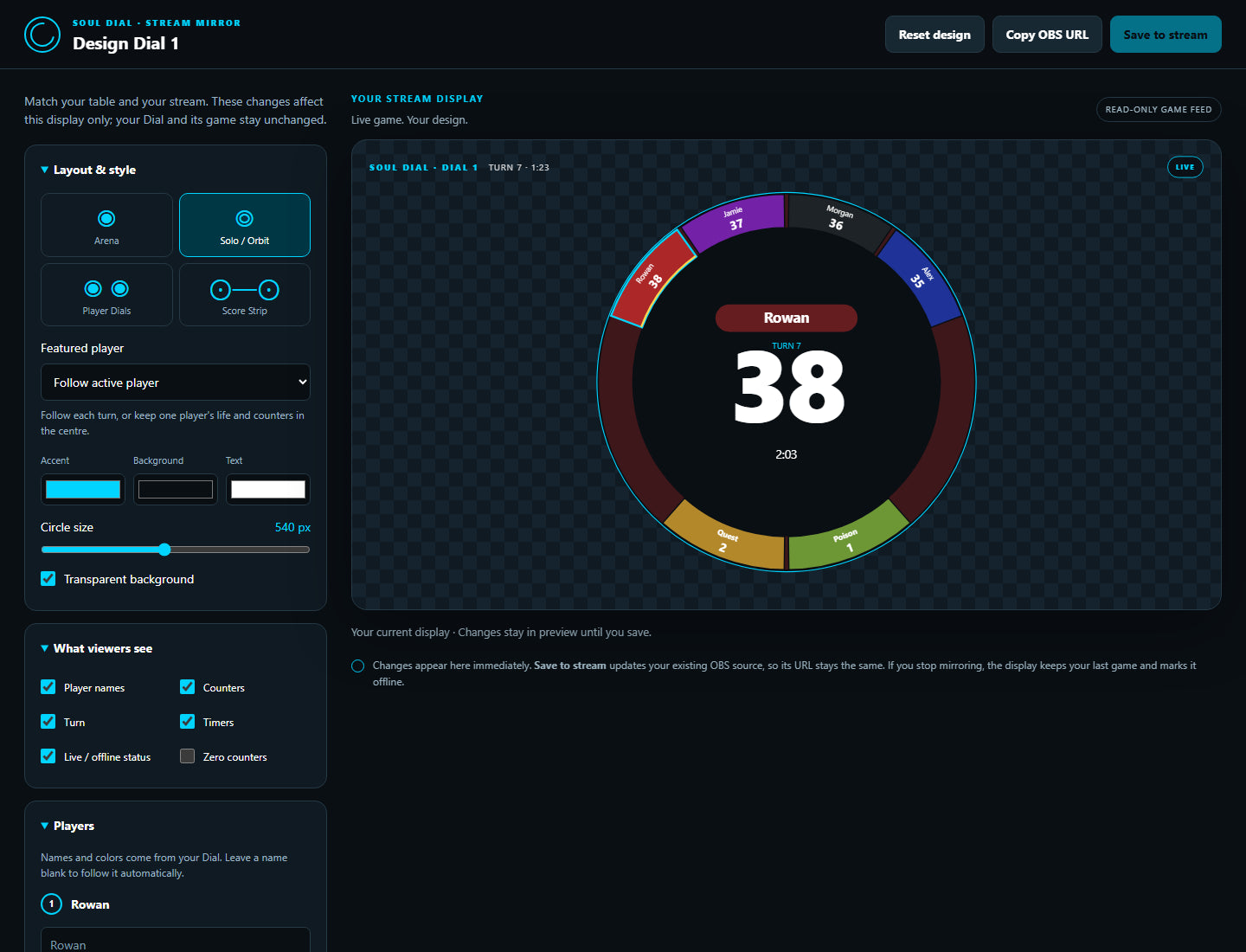
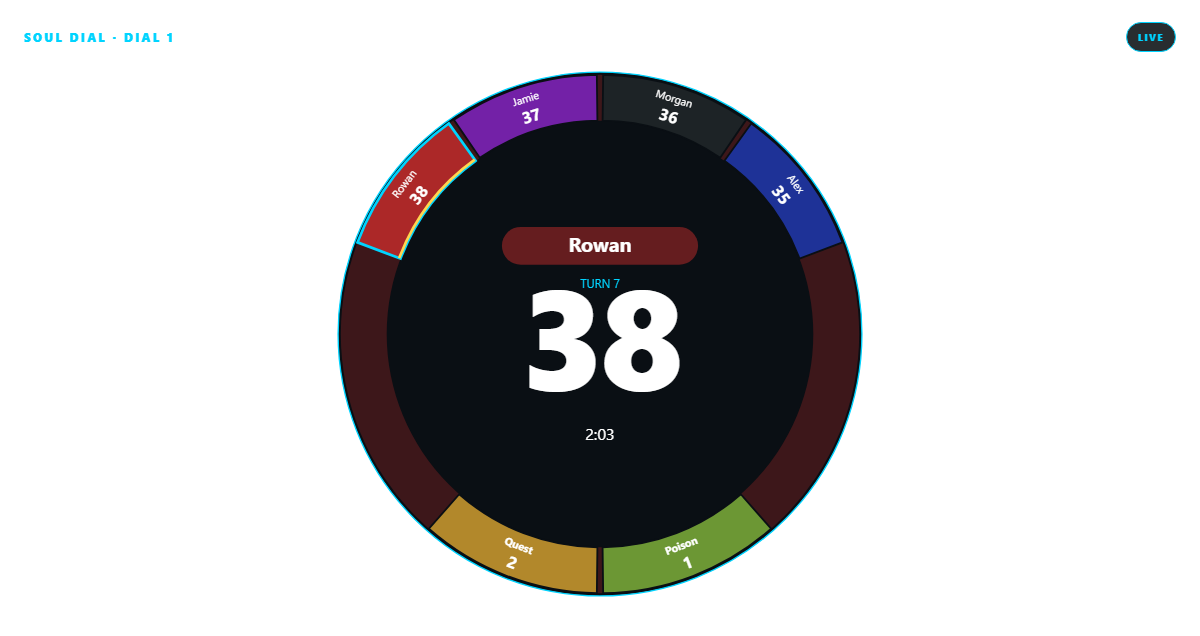
- Make it yours. Select a Dial and click Edit display. Choose Arena, Solo / Orbit, Player Dials or a compact Strip. Solo / Orbit shows one player's large life total and counters; choose Follow active player or feature a fixed player. Change colours, names and visible counters, then click Save to stream. Each Dial remembers its own design.
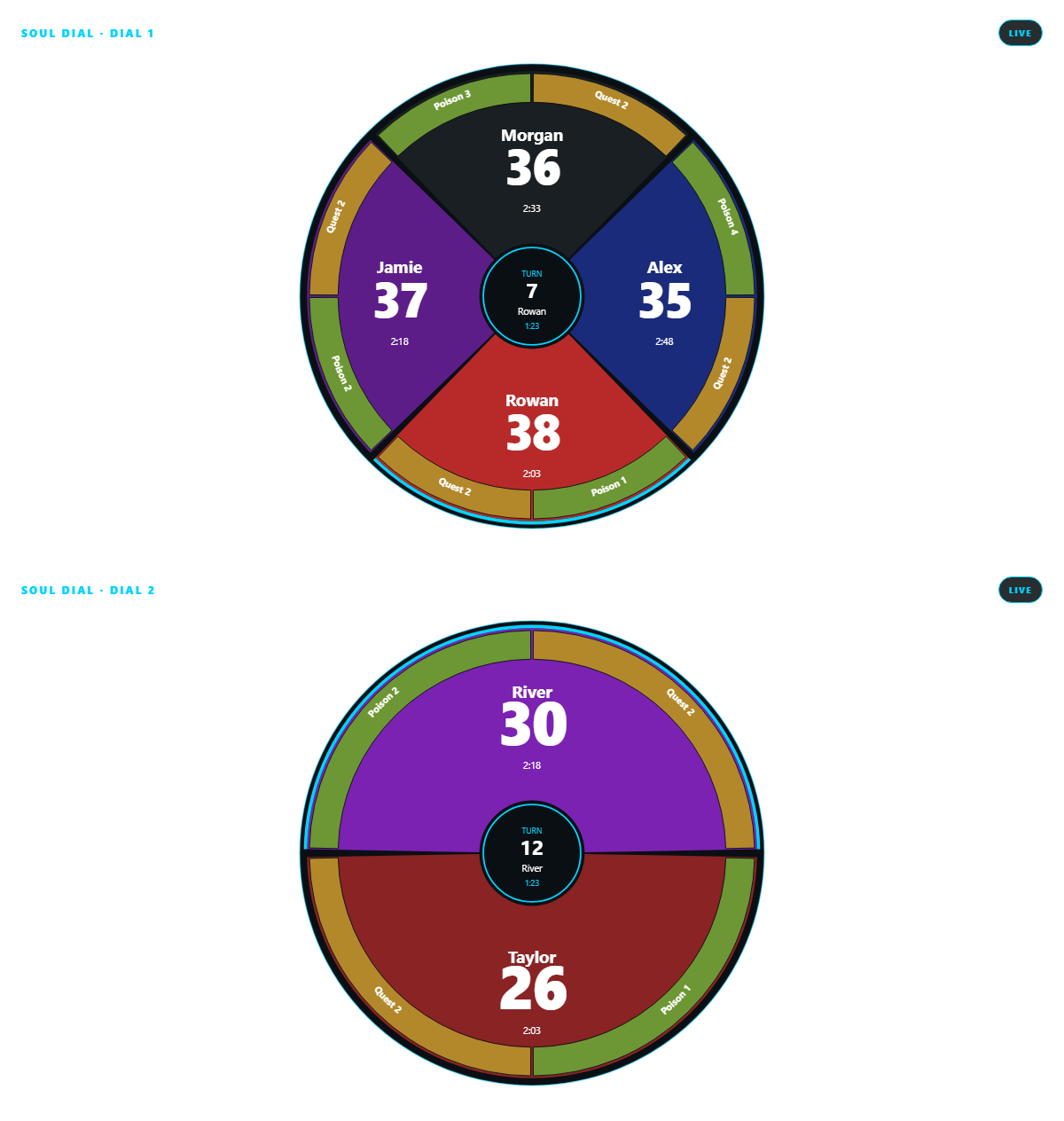
- Add it to your stream. Click Copy OBS URL for one Dial, or Copy all Dials URL to show them together. In OBS Studio, add a Browser source and paste the URL. Start with 1200 × 650 for one Dial or 1200 × 1300 for two; make it taller if needed. Keep Stream Mirror open.
- Play as usual. Life totals, counters and turns update as you play. Player and counter names come from your Dial, including names such as Poison and your custom labels. If the connection stops, the display lets you know.
Using several Dials
Each Dial has its own preview, display and data file. Choose any Dial in the list to see its game. You can stop one without stopping the others, or click Stop all to pause everything.
If several Dials have joined the same wireless game, they may show the same players. Connect just one from that game if you only want it shown once.
App updates & privacy
The app downloads updates when you open it. When you're ready, click Stop all, then Restart to update. Turn off Auto-download updates if you'd rather check yourself. Use the Soul Dial updater to update the Dials themselves.
Your game stays on your PC. Player and counter names appear on stream; you can change or hide them in Edit display. These display changes don't change the game on your Dial, and don't need a firmware update on a compatible Dial. Choose any files before sharing your desktop, as file windows may show your folder names.
If something does not connect
Check that your cable supports data, close other apps using the Dial and click Refresh USB. If Stream Mirror asks you to update your Dial, use the Soul Dial updater, then try again. If the live display won't open, close any other copy of Stream Mirror and reopen the app.
Making your own display?
Select a Dial, then click Copy path to find its live game-data file for your own overlays and other tools.
Software updates
Updates add games and features and fix bugs. They're free and install over Wi-Fi.
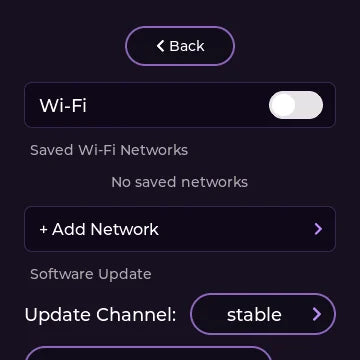
- Connect to Wi-Fi: Settings → Connectivity → Wi-Fi, turn Wi-Fi on, tap + Add Network, pick your network and enter the password.
- Tap Check for Update on the same page.
- If an update is found, tap Install Update and keep the Dial on until it restarts.
- When your Dial finds an update on its own, a button appears at the top right of the home screen.
- Update Channel: stable for everyone, beta to try new features early.
- Leave any wireless game before updating. Every Dial in a wireless game should run the same version.
- No Wi-Fi? Use the web updater at updater.souldial.net on a computer, with a USB-C cable.
Settings reference
Open Settings from the gear on home or from the game menu. Each tile opens a page. Turn the dial or drag to scroll.
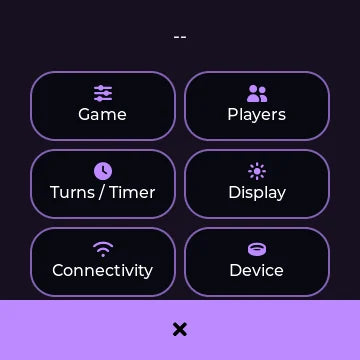

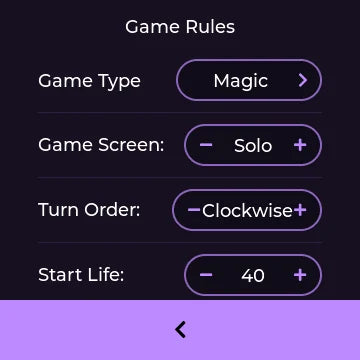
Game
| Setting | What it does |
|---|---|
| Game Type | Change the game and its rule preset. |
| Game Screen | Solo or Arena. |
| Turn Order | Clockwise or Reverse. |
| Start Life | Starting life or score for new games. |
| Clicks/Point | How many dial clicks make one point (1 to 12). Raise it if the dial feels too fast. |
| Start In | Open to the home screen (Launcher) or straight into the Game when turned on. |
| Flip Numbers | Turns each player's numbers to face their seat. |
| Auto-KO | Knocks a player out at 0 life or at a house-rule limit. |
| Auto Win | Declares the winner automatically. |
| Commander Life | Commander damage also lowers life. |
| Drag Attack: Cmdr | Arena attacks start as commander damage. |
| Cmdr Kill / Poison Kill | House rules: knockout at this much commander damage (21) or poison (10). |
| Cmdr Shown | Show commander damage on the Target or the Source player. |
| Reset Game | Starts the current game over. |
Players
| Setting | What it does |
|---|---|
| Players | Number of players, 1 to 6. |
| Edit Active Players | Name, color and partner commander for each player. |
| Player Library | Saved players. |
| Setup Decks | The Deck Library. |
Turns / Timer
| Setting | What it does |
|---|---|
| Turn Tracking | Counts turns and moves the active player. Turn off to just track life. |
| Turn Timer | Shows the timer. When on, set its Duration and Mode. |
| Collar Quick Pause | In Arena, the ring around the center pauses the timer instead of ending the turn. |
| Manual First Turn | Timed games start paused until you start turn 1. |
| Alert Buzz | Vibration pattern when time runs out, on Dials with haptics. |
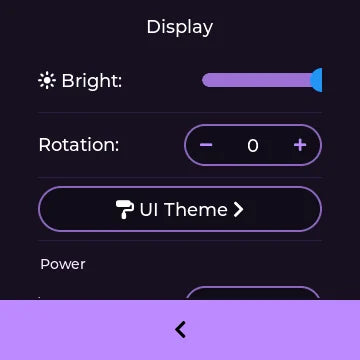
Display
| Setting | What it does |
|---|---|
| Bright | Screen brightness. |
| Rotation | Rotates the whole screen in quarter turns. |
| UI Theme | Accent, background and text colors. |
| Dim After | Dims the screen after this long without use (2 minutes by default). |
| Dim Bright | Brightness when dimmed. |
| Screen Off | Turns the screen off after this long (5 minutes by default). |
| First Tap Wakes Screen | The first tap only wakes the screen, so it can't change a life total by accident. |
| Animations | Normal, Fast or off. |
| Show +/- | Shows the − / + buttons and Arena tap zones. |
| Arena Select Timeout | Clears the selected Arena player after this long. |
| Life Needs Select | In Arena, a player must be selected before their life can change. |
| Undo Popup | Shows the undo pill after each change. |
| Touch Calibration | Improves touch accuracy. Includes a Draw Touch Test. |
Connectivity
| Page | What's there |
|---|---|
| Wireless Sync | Open Game Lobby, connection status, View Only, Protect Owned and seat recovery for the host. |
| Wi-Fi | Wi-Fi on/off, saved networks, Add Network, Update Channel, Check for Update. |
| Cloud Gaming | Playgroup.gg and Mythic Tools pairing, Provider, Friends' Decks, Download Playgroups & Players. |
| Soul Dial Cloud | Register / Link Device, View Online Dashboard, Game History Sync Level, Sync Now. |
Device
| Setting | What it does |
|---|---|
| Version | Software version and build date. |
| Language | English, Deutsch, Español, Français, Italiano, Nederlands, Português or 日本語. Changes straight away. |
| Device Name | The name other Dials see in lobbies. |
| Setup Wizard | Runs first-time setup again. |
| Startup Pin | Asks for a 4-digit PIN when the Dial turns on. |
| Owner Message | A short message on the lock screen, like your name or contact details. |
| Encoder Source | Leave on Auto. |
| Encoder Direction | Normal or reversed, if the dial feels backwards. |
| Haptic Feedback | Vibration strength, on Dials with haptics. |
| Factory Reset | Erases settings and profiles. Tap it twice to confirm. |
Battery & power
- On/off: slide the switch on the side.
- Charging: plug a USB-C cable into the Dial. There's no separate charging light: a message appears on screen when it starts charging. You can keep playing while it charges.
- Battery level: battery information, including an estimate of time remaining, is shown in Settings and the game menu. When the battery runs low, a warning icon appears in the center of the game screen.
- Saving power: the screen dims after 2 minutes and turns off after 5 by default. Change this under Settings → Display → Power. Maximum brightness, especially outdoors, drains the battery faster. Keeping the software up to date also helps, as updates often improve battery life.
- Waking up: tap the screen or turn the dial. Your game is exactly where you left it.
Timers & mini-games
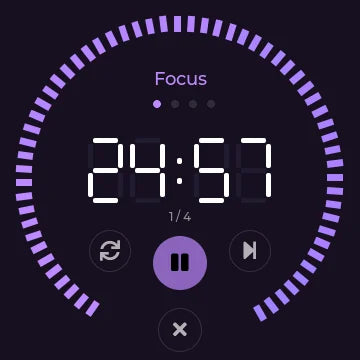
Pomodoro. A focus timer in Settings. Turn the dial to set the focus time (25 minutes to start), then tap play. It runs four focus sessions with short breaks between them, then a long break.
Mini-games. Snake, Pong and Brick Breaker are in Settings, played with the dial. Each keeps a high score.
Dice. The same 3D dice tray from the game menu is also a Settings tile.
Buying & orders
Where can I buy Soul Dial?
Order directly from our store: Shop Soul Dial.
Can I choose the colors in a 4-pack?
Yes. Choose the colors on the product page. If the selection doesn't look right, contact us and we'll adjust it for you.
Is there a discount for buying 4 or more?
Yes. Orders of 4 or more Soul Dials get 10% off.
Do you offer wholesale for game stores?
Yes. Local game stores and WPN stores can apply at souldial.net/pages/lgs-signup.
Can I change the payment method on an existing order?
Shopify doesn't let us change the payment method on an order. We can cancel it so you can reorder with your preferred card. Contact us to arrange it.
Troubleshooting
Most problems have a quick fix. Start here.
Touches land in the wrong place
Go to Settings → Display → Touch Calibration and tap Start Calibration. Touch the center and eight edge points, then pass five checks. Nothing is saved unless the checks pass. Use Draw Touch Test to confirm: lines should follow your finger.
The dial changes numbers the wrong way
Go to Settings → Device → Encoder Direction and switch it between Normal and reversed.
The dial changes life too fast
Raise Settings → Game → Clicks/Point so it takes more clicks to change one point.
The screen is sideways or upside down
Change Settings → Display → Rotation one step at a time until it's upright.
Life won't change in Arena
Life Needs Select may be on. Tap the player's life total first, then turn the dial. You can turn it off in Settings → Display.
The screen dims or turns off too quickly
Increase Dim After and Screen Off in Settings → Display → Power.
I can't find or join a wireless game
- Make sure the host has tapped New Lobby and the lobby is still open.
- Check the room code matches exactly (0–9 and A–F).
- Bring the Dials closer together.
- If you see Update Required to join game, update every Dial to the same version.
- Tap Cancel, then join again.
"Only the host can change game setup while joined"
In a wireless game, the host controls the game type, rules and player count. Ask the host to make the change, or leave the game first.
Wi-Fi won't connect
- Wrong Wi-Fi password. Enter it again. Check capitals and symbols.
- Could not authenticate. Check the password or move closer. Move nearer the router and try again.
- Having trouble? Try a 2.4 GHz network or a phone hotspot.
- Open networks and WPA3 networks are supported.
An update failed, or says "Something blocked the update"
- Turn off Wireless Sync (Settings → Connectivity → Wireless Sync), turn the Dial off and on, then try again.
- Make sure the Dial is charged and on Wi-Fi, then tap Check for Update again.
- If you see Wi-Fi module update failed (or "Coprocessor update failed" on older software), try once more.
- Still stuck? Use the manual updater on a PC or Mac at updater.souldial.net with a USB-C cable.
One Dial isn't staying in sync with the others
Update every Dial. If one still lags or drops out, switch that Dial to the beta Update Channel in Settings → Connectivity → Wi-Fi, install the beta and test again.
My battery runs down quickly
Update your Soul Dial first, as recent software improves battery life. Then lower the brightness, especially outdoors, and check the dim and screen-off times in Settings → Display → Power.
I can see light around the edge of the screen
A small amount of light bleed is normal. The screen uses a backlight behind a black film layer. Recent software rotates the display 90 degrees to make it less noticeable.
The glass or screen is lifting
Please contact us with clear photos showing whether the screen itself is lifting or whether it's coming up with the base plate. We'll help with the next step.
I'm locked out and it asks for a PIN or master PIN
Email us the code shown on the Dial and we'll generate an unlock PIN. Once you're in, turn off the startup PIN and update the software.
I want to start completely fresh
Go to Settings → Device → Factory Reset and tap it twice. This erases settings and saved players and decks.
Frequently asked questions
Do I need Wi-Fi to play?
No. Games, counters, dice, timers, D&D and wireless multiplayer all work without Wi-Fi. You need Wi-Fi for software updates, the Game Type Library, Scryfall search and cloud services.
How many people can play?
Up to 6 players per game. In a wireless game, up to 6 Dials can play together.
Can Soul Dial handle 5 or 6 players?
Yes. One Soul Dial supports up to 6 players. With 5 or 6, the Arena layout gets more compact, but everything still works.
Can I hit several opponents at once?
Yes. In Arena, drag from the attacking player to the center to target several players. You can also start a player-to-player drag and change the targets on the Attack screen.
Which way should the dial turn?
Clockwise increases numbers and counterclockwise decreases them. If yours works the other way, update the software, or flip Settings → Device → Encoder Direction.
Is there a charging light?
No. A message appears on screen when you plug it in, and battery information is in Settings and the game menu.
What is the screen made of?
The touchscreen and the screen protector are both glass.
Do wireless games need an internet connection?
No. Dials connect directly to each other. Just keep them near each other on the table.
Which games does it support?
Magic: The Gathering, Yu-Gi-Oh!, Disney Lorcana, Riftbound, Flesh and Blood, Star Wars: Unlimited, Sorcery, Palworld TCG, One Piece TCG and D&D. There's also a Custom score mode and 90+ more game modes in the Game Type Library.
What's the difference between Solo and Arena?
Solo shows one player at a time in big numbers, which works well with one Dial per player. Arena shows everyone around the circle, so one Dial in the middle of the table runs the whole game.
How do I undo a mistake?
Tap the undo pill that appears after each change. Past changes are also listed in the game's log under Past Games.
How do I pick who goes first?
New games ask you to pick or spin for the first player. Mid-game, open the game menu and tap the green arrows.
Will I lose my game if the Dial turns off?
No. Turn it back on and tap RESUME on the home screen.
Can I change the colors?
Yes. Pick a theme during setup, or set your own accent, background and text colors in Settings → Display → UI Theme. In D&D, each character has its own leather and trim.
What languages are available?
English, German, Spanish, French, Italian, Dutch, Portuguese and Japanese. Change it in Settings → Device → Language.
Can I make my own game mode?
Yes. For a simple score game, use Custom. For a full game mode with its own counters and win conditions, build it on your Soul Dial Cloud dashboard and share it to the Library.
Can I lock my Dial?
Set a Startup Pin in Settings → Device, and add an Owner Message so a lost Dial can find its way home.
How do I update my Dial?
Settings → Connectivity → Wi-Fi → Check for Update. See Software updates.
Does the Dial work with Playgroup.gg or Mythic Tools?
Yes, for Magic games. Pair it under Settings → Connectivity → Cloud Gaming. See Playgroups & cloud.
We're here for you
If you have issues, questions or suggestions, please reach out. Share your game nights by tagging @the_soul_dial and using #souldial.