Soul Dial — Getting Started
Walk through initial setup, configuring your first game, and everything in between. This guide follows a traditional 4-player Magic: The Gathering commander game.
First-Time Setup
Name your device Motion
A randomized device name is given to you on first boot. You can regenerate a new name, or type your own by clicking Edit.
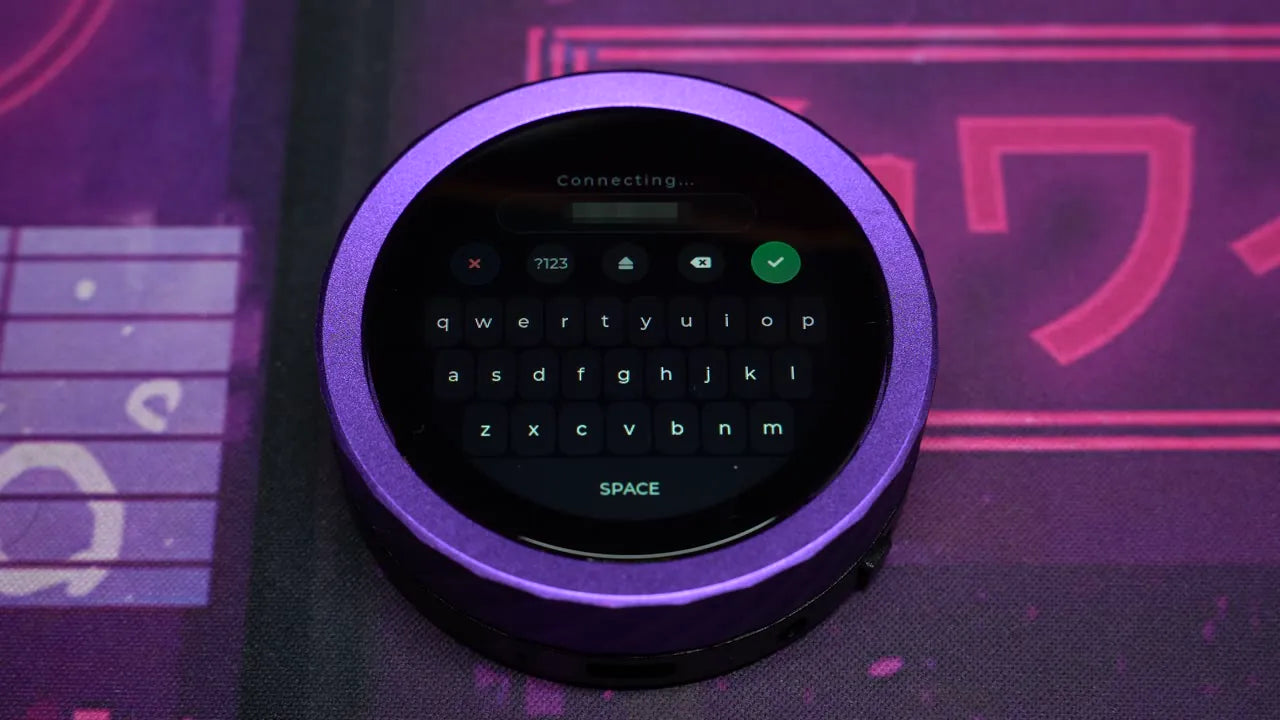
Connect to Wi-Fi & register
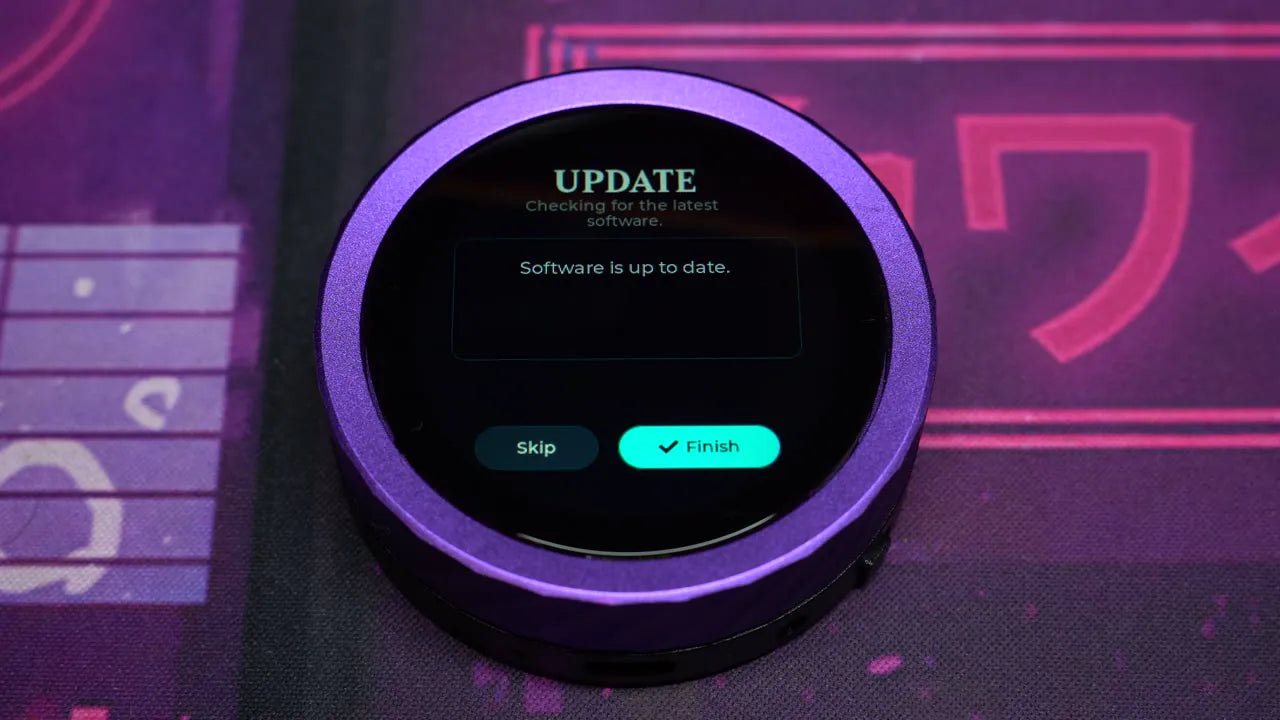
While it isn't required to operate, we strongly advise logging into Wi-Fi to check for updates — the team regularly pushes hardware optimizations and new functionality. Don't forget to register your device, too.
Starting a New Game
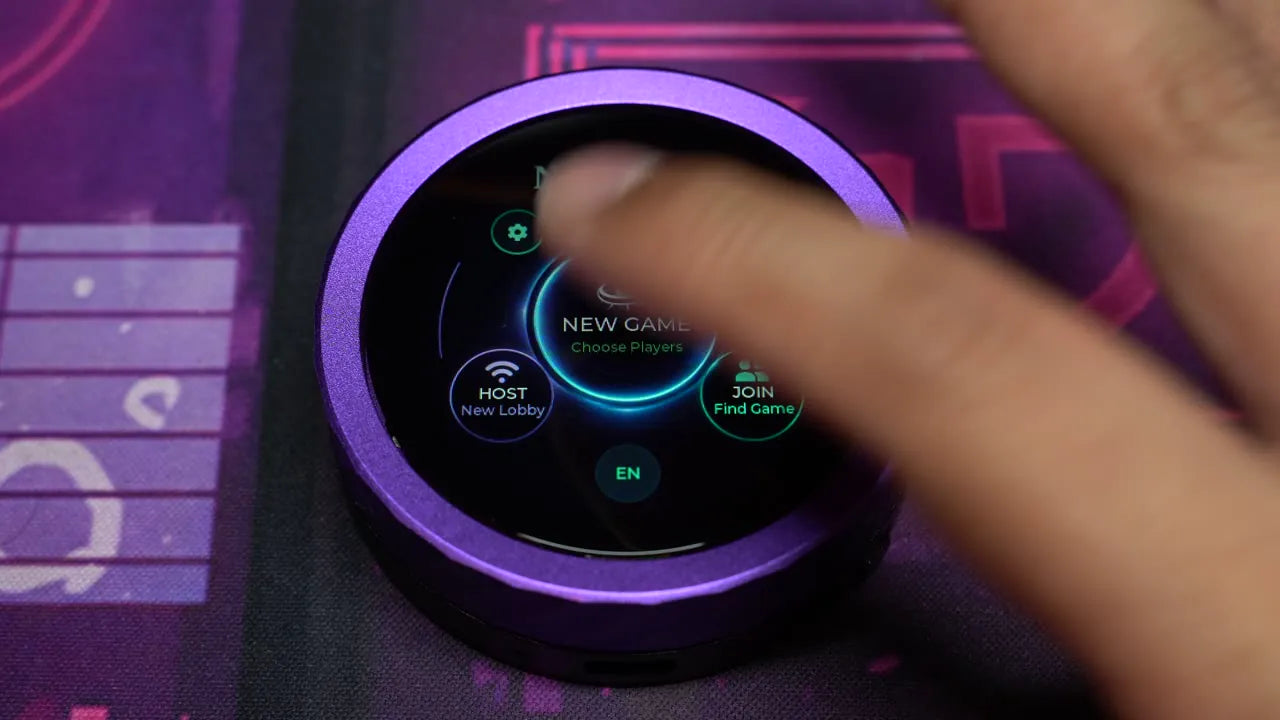
Click New Game
From the home screen, select New Game to begin.
Set your player count
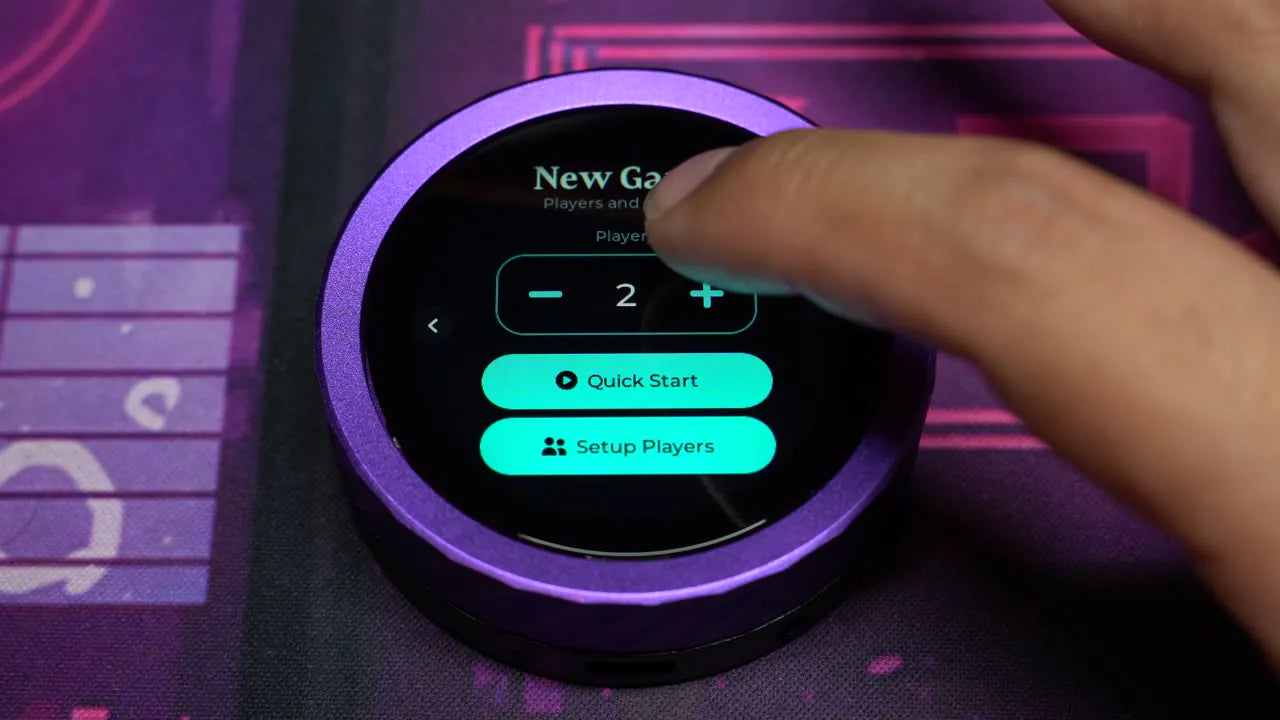
The player count starts at 1. Change it to a traditional 4-player commander game. You can jump in with Quick Start, but we'll click Set Up Players to configure everyone.
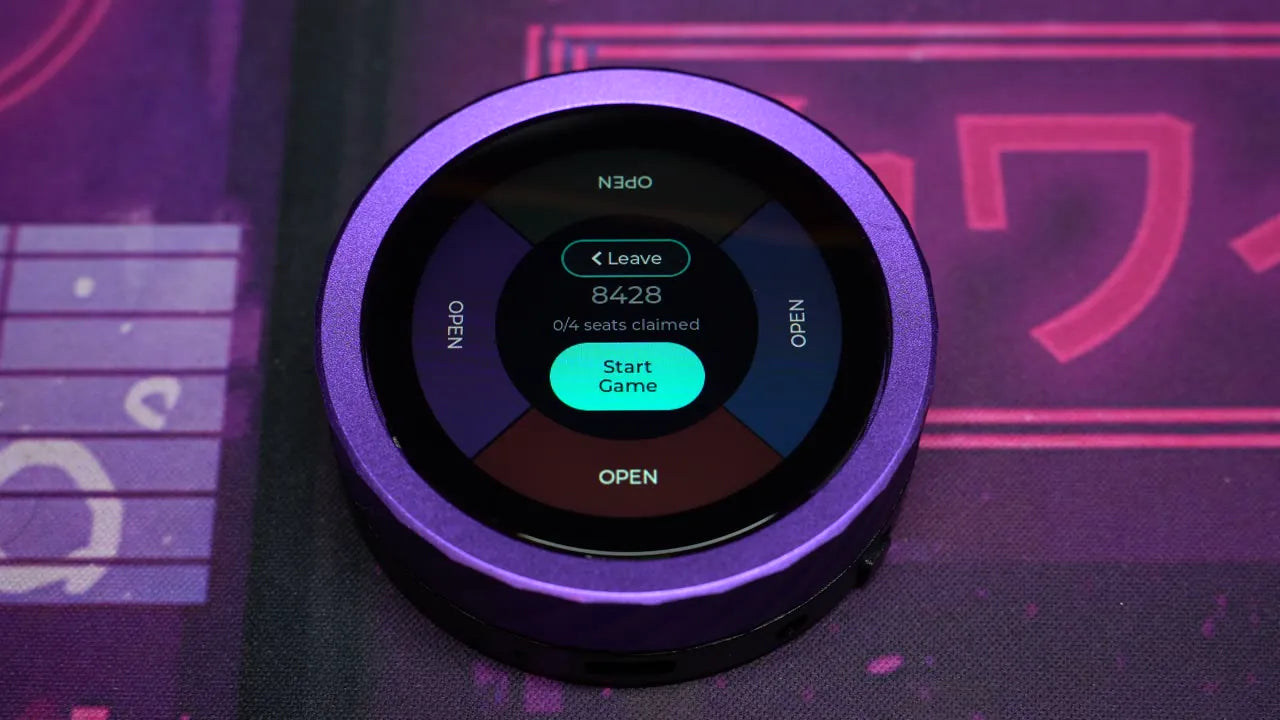
Configuring Players
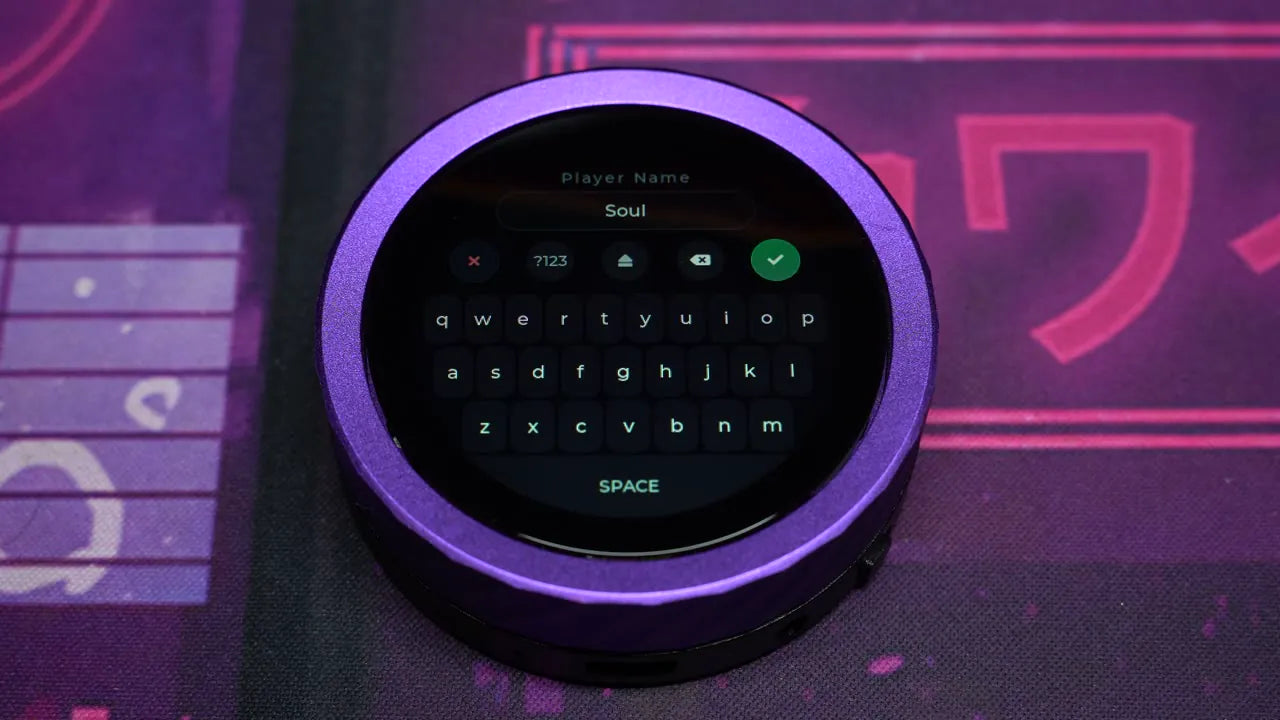
Step 1 — Choose a name
Default to Player 1, or type a custom name using the onscreen keyboard.
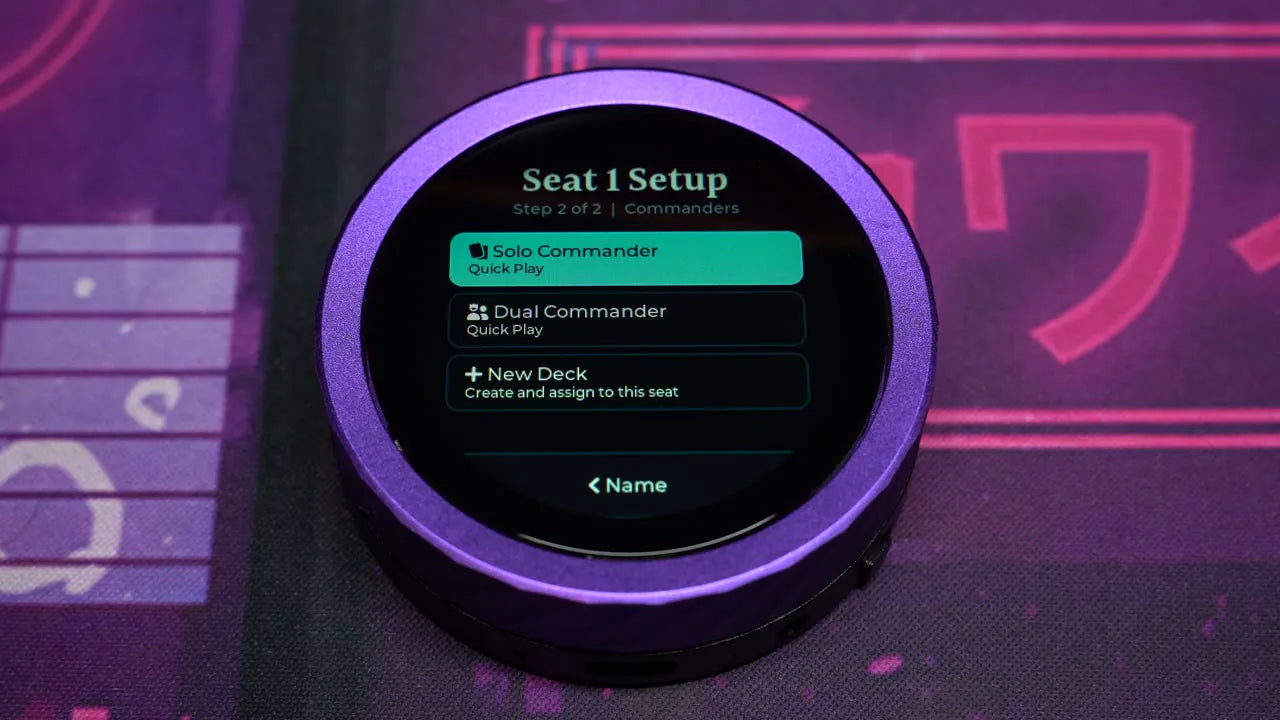
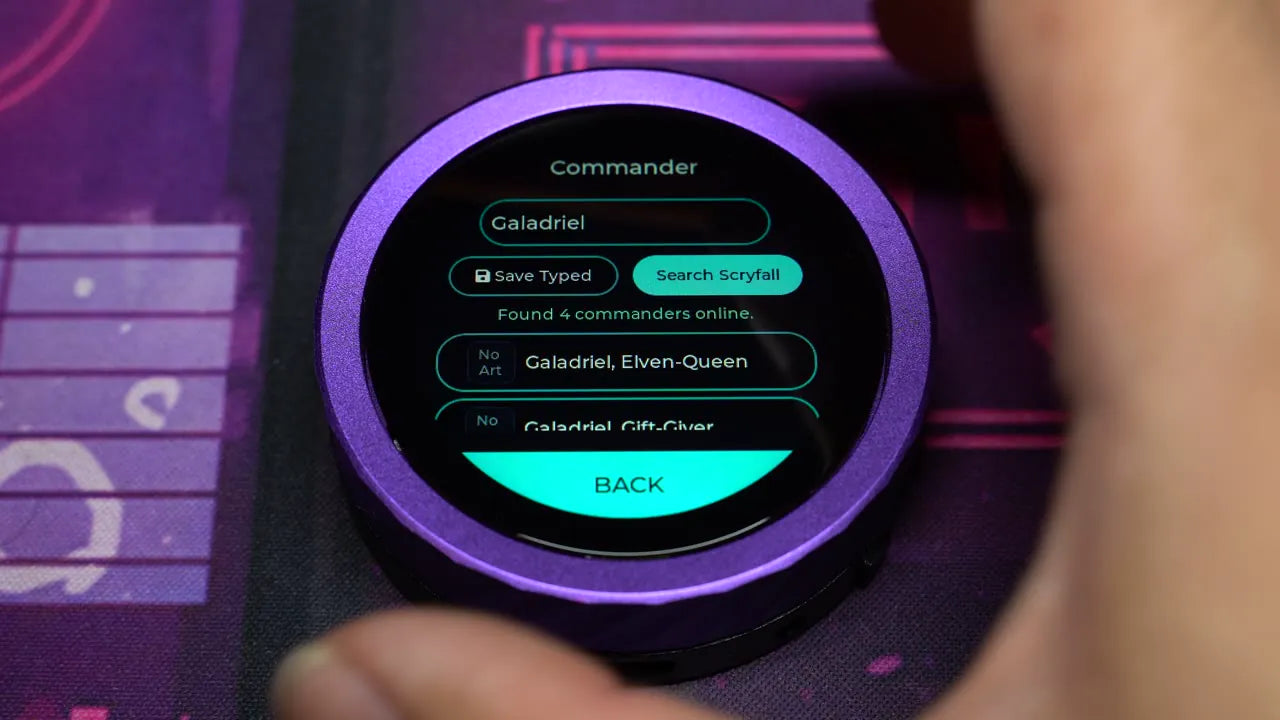
Step 2 — Assign a commander
Pick a Quick Play Solo or Dual Commander — or configure a new deck. Tap Edit Name, then Search Skyfall to find your commander. If multiple results appear, scroll to find the exact card, then click Save Deck.
Customize seat color Motion
Click a player wedge for more options — delete settings, or tap the droplet icon to change the seat color. Touch the slider at the top or rotate the dial, then fine-tune with the gradient box or pick a default on either side.
Starting the Game
Choose who goes first Motion
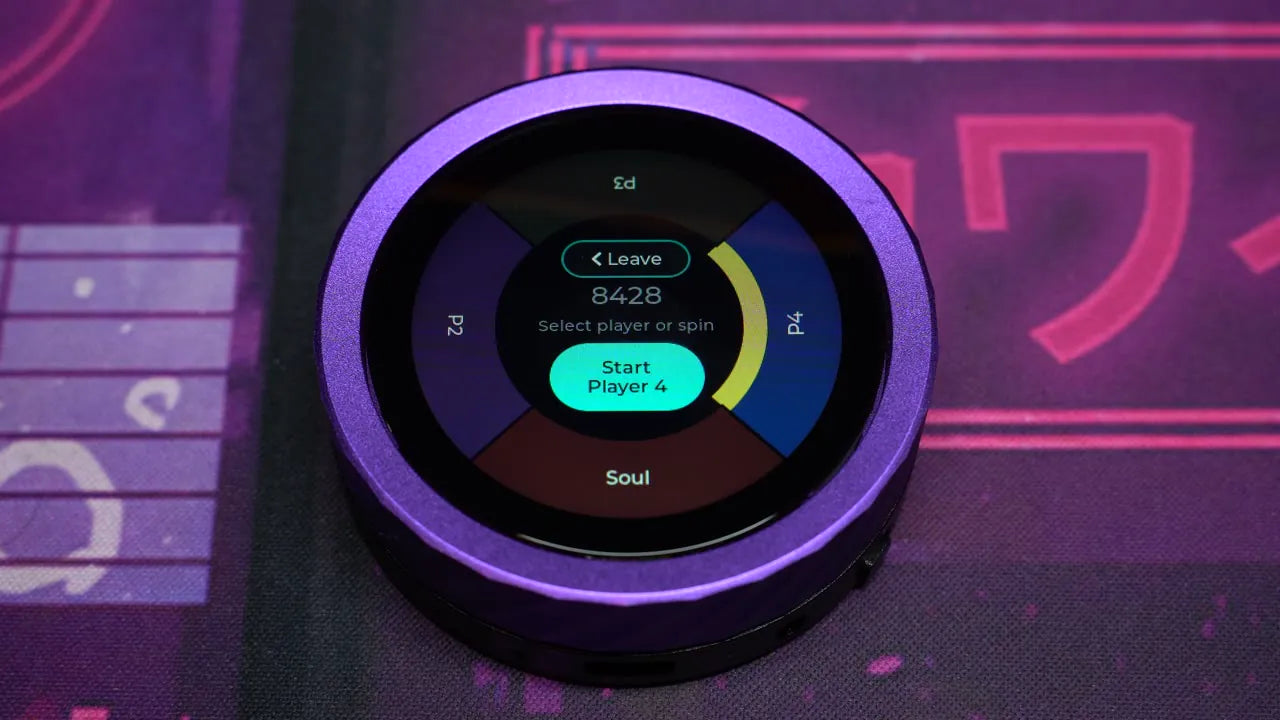
Once satisfied, click Start Game. Select a player to go first, or spin the Randomize button. If you're not happy with the result, you can still pick someone else.
Begin play
When you're ready, select the Start button in the center.
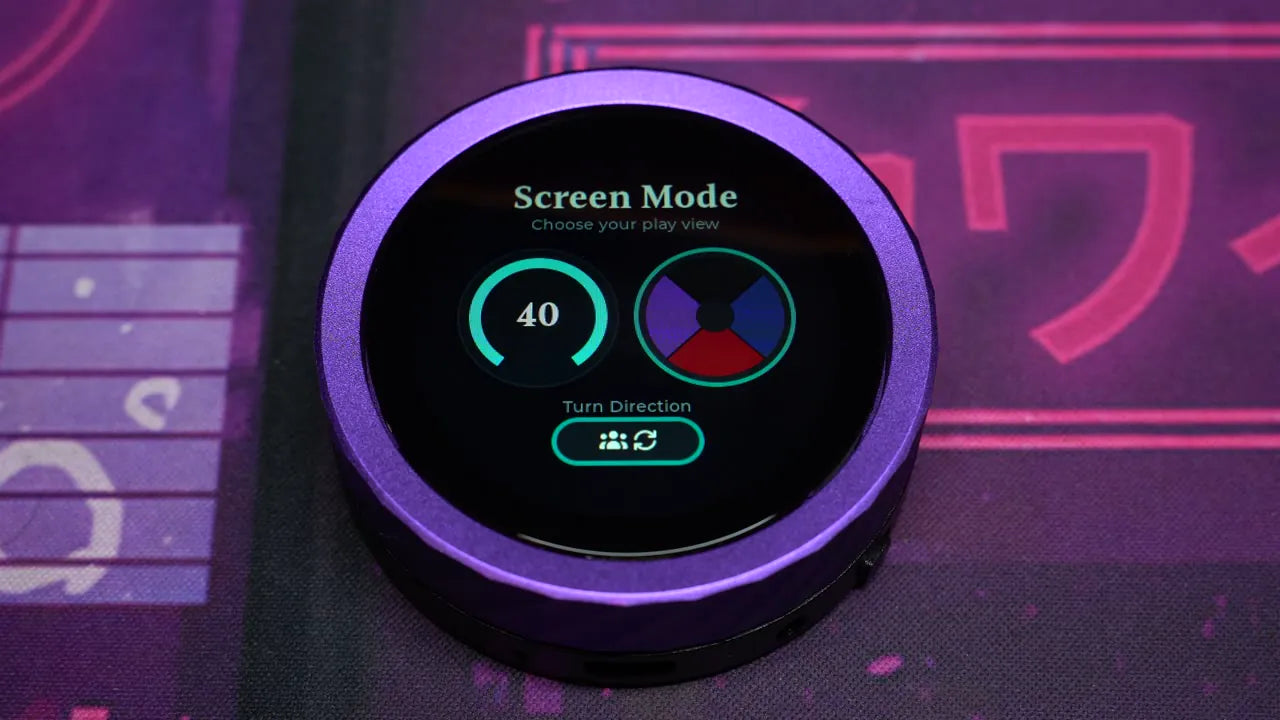
Arena Mode
Solo vs. Arena
Main mode offers two options: Solo on the left and Arena on the right. We'll start with Arena.
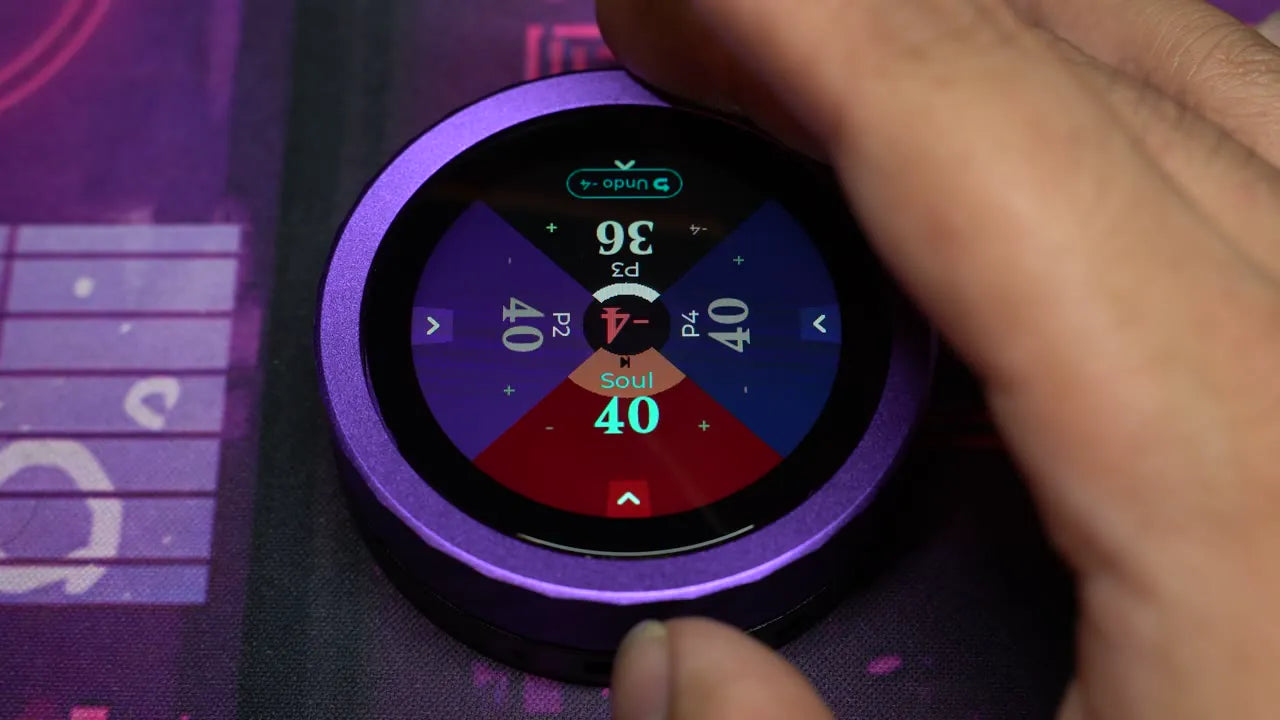
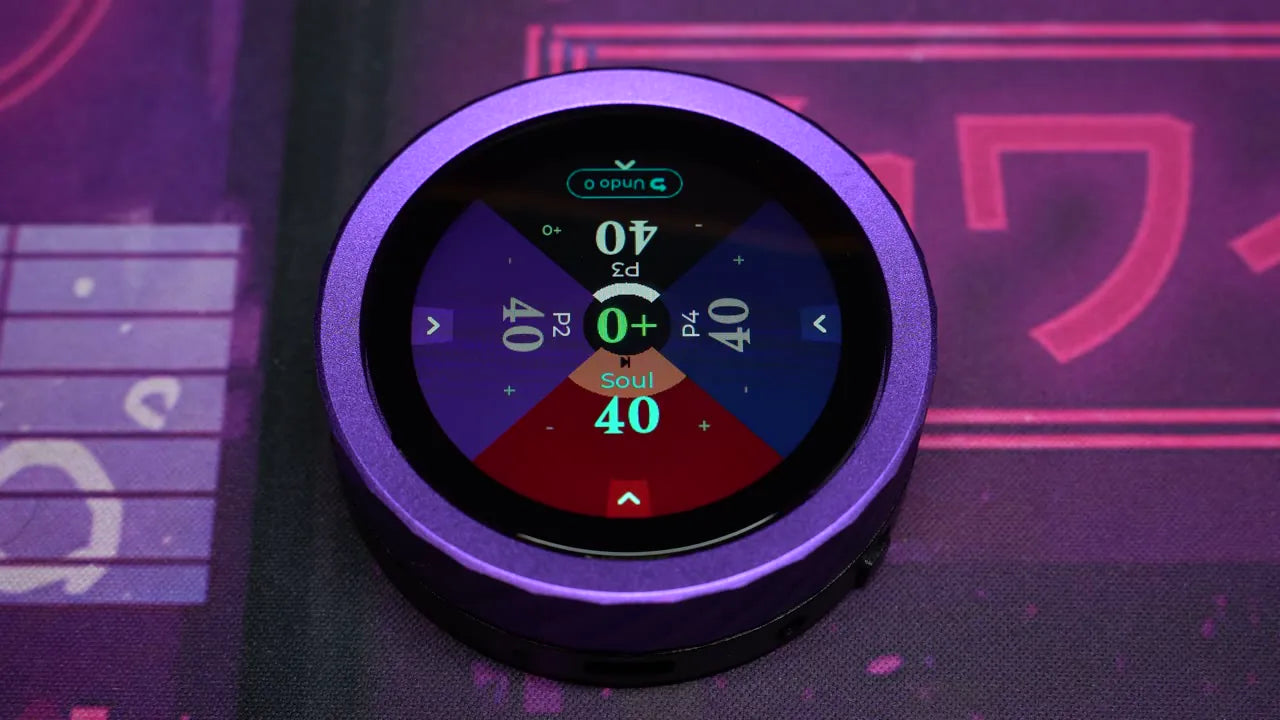
Adjust life totals
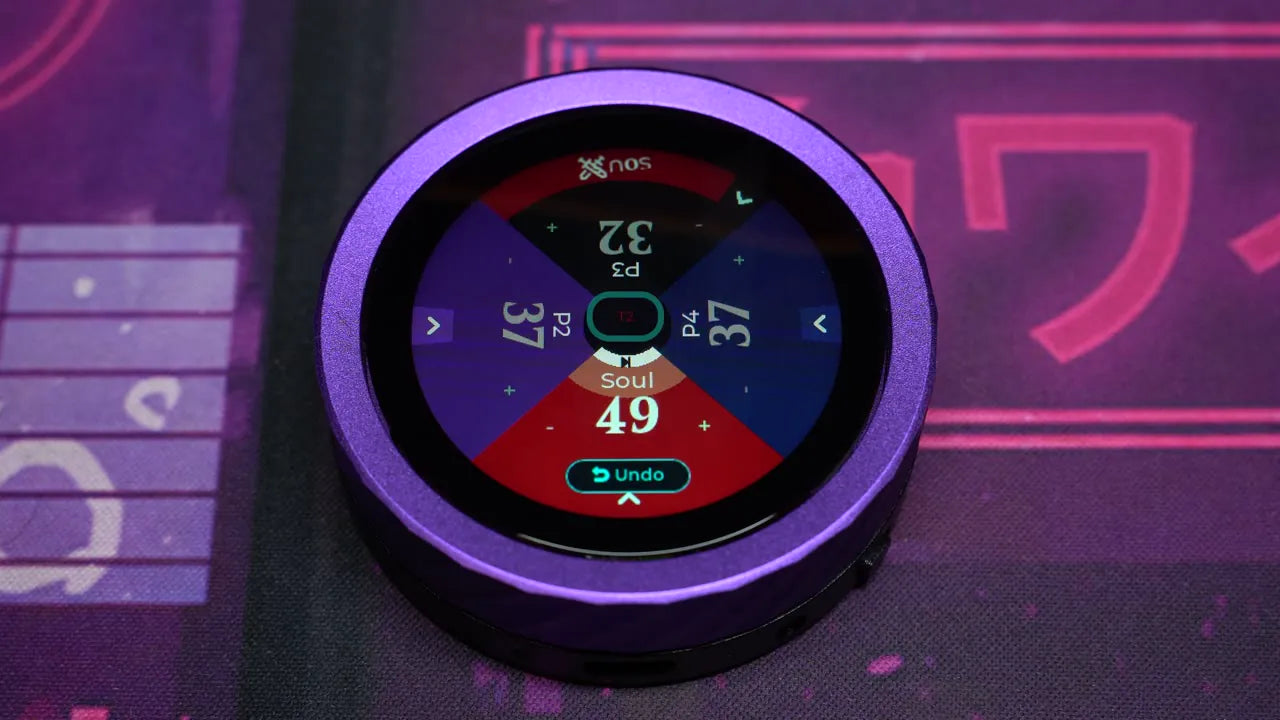
Tap another player's wedge to raise or lower their life total using the on-screen minus/plus buttons or the dial. When it's your turn and you've selected another player's wedge, their name and life text turn teal instead of white.
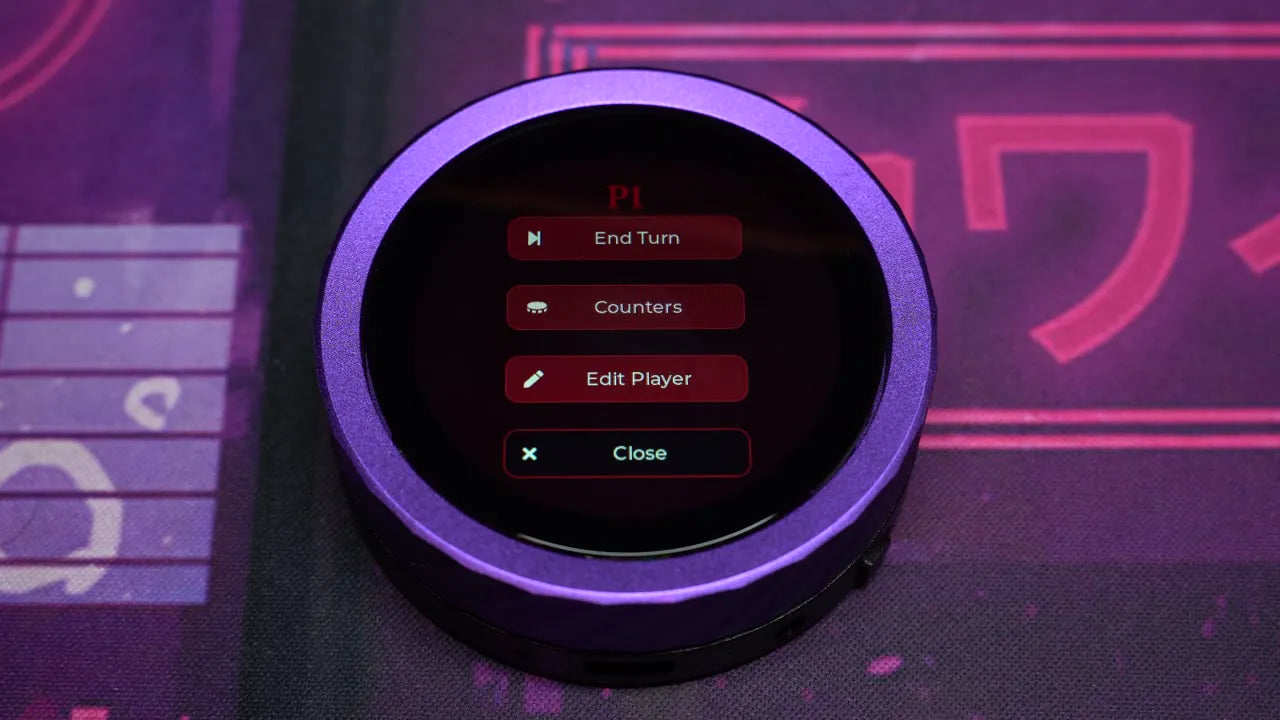
Player options menu
Hold down on any player wedge for a few seconds to bring up its options menu.
Counters & Attacks
Open the counters menu
Click the white arrow at the bottom of any player wedge to open the counters menu. Scroll with your finger or rotate the dial to view different options. Certain counters, like the monitor, can be dragged from player to player.


Attack another player Motion
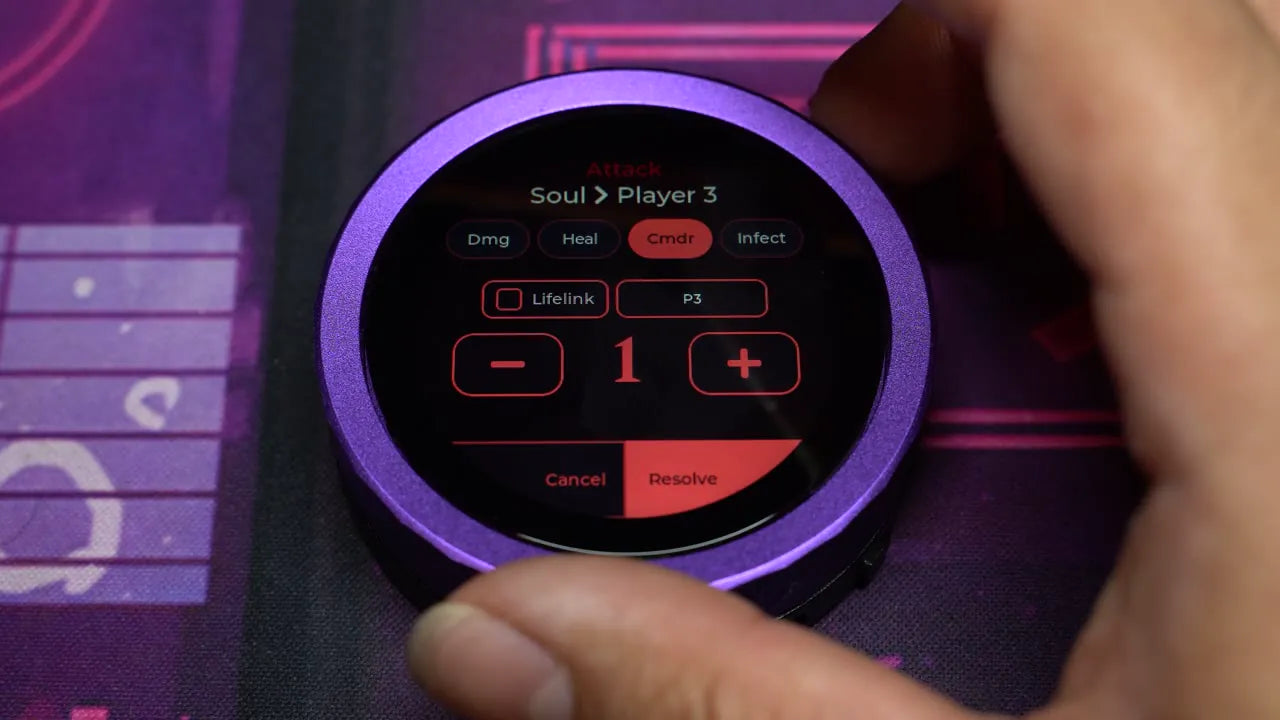
Drag from one wedge to another to bring up the attack screen. Here we deal 5 commander damage to Player 3. To hit multiple players at once, open the target menu and toggle all damaged opponents. You can also toggle lifelink from here.

Advance the turn
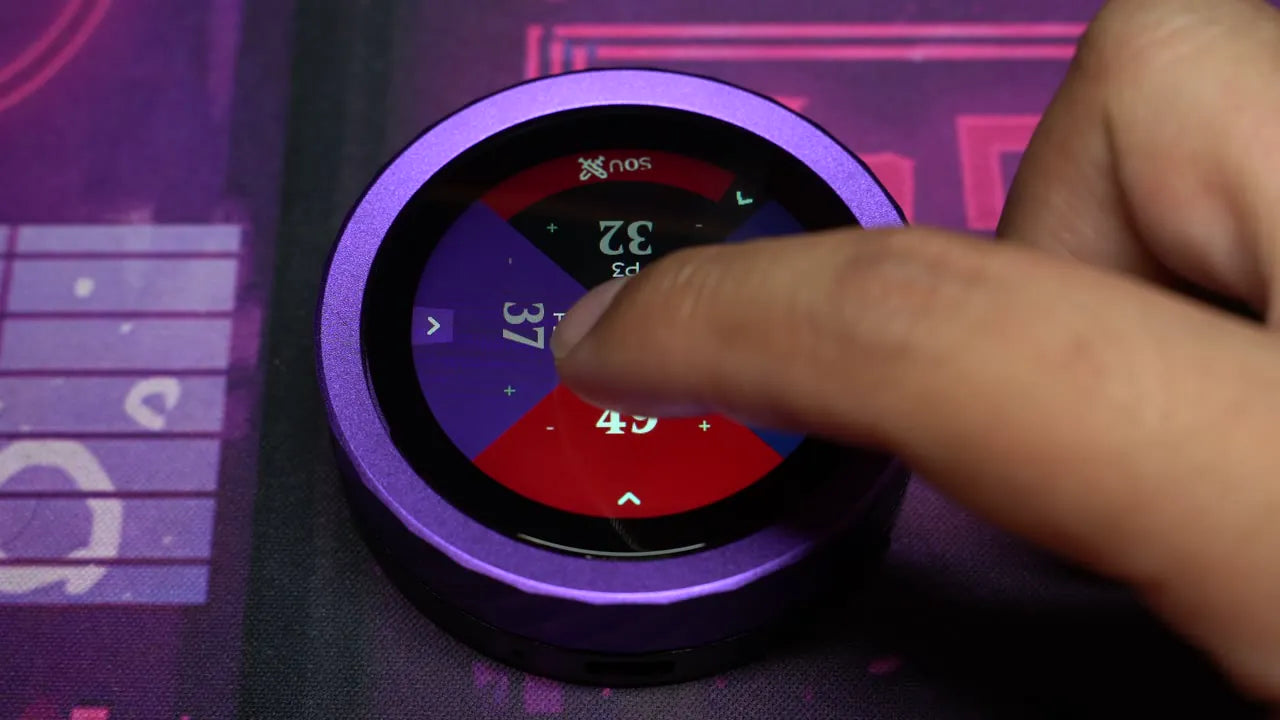
Select the white collar at the top of a player wedge to advance the turn. Once every player has taken their turn, the turn counter in the center goes up.
In-Game Options
Open the options menu
Tap the center of the arena screen to bring up the options menu. Here you can see your battery life and whether wireless sync is enabled.
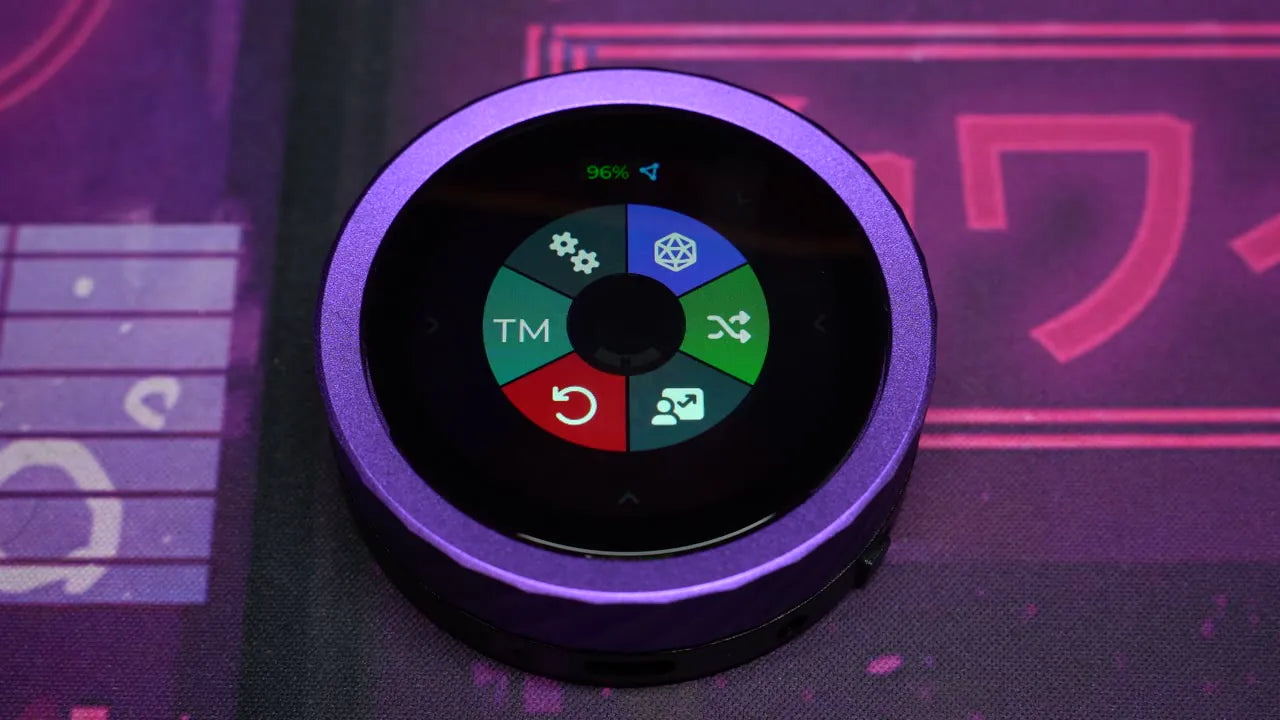
Dice & analytics Motion
Select the D20 icon for a dice-rolling menu. The analytics icon brings up past game history, current game duration, and an action log with charting.
System settings & battery
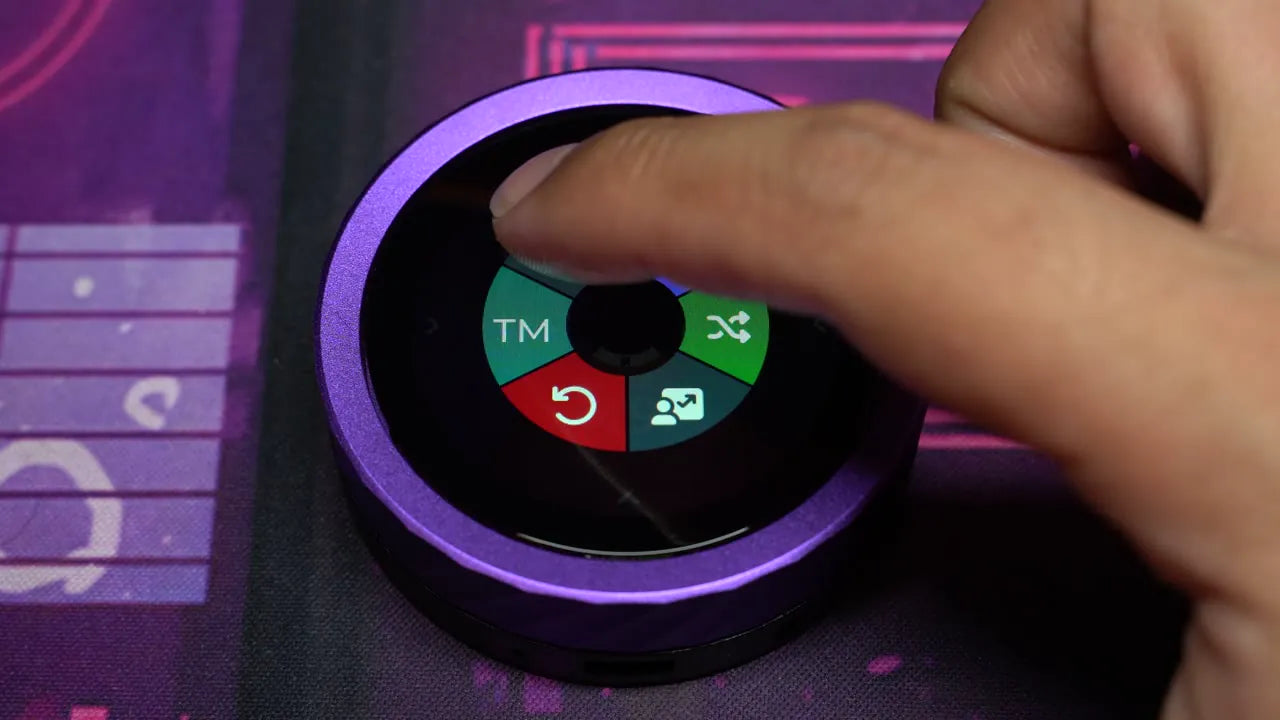
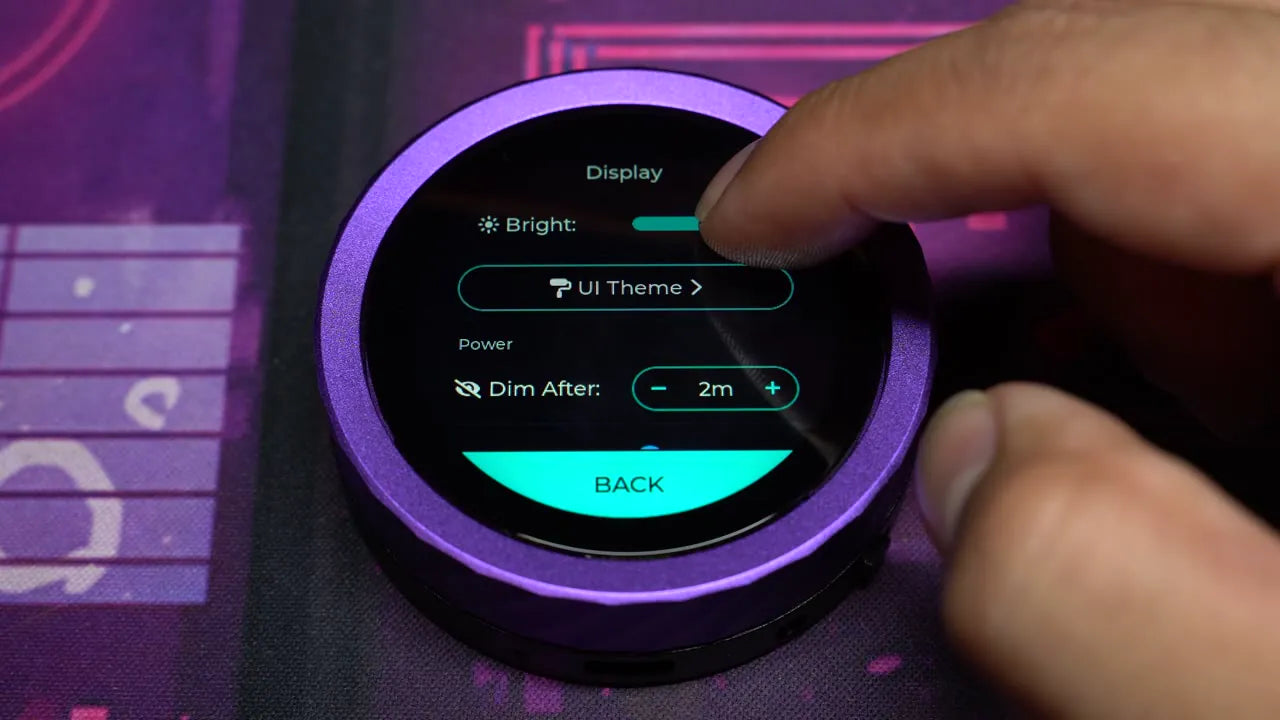
Click the gear icon for system settings — no need to close your active game. Scroll or rotate the dial to browse. Turn off wireless sync when you're not connected to other devices, and lower brightness or adjust the screen's dim-after setting to save battery.
Solo Layout
The solo view Motion
Open the counters menu by tapping the plus sign on either the left or right side of the screen. Just like in Arena, you can drag from a player wedge to an enemy wedge to open the attack menu. The highlight of solo view is the much larger next player button.